
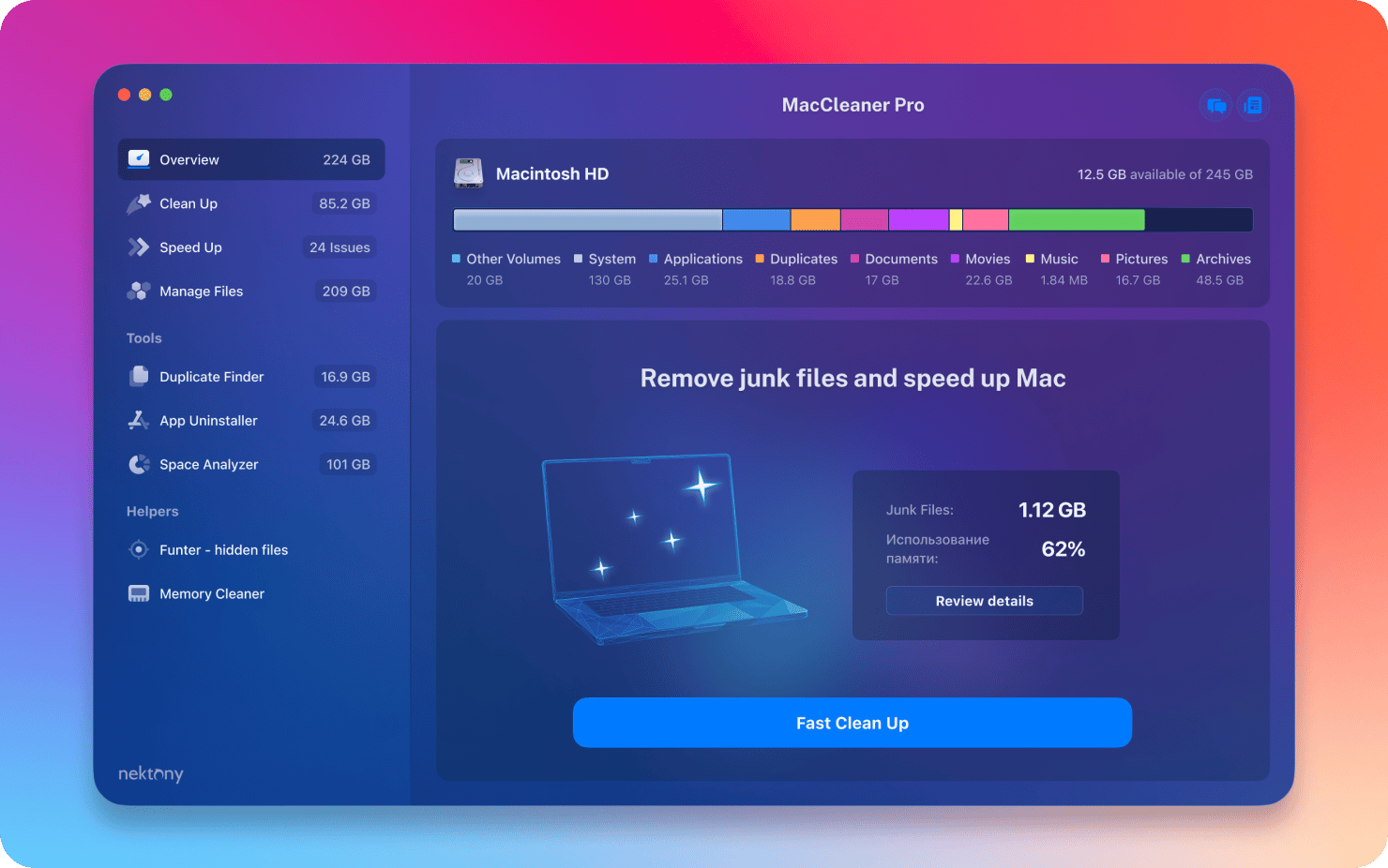
MacCleaner Pro is a professional Mac cleaning tool suite software,Keep your Mac fast、clean and orderly,Helps you see what's taking up the most space on your Mac,Unnecessary files found,and reclaim hard drive space。It can clean junk files in one click、Optimize RAM、Manage extensions and fix issues,Make your Mac run faster。MacCleaner Pro is packed with features,For example cleaning invalid RAM memory、Disable startup programs、Reindex Spotlight and Mail、Remove unnecessary plugins and extensions、Close memory-intensive apps、clear cache、Delete installation files and unnecessary localization files, etc.。also,MacCleaner Pro also offers several additional tools,Such as App Cleaner & Uninstaller、Duplicate File Finder和Disk Space Analyzer,Help you perform deep cleaning。MacCleaner Pro user feedback is positive,Recommended by many users。
statement:All articles on this site,If there is no special instructions or markings,All are originally published by this site。any person or organization,Without the consent of this website,Reproduction prohibited、Misappropriate、collection、Publish content from this site to any website、Books and other media platforms。If the content on this site infringes upon the legitimate rights and interests of the original author,You can contact us for processing。
Can free downloads or VIP membership resources be used directly for commercial use?
The copyright of all resources on this site belongs to the original author,The resources provided here are for reference and study purposes only.,Please do not use it directly for commercial use。If copyright disputes arise due to commercial use,All responsibility lies with the user。For more instructions, please refer to VIP introduction。
It prompts that the download is complete but cannot be decompressed or opened?
The most common situation is an incomplete download: You can compare the capacity of the downloaded compressed package with the capacity on the network disk,If it is less than the capacity prompted by the network disk, this is the reason。This is a browser download bug,It is recommended to download using Baidu Netdisk software or Thunder。 If this situation is excluded,You can leave a message at the bottom of the corresponding resource,or contact us。
Can't find the sample image in the material resource introduction article?
For members only、Whole site source code、Program plug-in、website template、Web page templates and other types of materials,The pictures used for introduction in the article are usually not included in the corresponding downloadable material package.。These related commercial images need to be purchased separately,And this site is not responsible for(There is no way)find source。 The same is true for some font files,However, some materials will have a list of font download links in the material package.。
The download address cannot be displayed or the content cannot be viewed after payment?
If you have successfully paid but the website does not pop up a success prompt,Please contact the webmaster to provide payment information for you to process
After purchasing this resource,Can I get a refund?
Source code materials are virtual goods,replicable,Transmissibility,once granted,No refunds of any kind will be accepted、Exchange request。Please confirm before purchasing to obtain the resources you need.
Comments (0)
Note: Please be respectful and civil in your comments Cancel reply
Possible reasons why external disks are not displayed: 1.connection problem: •Make sure the cables are connected correctly。The USB or HDMI connection should be plugged securely into your Mac and external drive ports。 •Try changing to a different cable,To rule out the possibility of cable failure。 2.Port problem: •If you have multiple USB ports,Try connecting the external drive to another port,Check if it is displayed on the desktop。There may be a hardware problem with the currently connected port.。 3.System problem: •Restart your Mac,to clear possible temporary data corruption。Select Apple menu > Restart or hold the power button,Then press R key to restart。 •Reset NVRAM (Non-Volatile Random Access Memory Parameter Memory),The method is to shut down your Mac,Reopen and immediately hold down Option、Command、P and R keys for at least 20 seconds,Until you hear the second startup sound。 4. drive format: • Make sure the external drive is formatted to a Mac-compatible format,Such as ExFAT or Mac OS extended format。Some Windows formats (such as NTFS) may require additional drivers to be installed to work properly on Mac。 5. Show on desktop: •If the external drive is recognized but not displayed on the desktop,Please go to the Finder menu > Preferences (Cmd + comma),Check "External Disk" in the "General" tab,Make sure it shows up on the desktop。 6. Use disk utility: •Open Disk Utility (located under Applications > in "Utilities"),Check to see if the external drive is shown。You can try to mount it,Make it visible in Finder and desktop。 How to show connected devices in Finder: •Go to Finder menu,Then select Preferences (Cmd + comma)。 •In the "General" tab,Make sure "External Disk" is checked,This way they will appear on the desktop。 How to add cloud storage to Finder: •You can install applications such as CloudMounter,so that Google Drive、Dropbox or Amazon cloud drive added to Finder as local drive,To more conveniently access and manage cloud storage files。 go through these steps,You should be able to resolve most external disk not showing up issues on Mac,and make sure they work properly。If you have any other questions or need further help,Please keep us informed!
Apple recently issued a reminder to macOS users,New macOS versions will no longer be compatible with 32-bit apps。When users enable 32-bit apps on macOS High Sierra 10.13.4,The system will pop up a prompt:"This app needs to be updated by its developer to improve compatibility。” Due to software update issues,There are still some 32-bit applications on many Macs,These apps will be unavailable after future system upgrades。Here's how to find out if your Mac software is 32-bit or 64-bit: The easiest way to see if your Mac software is 32-bit or 64-bit The easiest way to see all 32-bit and 64-bit applications on your Mac is to use System Information: 1. Hold down Option on your keyboard / Alt key,Then click on the Apple menu。 2.Select "System Information" from the top of the Apple menu list。 3.In the System Information application,Scroll down left menu,Then look under "Software" and select "Applications"。 4.Look for the "64-bit (Intel)" option in the column headers。This column will show the number of bits in the application。
Dash is a document browser and code snippet management tool for macOS,It allows users to access more than 200 APIs offline、100Rich documentation resources such as multiple cheat sheets。Users can download the required documentation set,Dash will automatically manage and update these document sets。In addition to using the built-in documentation,Users can also create their own document sets、Request a new documentation set or download from a third-party resource。Dash supports documentation sets generated using tools like Appledoc and Doxygen,Provide convenient content retrieval、Save page bookmarks、Features such as search profile creation and quick searches for specific document sets。It also integrates a variety of development tool plug-ins,Such as Xcode、Alfred et al.,Support via "dash://” URL scheme or system service for integration。also,Dash provides code snippet management functions,Supports over 80 types of syntax highlighting,Can be synchronized and stored in Dropbox,Support for editing variable placeholders and expanded abbreviations before pasting。Dash also includes some special fragment placeholders,Such as @clipboard、@cursor、@date and @time etc.,And supports Retina display、Multi-touch gestures and other features。Dash doubles as a document browser,Can also be used just as a snippet manager,Meet the needs of different users。
How to hide in macOS、Encrypt a file or folder Hide a file or folder Create a hidden folder using Terminal: 1. Create new hidden folder: Open Terminal,Enter the command mkdir file location/.file name,For example mkdir desktop/.MacW,Press Enter key to execute。This creates a hidden folder named .MacW。 2. Show hidden files: Press the shortcut key Shift+Command+. Can show hidden files and folders in Finder。 Modify file hidden attributes: 1. Type chflags hidden in the terminal ,Then drag in the files or folders you want to hide,Press Enter key to execute。This allows you to set a file or folder to a hidden state。 Encrypt Folders Create an encrypted disk image using Disk Utility: 1.Open Disk Utility in Launchpad's other folder。 2. Click File in the menu bar > New > image from folder,Or use the shortcut key Shift + Command + N。 3.Double-click to select the folder to encrypt,Then select the encryption method in the encryption options and enter the password。Make sure the image format is set to read/write,and click Save。 4.When accessing an encrypted disk,The system will ask for a password。for safety reasons,Uncheck "Remember passwords in my keychain"。 These methods can help you hide and encrypt files or folders on Mac,Ensure data security and privacy protection。
App Cleaner & Uninstaller is a mac application cleaner、mac application uninstall tool,It can help you deeply clean application residues,Completely uninstall mac apps。 App Cleaner & Uninstaller Pro Awesome app cleaning and complete uninstall tool,App Cleaner & Uninstaller Pro is the best and cleanest tool for uninstalling applications on the macOS platform.。 uninstall、Reset the application Completely uninstall the application or reset the application to its original state。 Extended Management Extended Management includes:Start agent、Login items、Installation files(Bag)delete、browser extension、Preference panel items, etc.。 Residual item cleaning if you are not using App Cleaner & Uninstaller Pro uninstalls apps,It is very likely that the application will not be completely uninstalled.,This leaves a lot of residual items (junk files),Use Residue Cleaner to help you completely clean up Mac application residue。 Startup management can manage startup applications、Start the agent and system startup monitoring program。 Default application management allows you to set files in certain formats to be opened using specified applications.。
Special reminder:This software requires Rosetta to be installed on the macOS system to run。 Rosetta installation method reference tutorial: Apple ARM M1 application crashes after installation、What should I do if I cannot activate it? Apple ARM M1 application crashes after installation、What should I do if I cannot activate it? UltraEdit 20 for Mac is a powerful text code editor。UltraEdit can edit text、hexadecimal text、ASCII code,Can edit multiple files at the same time,File comparison is possible,UltraEdit built-in FTP browser,and supports syntax highlighting for hundreds of programming languages,With integrated SSH / telnet client,Script,Custom tools,Macros and smart templates,UltraEdit can be used with any coding session。This site provides UltraEdit20 mac crack version download。
In Mac OS,You may want to view hidden files or file extensions,for file management or troubleshooting。Here's how to show or hide these in Mac OS: Show or hide hidden files 1. Use shortcut keys •Open the Finder。 •Press Command + Shift + .(period) key。 •This will toggle showing or hiding hidden files。If hidden files show,You can hide it by pressing the same shortcut key。 2. Via Terminal Commands •Open Terminal,You can click on the magnifying glass icon on the desktop,Type "terminal" and press Enter to find。 •Enter the following command and press enter: defaults write com.apple.finder AppleShowAllFiles -bool true •Then enter: killall Finder This will restart the Finder and show all hidden files。 If you want to hide these files,Enter again: defaults write com.apple.finder AppleShowAllFiles -bool false killall Finder Show or hide file extensions 1. Settings via Finder •Open Finder。 •In the menu bar,Click Finder and select Preferences。 •In the Preferences window,Select the Advanced tab。 • Check "Show all filename extensions" to display file extensions。 •If you want to hide file extensions,Uncheck this option。 2. From the file information panel •In the Finder,Select a file。 •Right click on the file,Select Show Info or press Command + I。 •In the Info panel,Expand the "Names and Extensions" section,You can manually adjust the display of extensions。...
Acorn is a relatively good image processing software on the Mac OS platform.。If you don’t want to use and install the huge Photoshop on Mac,Acorn is a good alternative。 Acorn looks like the magic tool Photoshop,Yes,It is designed to be a lightweight replacement for Photoshop,Has all the basic PhotoShop tools and filter effects,Support layers。 Activation method other is based on the actual situation in DMG 5.2 Disconnect from the Internet and open CORE Keygen.app,Select /Applications/Acorn.app,can be activated
.mogrt file is a Pr dynamic graphics template,Able to be used in Adobe Premiere Pro。It provides a new type of template format,Motion graphics effects can be easily created and edited。 To import a .mogrt file: 1. Confirm software version: Make sure you are using the latest version of Premiere Pro that supports .mogrt files (versions below PR 2017 are not supported)。 2. Prepare template file: If you have the latest version of After Effects (2019 and above),You can use it to edit and export .mogrt files。 3. How to use one: • Open Finder,Go to path:Users/Username/Library/Application Support/Adobe/Common/Essential Graphics/Mogrt。 •If the folder does not exist,You can create it yourself。 •Drag and drop template files in .mogrt format into this folder。 •Open Premiere Pro,Select Manage More Folders in the Basic Graphics panel。 •Click "Add Path",Select the Mogrt folder created earlier。 •Click "OK" after confirming the path。 • Now restart Premiere Pro,You will see the imported template appear in the Basic Graphics panel。 4. Usage method two: •In Premiere Pro,Open the Basic Graphics panel。 •Click the plus button in the lower right corner。 •Select the .mogrt file you want to import in the pop-up dialog box,Then click "Open"。 •The template file you selected will be immediately imported and displayed in the Basic Graphics panel。 go through these steps,You can easily import motion graphics templates in .mogrt format into Premiere Pro,Use in your video editing projects。
on Mac,Safari’s caching feature speeds up web page loading,But sometimes you may need to clear these caches to resolve browsing issues or free up storage space。Here are the steps to clear Safari browser cache: How to clear Safari cache 1. Open the Safari browser Launch the Safari browser。 2. Access Preferences in the upper left corner of the screen,Click on the "Safari" menu,Then select "Preferences"。 3. Go to Privacy settings in the Preferences window,Click the "Privacy" tab at the top。 4. Manage website data in the Privacy tab,Click "Manage website data"。 5.Clear cache in the pop-up window,Click the "Remove All" button,to clear all cached data in Safari。 After completing the above steps,Safari cache data will be cleared,This may help resolve loading issues or free up storage space。
MacOS and Windows are two completely different operating systems,For those who are using Mac computers for the first time,You may feel a little uncomfortable。But in fact,Mac computers have many hidden magical features,Once you use it in depth,You will like it more and more! Let’s share 8 magical hidden functions of Mac computers,Every one of them is useful,Be sure to collect it! Instantly hide the Dock using the shortcut key Command + Option + D can help you quickly hide or restore the application icon bar (Dock) under the desktop。 Invert screen colors using shortcut Command + Option + Control + 8 Can invert screen colors,Particularly suitable for reducing eye irritation in nighttime environments,Also provides convenience for visually impaired users。 Quickly view and manage running applications Want to quickly view currently running applications? Hold down the Command key and hit the Tab key to quickly switch and manage running applications。Under the application interface,Press Command + Q Quickly exit the program,Press Command + H Minimize the current application window。 Display the Apple Logo anytime,Hold down Option + Shift + K can quickly type the Apple Logo ()。 Trash Operation Command + Delete moves the selected files to the trash。 Shift + Command + Delete clears all files in the trash。 View folder properties using the shortcut Command + I can quickly display the properties of a selected file or folder。 Use your Mac as a USB hard drive at startup,Hold down the T key to put your Mac into target disk mode,Connect it to other computers as a USB hard drive。 Turn on incognito mode in the Notifications option in System Preferences,You can set your Mac to enter Do Not Disturb mode,To avoid pop-up notifications during presentations or other situations that require concentration。 These features not only improve the ease of use of Mac,It also helps you complete your work and daily tasks more efficiently。Come and try it!
For novice users,Familiarity with various operating techniques of Finder can significantly improve work efficiency。The following is a summary of some commonly used Finder shortcut keys: copy:Command-C Paste:Command-V Select All:Command-A New Program Window:Command-N creates a new program tab window:Command-T switches input method:Ctrl-Space (hold down Ctrl to select the input method) Hide the current window:Command-H (different from minimize) closes the current window of the program:Command-W (without exiting the program) Exit the current program:Command-Q (completely exit the program) Quick access to directories: Open desktop directory:Command-Shift-D Open application directory:Command-Shift-A screenshot operation: Capture full screen:Command-Shift-3 capture area of screen:Command-Shift-4,Then press the space bar to select window capture。 Hold down the Control key while taking a screenshot,Save screenshot to clipboard instead of generating desktop screenshot file。 Force shutdown and restart: Force shutdown:Press and hold the power button in the upper right corner of the keyboard for 5 seconds。 force restart:Command-Control-Power key The above shortcut keys and operation tips can help you use the Finder function in Mac more efficiently。
Comments (0)

