
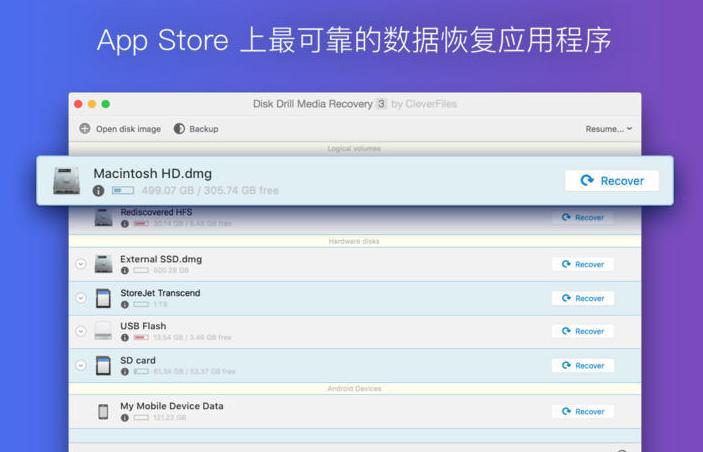
Disk Drill is one of the few data recovery software available on Mac OS X,Support NTFS, HFS+, FAT32 and other modes,Supports hard drives and USB disks,Provides deep scan and quick scan capabilities。
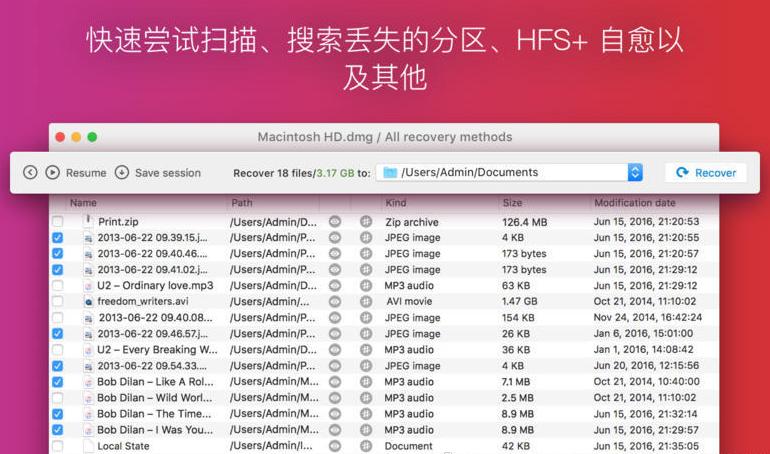
Disk Drill is one of the few data recovery software available on Mac OS X,Specially designed to rescue files accidentally deleted by hand。
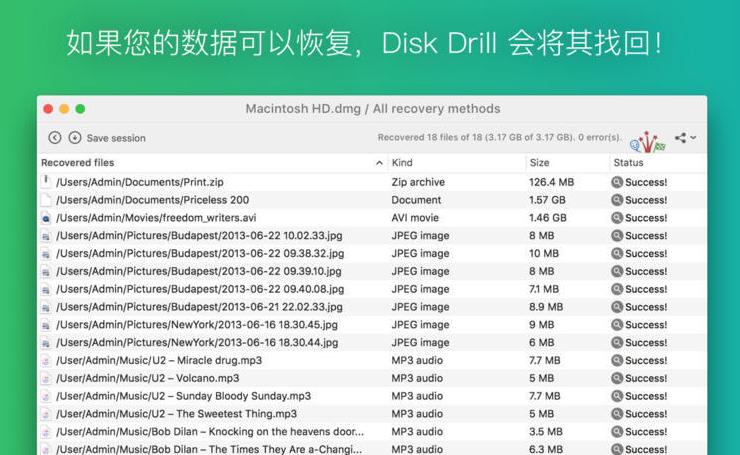
DiskDrill is quite powerful:Support NTFS, HFS+, FAT32 and other modes,Supports hard drives and USB disks,Provides deep scan and quick scan capabilities。A simple boot tutorial is provided when the software is started for the first time.。
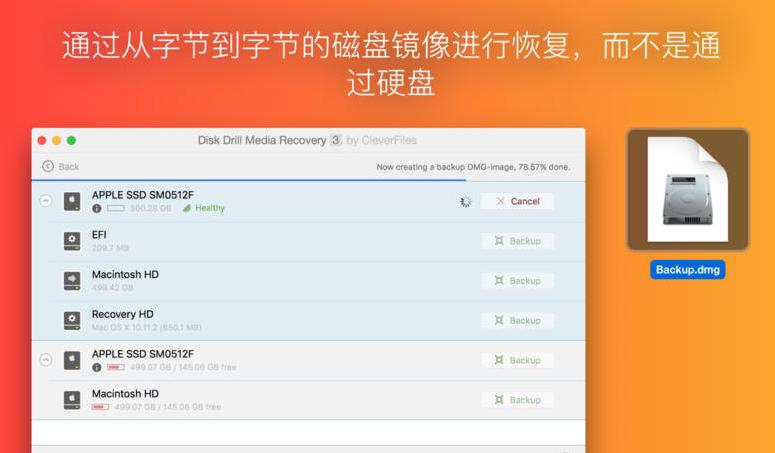
A killer feature is,DiskDrill provides Recovery Vault function,Improved data protection features for HFS/HFS+ and FAT32,Improve chances of recovering files
statement:All articles on this site,If there is no special instructions or markings,All are originally published by this site。any person or organization,Without the consent of this website,Reproduction prohibited、Misappropriate、collection、Publish content from this site to any website、Books and other media platforms。If the content on this site infringes upon the legitimate rights and interests of the original author,You can contact us for processing。
Can free downloads or VIP membership resources be used directly for commercial use?
The copyright of all resources on this site belongs to the original author,The resources provided here are for reference and study purposes only.,Please do not use it directly for commercial use。If copyright disputes arise due to commercial use,All responsibility lies with the user。For more instructions, please refer to VIP introduction。
It prompts that the download is complete but cannot be decompressed or opened?
The most common situation is an incomplete download: You can compare the capacity of the downloaded compressed package with the capacity on the network disk,If it is less than the capacity prompted by the network disk, this is the reason。This is a browser download bug,It is recommended to download using Baidu Netdisk software or Thunder。 If this situation is excluded,You can leave a message at the bottom of the corresponding resource,or contact us。
Can't find the sample image in the material resource introduction article?
For members only、Whole site source code、Program plug-in、website template、Web page templates and other types of materials,The pictures used for introduction in the article are usually not included in the corresponding downloadable material package.。These related commercial images need to be purchased separately,And this site is not responsible for(There is no way)find source。 The same is true for some font files,However, some materials will have a list of font download links in the material package.。
The download address cannot be displayed or the content cannot be viewed after payment?
If you have successfully paid but the website does not pop up a success prompt,Please contact the webmaster to provide payment information for you to process
After purchasing this resource,Can I get a refund?
Source code materials are virtual goods,replicable,Transmissibility,once granted,No refunds of any kind will be accepted、Exchange request。Please confirm before purchasing to obtain the resources you need.
Comments (0)
Note: Please be respectful and civil in your comments Cancel reply
EasyDataTransform is a powerful Excel and CSV file conversion tool,Allows you to quickly convert table and list data into new,more useful form。 compared to other methods,EasyDataTransform's visual transformation is faster,More interactive,More repeatable and less error-prone。And very fast,Able to process approximately 100,000 rows of data in seconds。It’s also very simple to use,Just drag and drop files into the file area,Just add a conversion。 No coding required,Merge easily、Split、clean up、Deduplication、Reformatting, etc.,Get your data in the form you need in just a few clicks!
1. Window moving tips •Hold down the Command key and drag the window,It can be moved without covering other windows in use,Improve multitasking efficiency。 2. Personalize the Finder toolbar •Hold down the Command key in the Finder,Drag frequently used applications to the toolbar,Open files quickly and easily or drag and drop directly to the app icon to operate。 3. Custom shortcut keys •Add custom shortcut keys in your application,For example, manage browser history。Make sure the shortcut key name matches the option name,so that you can add and use it smoothly。 4. Personalized lock screen interface •Set "Security and Privacy" in "System Preferences",Check "Show message when screen is locked",Then enter personalized content,Such as name or contact information,Make the lock screen more personalized。 5. View saved WiFi passwords •Access Keychain Access,Find and open the entry that stores your home WiFi password,Passwords can be easily viewed,Don't worry even if you forget it。 These tips can help you take better advantage of macOS features,Improve convenience for work and daily use,Come and try it!
MacOS and Windows are two completely different operating systems,For those who are using Mac computers for the first time,You may feel a little uncomfortable。But in fact,Mac computers have many hidden magical features,Once you use it in depth,You will like it more and more! Let’s share 8 magical hidden functions of Mac computers,Every one of them is useful,Be sure to collect it! Instantly hide the Dock using the shortcut key Command + Option + D can help you quickly hide or restore the application icon bar (Dock) under the desktop。 Invert screen colors using shortcut Command + Option + Control + 8 Can invert screen colors,Particularly suitable for reducing eye irritation in nighttime environments,Also provides convenience for visually impaired users。 Quickly view and manage running applications Want to quickly view currently running applications? Hold down the Command key and hit the Tab key to quickly switch and manage running applications。Under the application interface,Press Command + Q Quickly exit the program,Press Command + H Minimize the current application window。 Display the Apple Logo anytime,Hold down Option + Shift + K can quickly type the Apple Logo ()。 Trash Operation Command + Delete moves the selected files to the trash。 Shift + Command + Delete clears all files in the trash。 View folder properties using the shortcut Command + I can quickly display the properties of a selected file or folder。 Use your Mac as a USB hard drive at startup,Hold down the T key to put your Mac into target disk mode,Connect it to other computers as a USB hard drive。 Turn on incognito mode in the Notifications option in System Preferences,You can set your Mac to enter Do Not Disturb mode,To avoid pop-up notifications during presentations or other situations that require concentration。 These features not only improve the ease of use of Mac,It also helps you complete your work and daily tasks more efficiently。Come and try it!
The slide layout in every Keynote theme is based on the master slide。When you need to add a specific element such as a title、subtitle、when you slide a bulleted list or image),You can select the master slide that best meets your needs for modification.。so,Slides in the presentation will be changed,while the master slide will retain its original state。 Add a master slide 1. Click "Display" in the toolbar,Then select "Edit Master Slide"。 2.Do any of the following: •Click the Add button in the toolbar,Select a master slide。 •In the slide navigator,Choose a slide that is similar to the layout you want,Then press Return。 3.Double-click the name of the master slide in the slide navigator,Enter a new name。 4.Add text as needed、image、shape、placeholder or other object,and make modifications。If you want objects in a slide based on this master to be overlaid on the master object,Select "Allow layering" in the Format sidebar。 5.After finishing editing,Click Done at the bottom of the slide canvas or Show in the toolbar,Then select "Exit Master Slideshow"。 Add text、Image and shape placeholders 1. Click View in the toolbar,Then select "Edit Master Slide"。 2.Select the master slide to edit。 3.Change the text box、image、Add videos or shapes to slides,and change its appearance as needed,Then drag it to the appropriate location。 4.Select the object to add,Then in the "Format" sidebar,Select Define as text placeholder (for a text box or shape) or Define as media placeholder (for an image or video)。 5.If you want objects in a slide based on this master to be overlaid on the master object,Please select "Allow layering"。 6.After finishing editing,Click Done at the bottom of the slide canvas or Show in the toolbar,Then select "Exit Master Slideshow"。 Add object placeholders to tables and charts 1. Placeholders for tables or charts are called object placeholders。There can only be one object placeholder per master slide。 2.Click Show in the toolbar,Then select "Edit Master Slide"。 3.Select the master slide to edit。 4.In the Format sidebar,Select the Object Placeholder checkbox。 5.Resize and place the placeholder where you want it。on any slide based on this master,Tables and charts added to this slide will be of this size and position。 6.If you want objects in a slide based on this master to be overlaid on the master object,Please select the "Allow layering" checkbox。 7.After finishing editing,Click Done at the bottom of the slide canvas or Show in the toolbar,Then select "Exit Master Slideshow"。 Go through the above steps,You can easily add and edit master slides in Keynote,Make your presentations more professional and beautiful。Hope this tutorial is helpful!
Friends who are new to Mac computers,Do you know how to check the system version of Mac and how to upgrade the system version? Here the editor brings you a detailed tutorial。This common sense is very practical for Mac newbies,Collect it quickly! How to check the current system version of your Mac computer 1. Click the Apple logo in the upper left corner。 2.Select "About This Mac"。 This will display the system version number of your Mac computer。 macOS operating system upgrade tutorial macOS 10.15 The official version will be launched on September 25, 2019。If you purchased a Mac computer after October 2019,This new Apple desktop operating system should come pre-installed。Apple's operating system is different from Windows,macOS is free for users to install and update。How to upgrade macOS system for free? Let’s take a look! 1. Open "System Preferences"。 2.Find "Software Update"。 3.Click "Update Now",Then follow the prompts to complete the upgrade of the macOS operating system.。 Hope these tutorials can help you,Let you use your Mac computer better!
Are you using AnyTrans to manage iOS files? AnyTrans breaks the boundaries of synchronization,iPhone、iPad、iPod、iTunes and iCloud content consolidated on one platform,Let you manage your digital life more efficiently。Let's explore the wonderful features of AnyTrans together! one、Convenient file management:Find the best place for your content AnyTrans is more than just a data transfer tool,It is your digital life comfort zone。Imagine a neat and organized closet,This is how AnyTrans manages files。You can easily position your content where it works best,and transmit it to the destination within seconds。 two、Multi-device file transfer Whether you are a student、Working professionals or digital enthusiasts?,AnyTrans can meet your needs。it supports iPhone、iPad、Data transfer between iPod touch and other devices,And seamlessly integrates with iCloud Drive,Let you easily control cloud content。 three、Rich media download functions AnyTrans built-in media downloader,Easily download audio and video from over 900 websites,Let you enjoy fresh content anytime, anywhere。Whether it's YouTube、Vimeo or Dailymotion,You can easily save media from these sites to your device,Create custom media collections or watch offline。 Four、Instant data backup and recovery AnyTrans provides powerful data backup and recovery functions,Make your file transfers worry-free。Via backup manager,You can create custom backups for specific types of content。also,One-click solution Air Backup Manager lets you perform instant and scheduled backups at any time,Protect your valuable data。 byAnyTrans,You can easily manage files on your iOS device,Enjoy a convenient digital life。whether you are a student、Working professionals or digital enthusiasts?,AnyTrans can meet your needs。Let’s explore more features of AnyTrans now!
Special reminder: 1、Be sure to completely uninstall the previous version before installation。 2、Do not open CrossOver after installation。 3、First run CrossOver crack in DMG to activate it.。 CrossOver Mac offers a treat for users familiar with Wine,Allows them to run programs made for Microsoft Windows without actually having to install the Windows operating system。This application contains software libraries optimized for Windows programs,in it,You can run e.g. Microsoft Word、Excel、Many common applications such as Quick and Windows Media Player,But you need to configure the program yourself to install any application。It creates a Windows runtime environment called a "bottle" for installed programs,Including their respective C drives、Subdirectories and registries。Since CrossOver Mac is not a true virtual environment,So you can run your application faster,But it cannot provide a real Windows experience,And software that is not supported by Wine may not be able to run or may run unstable.。 Features Support for a wide range of Windows applications CrossOver can run many commonly used Windows applications,Includes Microsoft Office、Photoshop、Steam etc.。And it doesn’t require a Windows operating system to be installed,Therefore, many tedious operations can be saved。 Automatically Set Up Applications CrossOver automatically sets up applications,Make it run correctly on macOS。It automatically installs required Windows components and libraries,to ensure the application runs smoothly。This eliminates the need for users to worry about whether the application will run correctly。 Fully supports macOS system CrossOver fully supports macOS system,Including the latest....
Cisdem AppCrypt is an encryption software on the Mac OS platform,You can set a secure password for your Mac app to protect your iPhoto,iTunes,Contacts etc.。 Cisdem AppCrypt is also very simple to use,Just set a password,Add the apps you want to lock,No one will be able to access the protected application,Unless they have the correct password。Cisdem AppCrypt adds the ability for users to lock Mac apps at specific dates and times。For example:After school (3:00-5:00) but not at 10:00。at the same time,Its setup time is easy,Because it's a you set your alarm。 Think of it, make a cup of coffee,And your personal chat window is on the screen? no problem。Cisdem AppCrypt will intelligently terminate programs not previously running when your Mac goes into hibernation or standby。Cisdem AppCrypt automatically password protects some important system applications,Includes Activity Monitor,System settings,Host and terminal。You can also remove them from the blocked apps list manually。
EndNote 21 is hailed as the world's best reference manager,It is designed to help users save time、Stay organized and collaborate with colleagues,ultimately achieve the goal of publishing research results。 This means you can focus more on what matters most:your ideas。 EndNote 21 makes organizing、Managing and citing diverse academic literature becomes a breeze,Whether it's a book、Journal articles or online resources。 Its powerful search function allows you to quickly find the information you need among millions of research resources,And can be seamlessly integrated with a variety of word processing software,Simplifies the process of citing and generating bibliographies when writing a paper or report,Greatly improve writing efficiency。 EndNote 21 is not just for researchers、engineer、Strong support from inventors and cataloging experts,Tag management is also introduced、Data recovery and other new features,and improved writing processes with Google Docs tools。 New EndNote web interface and support for Google Docs,Enables users to access research materials anytime, anywhere,Improved ease of research and collaboration。
iNet Network Scanner is a network device monitor on Mac,Ability to automatically scan and discover devices on the network,Shows the device’s IP address、Manufacturer、MAC address, etc.,Support network equipment、BonjourService、Airport etc. iNet Network Scanner gives you all the information about your Mac network and the devices your Mac is connected to,Ease of use and perfectly thoughtful design allow even inexperienced users to gain a deep understanding and overview of the network,Report on running services and quality of wireless network connections。 Function introduction Network scanner Bonjour browser WiFi wireless monitor Wake on LAN We did our best to develop a solution,Make network observation as simple as possible。Whether you are a networking expert or a casual user – iNet Network Scanner provides all the network information you need to know。 network scanner: View all devices that are online and connected to the network,together with suppliers, IP and MAC addresses Assign your own name and icon,or from the provided icon,To facilitate identification of device selections in the scan list。Most Mac devices display with the original icon。 Set up scan ranges and interface scans Export scan results in CSV format Connect to devices via different protocols Bonjour monitors: Detect all running Bonjour services,Real-time detection of services running on discrete devices Detailed information about services Select active Bonjour domains for observation WiFi network monitoring: Pay attention to providing users with the latest 2013 version of the network and 802.11ac:Because SNMP support has been disabled,iNet cannot retrieve usage statistics and wifi strength anymore with these models。 All other features of iNet work fine。The following airport surveillance features can only be used with pre-802.11ac models: See the Current Status of Apple AirPort Base Stations Like Wireless Express or Time Capsule Monitor Network Traffic for Wireless Devices Find the MAC Address of Your AirPort Base Station,IP,For details such as channels used, see Connection quality for wireless clients on live connections Wake on LAN:...
Bob is a free and open source Mac translation software,Provide word translation、Screenshot translation and manual input translation function。It supports Youdao translation、Baidu Translate and Google Translate three translation engines,Very convenient to use。 before first use,Users need to obtain accessibility permissions and screen recording permissions。 Main functions: •Word translation: After selecting the text, press the shortcut key (default ⌥ + D) can be translated。 •Screenshot translation: Press the shortcut key (default ⌥ + S),Intercept the area that needs to be translated to translate it。 •Enter translation: Press the shortcut key (default ⌥ + A),Enter text and press Enter to translate。 Translation engine comparison: •Baidu Translate and Google Translate can recognize sentences in camel case,如 “WhatAreYouDoing”。 •OCR interface used for screenshot translation: Use Youdao's OCR interface for image recognition,Then call the Google Translate interface to translate。 •Domestic Google Translate: Can be used directly,No need for scientific Internet access。 Bob is a feature-rich and easy-to-use translation tool for Mac,Suitable for users who need fast and accurate translation。
Special reminder:This software requires Rosetta to be installed on the macOS system to run。 Rosetta installation method reference tutorial: Apple ARM M1 application crashes after installation、What should I do if I cannot activate it? Apple ARM M1 application crashes after installation、What should I do if I cannot activate it? UltraEdit 20 for Mac is a powerful text code editor。UltraEdit can edit text、hexadecimal text、ASCII code,Can edit multiple files at the same time,File comparison is possible,UltraEdit built-in FTP browser,and supports syntax highlighting for hundreds of programming languages,With integrated SSH / telnet client,Script,Custom tools,Macros and smart templates,UltraEdit can be used with any coding session。This site provides UltraEdit20 mac crack version download。
Comments (0)

