
Secret Folder helps you hide folders and their contents。If you have private and sensitive information that you don’t want others to see、Modify and delete,Then just a few clicks of the mouse,Just enter the password and you're done.。
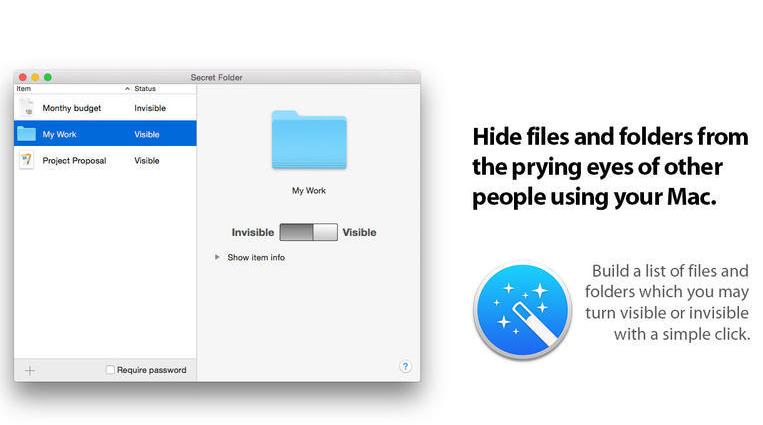
Secret Folder does not modify your original data,I just tried to hide the folder,So its encryption speed is extremely fast,Even if the folder contains a large number of files, it will not be affected。After Secret Folder works,It will protect itself from being uninstalled by others at will,You cannot access your encrypted folder through the command line.。
Although Secret Folder does not encrypt data,Just hide the folder,But I believe this is enough for most people,After all, many people just hope so。
statement:All articles on this site,If there is no special instructions or markings,All are originally published by this site。any person or organization,Without the consent of this website,Reproduction prohibited、Misappropriate、collection、Publish content from this site to any website、Books and other media platforms。If the content on this site infringes upon the legitimate rights and interests of the original author,You can contact us for processing。
Can free downloads or VIP membership resources be used directly for commercial use?
The copyright of all resources on this site belongs to the original author,The resources provided here are for reference and study purposes only.,Please do not use it directly for commercial use。If copyright disputes arise due to commercial use,All responsibility lies with the user。For more instructions, please refer to VIP introduction。
It prompts that the download is complete but cannot be decompressed or opened?
The most common situation is an incomplete download: You can compare the capacity of the downloaded compressed package with the capacity on the network disk,If it is less than the capacity prompted by the network disk, this is the reason。This is a browser download bug,It is recommended to download using Baidu Netdisk software or Thunder。 If this situation is excluded,You can leave a message at the bottom of the corresponding resource,or contact us。
Can't find the sample image in the material resource introduction article?
For members only、Whole site source code、Program plug-in、website template、Web page templates and other types of materials,The pictures used for introduction in the article are usually not included in the corresponding downloadable material package.。These related commercial images need to be purchased separately,And this site is not responsible for(There is no way)find source。 The same is true for some font files,However, some materials will have a list of font download links in the material package.。
The download address cannot be displayed or the content cannot be viewed after payment?
If you have successfully paid but the website does not pop up a success prompt,Please contact the webmaster to provide payment information for you to process
After purchasing this resource,Can I get a refund?
Source code materials are virtual goods,replicable,Transmissibility,once granted,No refunds of any kind will be accepted、Exchange request。Please confirm before purchasing to obtain the resources you need.
Comments (0)
Note: Please be respectful and civil in your comments Cancel reply
IINA is an online mac video player with modern design and streamlined features,Can watch video,Manage playlists,Process media content or load subtitles for movies and more。IINA mac can load local files or provide video URLs,IINA mac can use all popular media formats。And you can quickly change the interface theme,Adjust default behavior and user interface,Decide whether to load subtitles automatically,Configure new keybindings, etc.。This is a Github open source application,Thanks to the developers for their hard work。
MacBook Pro’s Touch Bar is a very handy tool,It can display different shortcut functions according to your needs。but,The default settings may not meet all your needs,You can optimize Touch Bar functionality with custom settings。Here are the steps on how to customize the Touch Bar function bar: 1. Open System Preferences • Click the Apple icon in the upper left corner of the screen,Select "System Preferences"。 2. Go to Keyboard Settings •In System Preferences,Click on the "Keyboard" option。 3. Access Touch Bar settings • In the Keyboard settings window,Click the "Customize Touch Bar" button。 4. Customize Touch Bar functionality •Drag and drop icons:In the custom interface that appears,You can drag different function icons into the virtual area of the Touch Bar。You can select "Frequently Used Functions"、"Control Bar"、"Application shortcut keys" etc.。 •Add or remove features:Click on the function options on the left,Drag them into the Touch Bar to add them。To remove functionality,Just drag it off the Touch Bar。 •Adjust the order:Drag function icons to adjust the order in which they appear in the Touch Bar。 5.Complete setup •After customization is complete,Click the "Done" button in the lower right corner of the window to save the settings。 6. Application-specific settings •You can also set Touch Bar functionality for specific applications。In the "Customize Touch Bar" interface,You can select "Application Shortcuts",Then customize your own Touch Bar button for each app。 Go through the above steps,You can optimize your Mac’s Touch Bar functionality based on your personal needs,Improve operational efficiency。
Alfred is an app called a Mac productivity tool,With Alfred, you can perform various operations without even using a mouse.,Its UI interface is easy to use,And it is not achieved through commands,It is an artifact for developers and keyboard hackers.,Compared with the previous similar software - Pack and Power, it is completely a flash sale.。 This is the most basic,After option+space is activated,Enter keywords to start searching,By default, it will match installed applications,I also set up Search Safari bookmarks。If cannot match,Then there will be options such as searching google,Directly trigger opening of browser to search engine。 Different from Spotlight’s direct search of various types,Alfred needs to type an extra space or single quote to instruct it to search for file names.。In actual use,I think this is more convenient and faster,Alfred gets results almost instantly,While spotlight quickly feeds back the results,,There is a gradual increase process。As far as the actual search effect of files is concerned,,alfred's fuzzy search for file names is OK,But it’s not as powerful as Devonthink, which kills even the contents of files.。certainly,DT's strength is also the result after you index it.,Everyone has their own expertise。Spotlight feels centered,Support file content search,But still not as thorough as DT。By the way,DT is on sale these days,You can see it here。 I guess there are many so-called geeks in the keyboard stream.,So alfred supports a direct ">"back,Open the terminal and execute the command line。 Alfred also thoughtfully supports the integration with 1password。 Installation activation method Other Install V3.x directly Use CORE Keygen.app or keygen.app to activate V2.x Drag Alfred.app to the /Applications folder Open Alfred 2 2.x [SP].app,Select /Applications/Alfred.app to activate successfully。
SecureCRT client for Windows,Mac and Linux,It combines rugged and reliable terminal emulation with the powerful encryption of the SSH (Secure Shell) protocol,Extensive authentication options combined with data integrity,Securing network management and end-user access。 The downloaded compressed package contains DMG files suitable for both ARM and INTEL platforms.。Please download and unzip the compressed package and select the corresponding DMG installation according to your Mac system.。
App Cleaner & Uninstaller is a mac application cleaner、mac application uninstall tool,It can help you deeply clean application residues,Completely uninstall mac apps。 App Cleaner & Uninstaller Pro Awesome app cleaning and complete uninstall tool,App Cleaner & Uninstaller Pro is the best and cleanest tool for uninstalling applications on the macOS platform.。 uninstall、Reset the application Completely uninstall the application or reset the application to its original state。 Extended Management Extended Management includes:Start agent、Login items、Installation files(Bag)delete、browser extension、Preference panel items, etc.。 Residual item cleaning if you are not using App Cleaner & Uninstaller Pro uninstalls apps,It is very likely that the application will not be completely uninstalled.,This leaves a lot of residual items (junk files),Use Residue Cleaner to help you completely clean up Mac application residue。 Startup management can manage startup applications、Start the agent and system startup monitoring program。 Default application management allows you to set files in certain formats to be opened using specified applications.。
QuickRecorder is a versatile、Lightweight and high-performance open source macOS screen recording tool。It focuses on screen recording,Provide sophisticated but not excessive functionality,Just to give you the best experience。Based on ScreenCapture Kit interface,QuickRecorder supports multiple recording modes,including screen、application、window etc.。It can also perfectly record system sounds without driver.,No need to rely on third-party drivers (the driver-free audio internal recording function is only available for macOS 13 and above systems)。QuickRecorder fully supports the "speaker front" feature set,You can enjoy system-level real-time camera keying overlay and special effects processing (this feature is only available for macOS 14.2 and above systems)。Behind every small function, there are ingenious thoughts specially considered for you.,Everything is designed to make screen recording easier。please note,This tool only supports macOS 12.3 and above systems。 Features Focus on screen recording QuickRecorder is inherently simple and pure, Concentrate on screen recording. Expensive functions but not too expensive, Only the best is given to you. Record whatever you want. Based on the powerful functions provided by the ScreenCapture Kit interface., QuickRecorder supports multiple recording modes such as screen/application/window, etc. You can capture the sound and picture with both hands and enjoy the perfect driver-free internal recording system sound., Say goodbye to third-party drivers. (The driver-free audio internal recording function only supports macOS 13 and above systems) The focus of the audience, Appear at any time QuickRecorder is now fully supported [speaker front] feature set, Enjoy system-level real-time camera keying overlay and special effects processing. (Speaker front-facing feature only supports macOS 14.2 and above systems) It’s all about the details. Behind every small function, there is an ingenuity specially considered for you., Everything is just to make screen recording easier
Kaleidoscope is a powerful file and image comparison tool,Supports any text file and jpeg、tiff、png、Image files in psd and other formats,At the same time and git、Version control tools such as svn can be perfectly combined。 Kaleidoscope is a very powerful file image and text comparison tool on Mac,Supports arbitrary text documents and image files,Able to find differences and merge different documents or pictures very quickly and accurately,Its powerful merge and conflict resolution functions are very easy to use,And supports and Subversion、Git、Integration of version management tools such as Mercurial,Comparisons that can ignore whitespace characters、Unresolved conflict indicators, etc.。
Apple's new MacBook series notebooks are equipped with keyboard backlights,Can provide lighting when light is low。However,Sometimes you may encounter a situation where the Mac keyboard light cannot be adjusted。Here are the steps on how to adjust MacBook keyboard backlight brightness: 1. Open System Preferences and click the Apple icon in the upper left corner of the screen,Select "System Preferences"。 2. Enter the keyboard settings in the pop-up interface,Click "Keyboard"。 3. Adjust keyboard backlight settings under the "Keyboard" tab,Uncheck the "Automatically adjust keyboard brightness in low light" option。so,You can manually adjust the brightness of the keyboard light。 Go through the above steps,You can freely adjust the brightness of MacBook keyboard backlight。
in macOS,By default,You cannot directly view the size of a folder in Finder's list mode.。But you can follow these steps to set it up,Makes it possible to display the size of folders in a list: 1.Open Finder and go to the folder you want to view。 2.Select "Show" in the menu bar > "Show Options" (or just use the shortcut Command+J)。 3.In the pop-up options window,Check "Calculate all sizes"。 4.Close options window。 Now,You can see the actual size of the folder in Finder's list mode.。It should be noted that,This setting is for a single folder,If you want to show size in other folders,Need to repeat the above steps。
MacBook battery usage guide and battery health check method MacBook is loved by users for its excellent performance and convenient portability。To extend battery life and ensure optimal performance of your device,It is important to use batteries correctly and check battery health regularly。Let’s take a look at how to use the MacBook battery and how to check the health of the battery。 one、MacBook Battery Instructions 1. Avoid complete discharge •Avoid frequently draining the battery to 0%,Try to start charging when the battery is low。 2. Maintain the right temperature •Use your MacBook at room temperature,Avoid extreme temperatures,Especially in high temperature environments,Will adversely affect the battery。 3. Calibrate the battery regularly •Calibrate the battery at least once a month,That is, after it is fully charged, the battery will be used up until it shuts down.,Then fully charge。This helps maintain battery accuracy。 4. Use battery saver mode moderately •When battery power is low,Enable battery saver mode to extend battery life。 5. Try to use original chargers •Use original or Apple-certified chargers,Ensure charging safety and battery life。 two、How to check MacBook battery health 1. Check through System Information • Click the Apple logo in the upper left corner of the screen,Select "About This Mac"。 •In the pop-up window,Click "System Report"。 •In system reports,Find and click the "Power" option on the left。Battery details will be displayed here,Includes battery cycle count and battery health status。 2. Check via the battery status menu •Hold the "Option" key,Simultaneously tap the battery icon in the upper right corner of the screen。 •In the pop-up menu,You can see the battery status。If it says "normal",Indicates that the battery is in good health;If "Replace battery" is displayed,It means you need to consider replacing the battery。 3. Use third-party software •Some third-party software can also be used,Such as CoconutBattery,to learn more about battery health status。These software can often provide more battery information,Such as battery capacity、Temperature etc.。 three、Tips to extend battery life 1. Avoid using it plugged in for long periods of time •Using it plugged in for a long time may put stress on the battery,It is recommended to use battery power when appropriate。 2. Close unnecessary background apps •Close apps and services you don’t use,Can reduce battery consumption。 3. Lower the screen brightness •Adjust the screen brightness appropriately,Helps extend battery life。 Through the above methods and suggestions,You can better manage and maintain your MacBook battery,Keep your equipment in top condition。
QuickTime Player is a pre-installed application on Mac systems,The main function is to play videos,But it can also be used to edit audio。So how to use QuickTime Player to cut and edit audio? This article will introduce the use of Mac’s built-in audio editing software。 1.Open QuickTime Player and click on the launch pad at the bottom of the screen,Select the system's built-in playback software QuickTime Player and open it。 2.Import audio files Drag the audio files to be edited into QuickTime Player,Let go and move on to the next step。 3.Start editing After the audio file is opened,Find the "Edit" column in the menu bar at the top of the MacBook interface,and find "Trim..." from the drop-down menu。 4.Select the clip part and a golden edit box will appear in the QuickTime Player playback window.。Move the selector forward or backward,Move the left and right sides to the part that needs to be cropped。 5.Complete trimming After selecting the clipping part,Click the "Trim" button in the upper right corner of the page。 6.Save the edited audio After editing is complete,Click "File" on the top menu bar of your MacBook,Select "Storage" from the drop-down menu。In the pop-up information filling interface,After entering the relevant content, click the "Save" button in the lower right corner of the page.。 Go through the above steps,You can use QuickTime Player to easily complete audio editing operations。
Infuse Pro is a powerful Mac video player。It can eat all your video files in one go – Infuse will free you from tedious video conversion,Beautifully watch almost any video format on your Mac。Infuse is adapted for macOS 11 and add more powerful online video,Trakt sync,AirPlay and subtitle functionality。Everything is under your control。 Play more types of videos Infuse supports standard MP4、M4V and MOV – plus MKV、AVI、WMV、MTS、ISO、VIDEO_TS、FLV、GMO、OGV、ASF、3GP、DVR-MS、WebM and WTV。Includes support for Dolby® Digital Plus (AC3/E-AC3)、DTS® and DTS-HD® audio support。 Receive media streams from other devices Browse and play files stored on your Mac、PC、NAS、A Wi-Fi enabled hard drive and a program like Plex、Emby、Jellyfish and Kodi(XBMC)videos in。Dropbox、Google Drive、OneDrive、Box、pCloud、Yandex.Disk and MEGA are also supported - no synchronization required。 TRAKT.TV sync...
Comments (0)

