
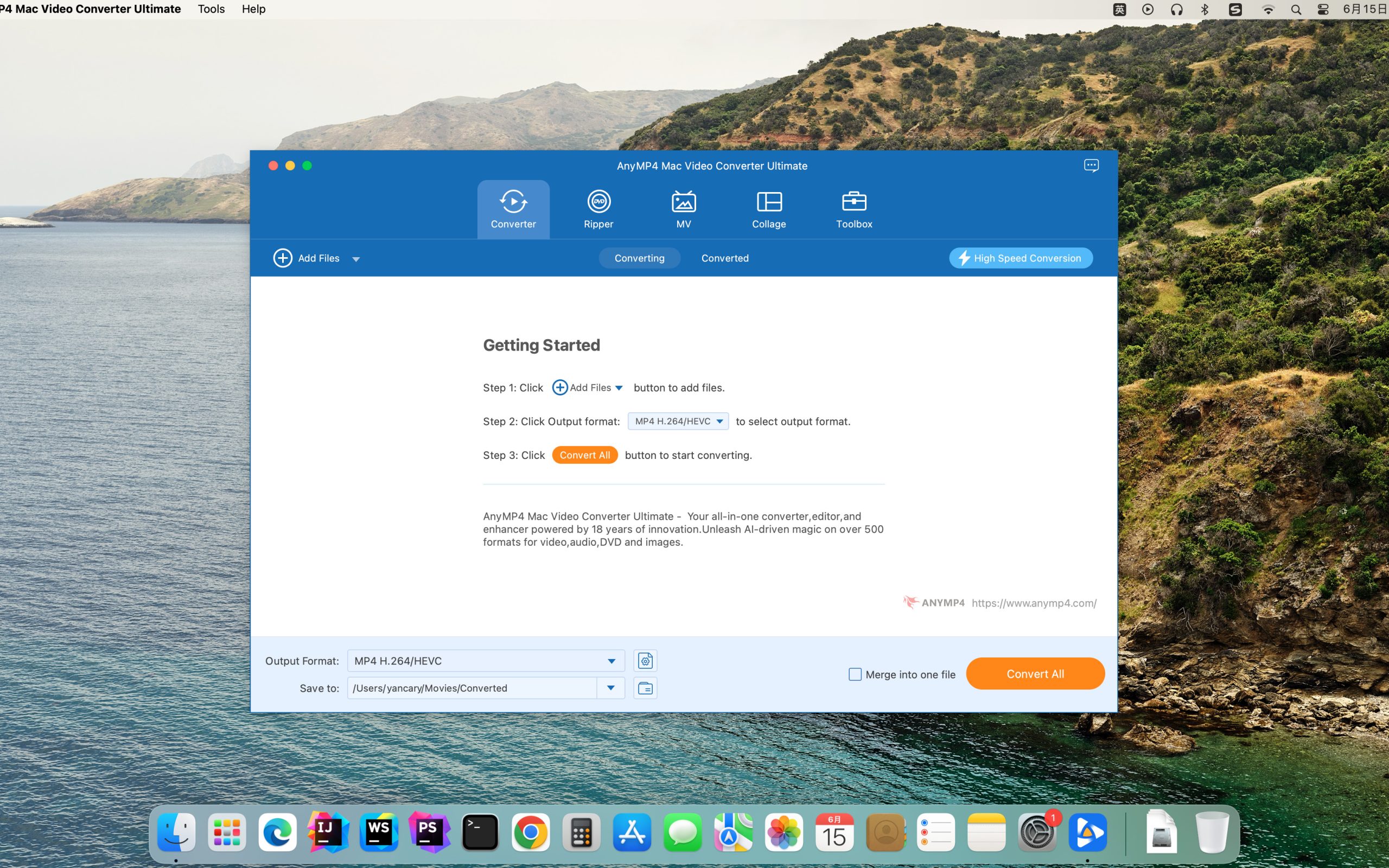
AnyMP4 Video Converter Ultimate (Mac)It is a set of video conversion、edit、compression、All-in-one video converter with playback and other functions。It can convert 8K/5K/4K/1080p HD videos and DVDs to MP4、MP3、GIFs and over 500 digital formats,Its conversion speed is 70 times faster than ordinary converters。also,It can also use AI technology to edit、Compress and enhance video,Built-in media player can play any video file。The comprehensive functionality of this software makes it ideal for handling a variety of video needs。
statement:All articles on this site,If there is no special instructions or markings,All are originally published by this site。any person or organization,Without the consent of this website,Reproduction prohibited、Misappropriate、collection、Publish content from this site to any website、Books and other media platforms。If the content on this site infringes upon the legitimate rights and interests of the original author,You can contact us for processing。
Can free downloads or VIP membership resources be used directly for commercial use?
The copyright of all resources on this site belongs to the original author,The resources provided here are for reference and study purposes only.,Please do not use it directly for commercial use。If copyright disputes arise due to commercial use,All responsibility lies with the user。For more instructions, please refer to VIP introduction。
It prompts that the download is complete but cannot be decompressed or opened?
The most common situation is an incomplete download: You can compare the capacity of the downloaded compressed package with the capacity on the network disk,If it is less than the capacity prompted by the network disk, this is the reason。This is a browser download bug,It is recommended to download using Baidu Netdisk software or Thunder。 If this situation is excluded,You can leave a message at the bottom of the corresponding resource,or contact us。
Can't find the sample image in the material resource introduction article?
For members only、Whole site source code、Program plug-in、website template、Web page templates and other types of materials,The pictures used for introduction in the article are usually not included in the corresponding downloadable material package.。These related commercial images need to be purchased separately,And this site is not responsible for(There is no way)find source。 The same is true for some font files,However, some materials will have a list of font download links in the material package.。
The download address cannot be displayed or the content cannot be viewed after payment?
If you have successfully paid but the website does not pop up a success prompt,Please contact the webmaster to provide payment information for you to process
After purchasing this resource,Can I get a refund?
Source code materials are virtual goods,replicable,Transmissibility,once granted,No refunds of any kind will be accepted、Exchange request。Please confirm before purchasing to obtain the resources you need.
Comments (0)
Note: Please be respectful and civil in your comments Cancel reply
Tidy Up is the best duplicate file search and cleaning tool on Mac,This software allows you to specify the target directory to search for,Then search for duplicate files of the specified type,like music、picture、Application etc.,Also supports direct search of iTunes、iPhoto、Aperture, etc. There is always not enough space on the hard disk.。Usually the only thing I have to do is replace it and delete it.。Recommend a good software - Tidy Up!,It allows you to increase hard drive space without losing money or sadness.。 Function by sorting,You can use the owner application、content、type、Creator、Expand、modification time、Creation time、name、Label、Visibility and date/age to search for duplicate files and packages。You can also pass tags,duration,As well as MP3 and AAC audio files and EXIF metadata to search;Search photos、iPhoto、Aperture、- – iTunes、iPod database and mailbox contents;and with iPhoto, Mail and iTunes sync deletion。 Tidy Up comes with two search modes。Basic mode includes over 90 predefined searches。For customized strategies,You can choose to use the Policy Wizard to create appropriate criteria to search for replicas based on your selections。 Organizer has a built-in security system that guarantees you will copy at least one file to a group of disks,Revoke the ability to copy and move items,And can restore trash items as long as the trash is not emptied,Even if you restart your computer。 Organizes the most commonly used files providing a full-size preview,For example:Audio,media,text,PDF,graphics,Fonts and more… One of the most interesting features of finishing is,Can be separated by "smart basket"、Quick and easy organization,Find projects using custom criteria。It also includes items belonging to supported applications、specific album、Possibility of selection from playlist or mailbox。 Tidy Up allows you to discard、move、Replace moved or dropped items with aliases or symbolic links,combustion,Assign colored Finder labels,and export to HTML and text files。Tidy Up is fully customizable,Allows you to create the workspace you like。
The navigation area at the bottom or sidebar of Apple's Mac computers is called the "Dock" or "Dock"。If you use certain software frequently,You can put them on the Dock,for quick start。If you no longer need certain software,It can be removed from the Dock。Let’s take a look at how to add or remove applications on the dock in Mac systems。 Add software to the Dock Method 1: 1.Click on the black rocket icon (Launchpad) in the Dock。 2.Launch an application you want to keep in the Dock。 3.After the software starts,Its icon will appear in the Dock。Right click on the icon,Select "Options" -> "Keep in Dock"。 Method two: 1.Open Launchpad (can be opened by clicking the rocket icon in the Dock)。 2.Find the software you want to add to the Dock,Long press the app icon。 3.Drag the app icon to the appropriate location on the Dock,to pin it to the Dock。 Method three: 1.Open the Finder,Click on the "Applications" folder in the left sidebar。 2.Find the software you want to add to the Dock in the Applications folder。 3.Drag the software icon directly to the dock。After placing,The app will automatically reside in the Dock。 Delete software on the dock 1. Move the mouse cursor to the application icon in the dock that needs to be deleted。 2.Press and hold the app icon,Drag to an area of the desktop outside the Dock,until the "Remove" prompt appears。 3.Release mouse,The app icon will be removed from the Dock。 Notice:Removing an app icon from the Dock does not uninstall or delete the app,Just remove it from the Dock,The application remains in your Applications folder。 Through the above methods,You can easily manage apps in the Dock,Add frequently used apps or delete app icons you no longer need。Hope these steps are helpful!
Special reminder activation steps(24.07.03011 beta): 1、Open Xmind,Uncheck "Automatically send logs",Agree to the End User License Agreement 2、Prompt to log in account,Click the close button in the upper left corner,Then exit the entire APP 3、Run the Xmind Crack program in dmg and activate it with one click 4、Ready to use! XMind is a mind mapping software,It can help you quickly clear up your thinking logic,And organized it clearly,You can also export and share it with others。 Use XMind to plan your work at work,Implementation and deployment are sent to colleagues through mind maps.;in study,You can also organize your knowledge points through it;Writing,You can plan and organize the outline in advance using a mind map。 XMind is a new product,Compared to Xind8,It reuses the new rendering engine,Optimized a lot of interactions,Keep users focused and immersed when using software。
In macOS 10.15 (Catalina) and below,The system restricts the installation of non-App Store downloaded applications by default to improve security.。If you need to install third-party software from non-App Store,You can follow the steps below: How to install non-App Store software Note:The following steps only work on macOS 10.15 and below 1. Open "System Preferences" and click the Apple icon in the upper left corner of the screen,Then select "System Preferences"。 2. Go to Security & Privacy settings in the System Preferences window,Click "Security & Privacy"。 3.Unlock Settings In the lower left corner of the Security & Privacy window,Click the lock icon to unlock settings。You will be prompted to enter your administrator password。After entering the password,Click "Unlock"。 4. Allow apps from any source In the "Allow apps downloaded from" section,You will see three options:App Store、App Store and identified developers。Select "Any Source"。(Notice:In macOS 10.15 and above,There may not be this option。If this option is not available,Other solutions you can try,To bypass this restriction, use right-click on a file。) 5. Re-lock settings Click the lock icon in the lower left corner,to lock settings and protect your security settings。 6.Install software now,You can double-click and run apps downloaded from other sources。If you encounter the "Cannot open the application" prompt,Please right click on the application icon,Select "Open",Then click "Open" to confirm you trust the app。 go through these steps,You can install software from non-App Store in macOS 10.15 and below。
SecureFX 9.1.1 for mac is a software that supports SFTP client,it is easy to use,Has an operation interface similar to Windows Explorer。 SecureFX gives you the tools you need to make your file transfer operations and site synchronization more secure and efficient。SecureFX’s user-friendly interface makes it easy to learn,Support for multiple platforms allows you to apply the Secure Shell protocol’s powerful encryption and authentication mechanisms to your data transfers。 SecureFX 8.7.3 supports three file transfer protocols:FTP、SFTP 和 FTP over SSH2。It can provide secure file transfer。No matter which operating system you are connected to the server,It can provide secure transmission services。 The downloaded compressed package contains DMG files suitable for both ARM and INTEL platforms.。Please download and unzip the compressed package and select the corresponding DMG installation according to your Mac system.。
UPDF is an emerging all-in-one PDF document processing tool,With its simple and easy-to-use interface、Efficient feature integration and cross-platform compatibility,Quickly become an individual user、Popular choice for corporate teams and education fields。Following are the core functions、Features and advantages、Application scenarios、Introduction to user reviews and version comparisons: Core functions PDF editing and modification Text/image editing:Supports direct modification of text content in PDF、Font style、paragraph format,or insert、replace、Crop picture,Achieve editing freedom similar to that of a Word document。 Page management:Provide merge、Split、extract、delete、rotate、Features such as reordering pages,Support batch operations,Meet complex document reorganization needs。 Format conversion and export supports PDF and Word、Excel、PowerPoint、Picture (JPG/PNG)、CSV、RTF、TXT、HTML、Two-way conversion of XML and other formats,Preserve original formatting and layout,Reduce manual adjustment costs。 Annotation and Collaboration Multi-type annotation tools:Provide highlighting、Underline、strikethrough、text box、Notes、Shape annotation、sign、Stamps and other tools,Supports real-time collaborative annotation by multiple people,Improve team collaboration efficiency。 Cloud sync function:Integrated cloud storage services such as UPDF Cloud、Google Drive、Dropbox, etc.),Make it easy for teams to share files and view revision records in real time。 Security and rights management Encryption protection:support 256 Bit AES encryption technology,Users can set an opening password or permission password for PDF files,Limit editing、Print、Copy and other operations。 Permission breakdown:Precisely control the access rights of different users,Keep sensitive information safe。 OCR text recognition supports recognition of text in scanned PDFs or images.,Output editable text content,High recognition accuracy,Support Chinese、English and other languages。...
Infuse Pro is a powerful Mac video player。It can eat all your video files in one go – Infuse will free you from tedious video conversion,Beautifully watch almost any video format on your Mac。Infuse is adapted for macOS 11 and add more powerful online video,Trakt sync,AirPlay and subtitle functionality。Everything is under your control。 Play more types of videos Infuse supports standard MP4、M4V and MOV – plus MKV、AVI、WMV、MTS、ISO、VIDEO_TS、FLV、GMO、OGV、ASF、3GP、DVR-MS、WebM and WTV。Includes support for Dolby® Digital Plus (AC3/E-AC3)、DTS® and DTS-HD® audio support。 Receive media streams from other devices Browse and play files stored on your Mac、PC、NAS、A Wi-Fi enabled hard drive and a program like Plex、Emby、Jellyfish and Kodi(XBMC)videos in。Dropbox、Google Drive、OneDrive、Box、pCloud、Yandex.Disk and MEGA are also supported - no synchronization required。 TRAKT.TV sync...
Many new users may encounter problems with software not opening when switching from Windows to Mac,Especially after decompressing the RAR file。This is usually caused by a loss of permissions on the executable file。Here is the solution,Take AKVIS ArtWork as an example: 1. Show package contents: Right click on the software,Select "Show package contents"。 2. Find executable file: In the window that opens, open "Contents – MacOS”,Find a file like "ArtWork_std" or "Plugin Installer"。They may appear as files of unknown type。 3. Repair permissions using Terminal: •Open Terminal application。 •Enter the following command:chmod +x (note there is a space after chmod)。 • Drag and drop the file found in the previous step (e.g. "ArtWork_std") into the terminal window,Then press the Enter key。 4. Verify changes: The terminal will display a message after successfully executing the command,At this point the file icon should have changed to the black icon of the executable file。 5. Reopen the software: Now,Try reopening the software,It should be able to be used normally。 with these simple steps,You can solve most cases where the software cannot be opened due to permission issues。Hope this helps anyone who is experiencing this issue!
Special reminder:If you open the software and prompt to purchase,Just click the "Finish" button to use it。 Rosetta installation method reference tutorial: Apple ARM M1 application crashes after installation、What should I do if I cannot activate it? Apple ARM M1 application crashes after installation、What should I do if I cannot activate it? Notice:Do not update the cracked version,Don't upgrade,Cancel its automatic updates。 Upper left corner navigation bar Downie 4 -> Preferences -> Update and then uncheck it for automatic updates。 in addition,Due to the updates and upgrades of various video websites,Therefore, this video downloading software should also try to keep the latest version to download videos.。 Downie for Mac is the best Mac video download tool on the Mac OS platform,Downie for mac cracked version supports more than 1,000 different video websites,Support domestic Youku、Tencent Video、biliable、Potato、iQiyi、NetEase、Sohu、Video downloads from Weibo and foreign online video websites such as Youtube,Powerful and easy to use。 Supports video downloads from more than 1,000 video websites Currently supports video downloads from more than 1,000 video websites (including YouTube、Youku、Bilibili、Vimeo, etc.),The number is growing rapidly。 Menu bar icon controls downloads Control downloads from menu bar – No need to open the main software window。
MacOS and Windows are two completely different operating systems,For those who are using Mac computers for the first time,You may feel a little uncomfortable。But in fact,Mac computers have many hidden magical features,Once you use it in depth,You will like it more and more! Let’s share 8 magical hidden functions of Mac computers,Every one of them is useful,Be sure to collect it! Instantly hide the Dock using the shortcut key Command + Option + D can help you quickly hide or restore the application icon bar (Dock) under the desktop。 Invert screen colors using shortcut Command + Option + Control + 8 Can invert screen colors,Particularly suitable for reducing eye irritation in nighttime environments,Also provides convenience for visually impaired users。 Quickly view and manage running applications Want to quickly view currently running applications? Hold down the Command key and hit the Tab key to quickly switch and manage running applications。Under the application interface,Press Command + Q Quickly exit the program,Press Command + H Minimize the current application window。 Display the Apple Logo anytime,Hold down Option + Shift + K can quickly type the Apple Logo ()。 Trash Operation Command + Delete moves the selected files to the trash。 Shift + Command + Delete clears all files in the trash。 View folder properties using the shortcut Command + I can quickly display the properties of a selected file or folder。 Use your Mac as a USB hard drive at startup,Hold down the T key to put your Mac into target disk mode,Connect it to other computers as a USB hard drive。 Turn on incognito mode in the Notifications option in System Preferences,You can set your Mac to enter Do Not Disturb mode,To avoid pop-up notifications during presentations or other situations that require concentration。 These features not only improve the ease of use of Mac,It also helps you complete your work and daily tasks more efficiently。Come and try it!
Pixelmator Pro includes new workflows and more intuitive and simpler editing software。It also features a single-window interface and smart image editing capabilities based on machine learning。Pixelmator Pro is developed using the Core ML framework,It integrates perfectly with macOS High Sierra,Level detection can be completed automatically,Smart quick selection, better repair tools, and more。 The application is based on Swift 4 ,Integrated Metal 2 ,Core Image and OpenGL 。And the new drawing engine,Can free up computational load from the CPU,Also accelerates graphics-intensive tasks。Pixelmator Pro also has Metal-based 2 dynamic drawing blending techniques。For example, Metal 2 Used to render paint tools and dual texture brushes。 With an improved single-window interface,Replaced Pixelmator's floating tool panel,Pixelmator Pro puts focus on the image at hand,rather than in the application's toolset。 The Pixelmator team has also simplified the GUI...
Termius usage tutorial:How to connect to the server through SSH [XShell alternative artifact] Termius is a very easy-to-use and beautiful SSH client,Ability to quickly remotely control servers,You can also customize your favorite themes。It not only supports Windows、Linux、macOS,Also supports Android and iOS,Allow programmers to troubleshoot online problems anytime and anywhere,Greatly facilitates work。 Software features •Free •Supports username, password and key mode •Common script snippets (can be sent to multiple hosts at the same time) •Full platform support •Cloud synchronization (just register an account) •Split-screen mode (no setting method has been found yet) Software environment •One Mac •Termius client •One remote server Software configuration •Terminal (theme)、color matching、Fonts, etc.) •Shortcuts (shortcut keys) •Known Hosts (host address management) •Keychain (login information management) •Profile (account information) Configuring keys Today we mainly learn how to configure login information (key mode)。Follow these steps: 1.Click the downward arrow in the upper right corner,Select Keychain。 2. Click ADD KEY (ADD IDENTITY...
Comments (0)

