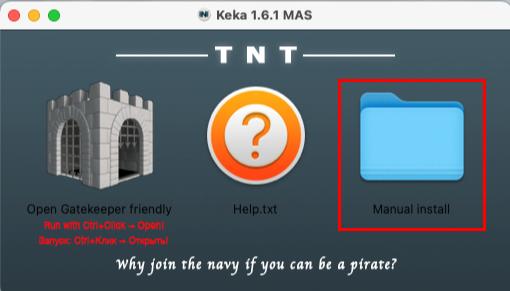
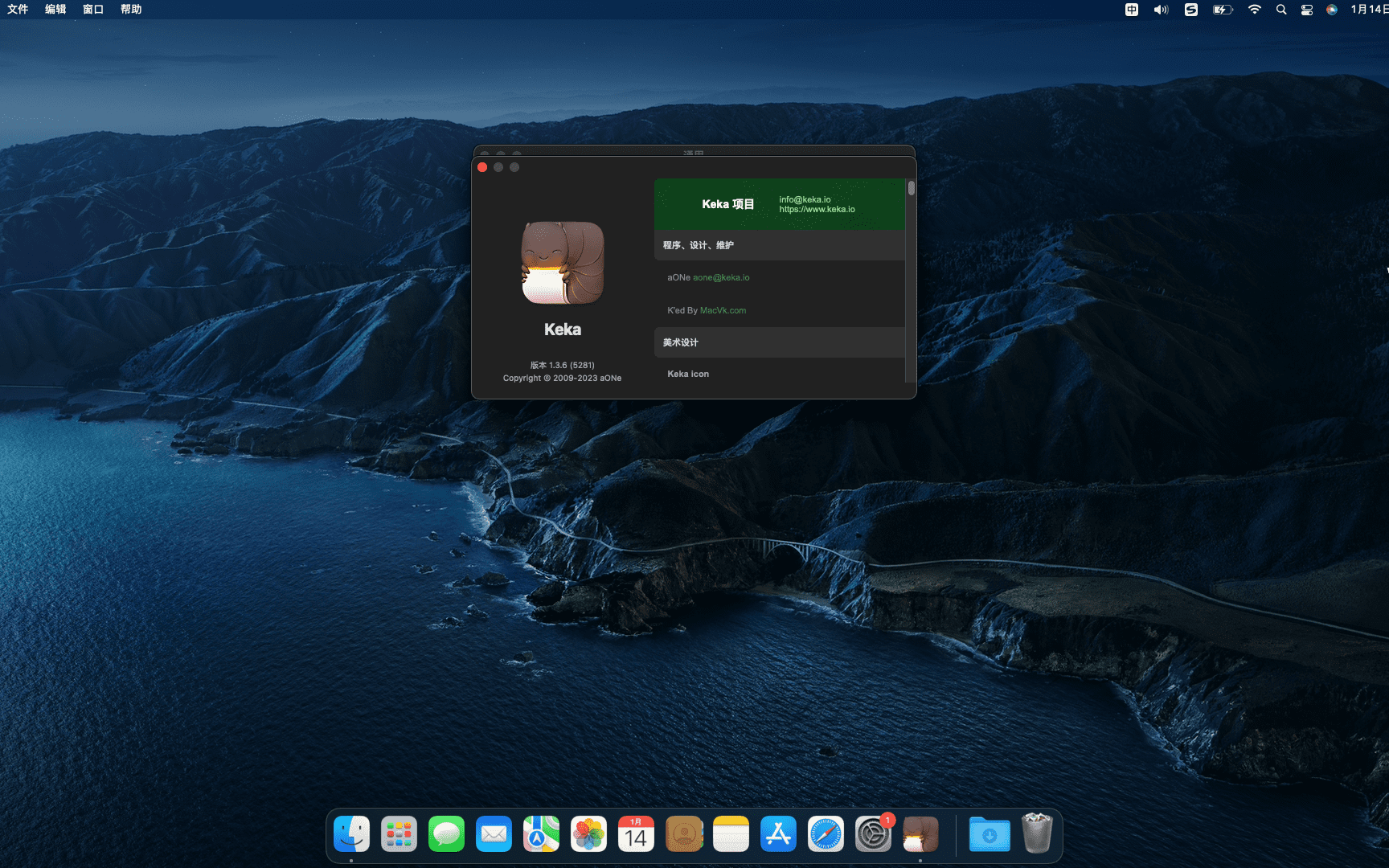
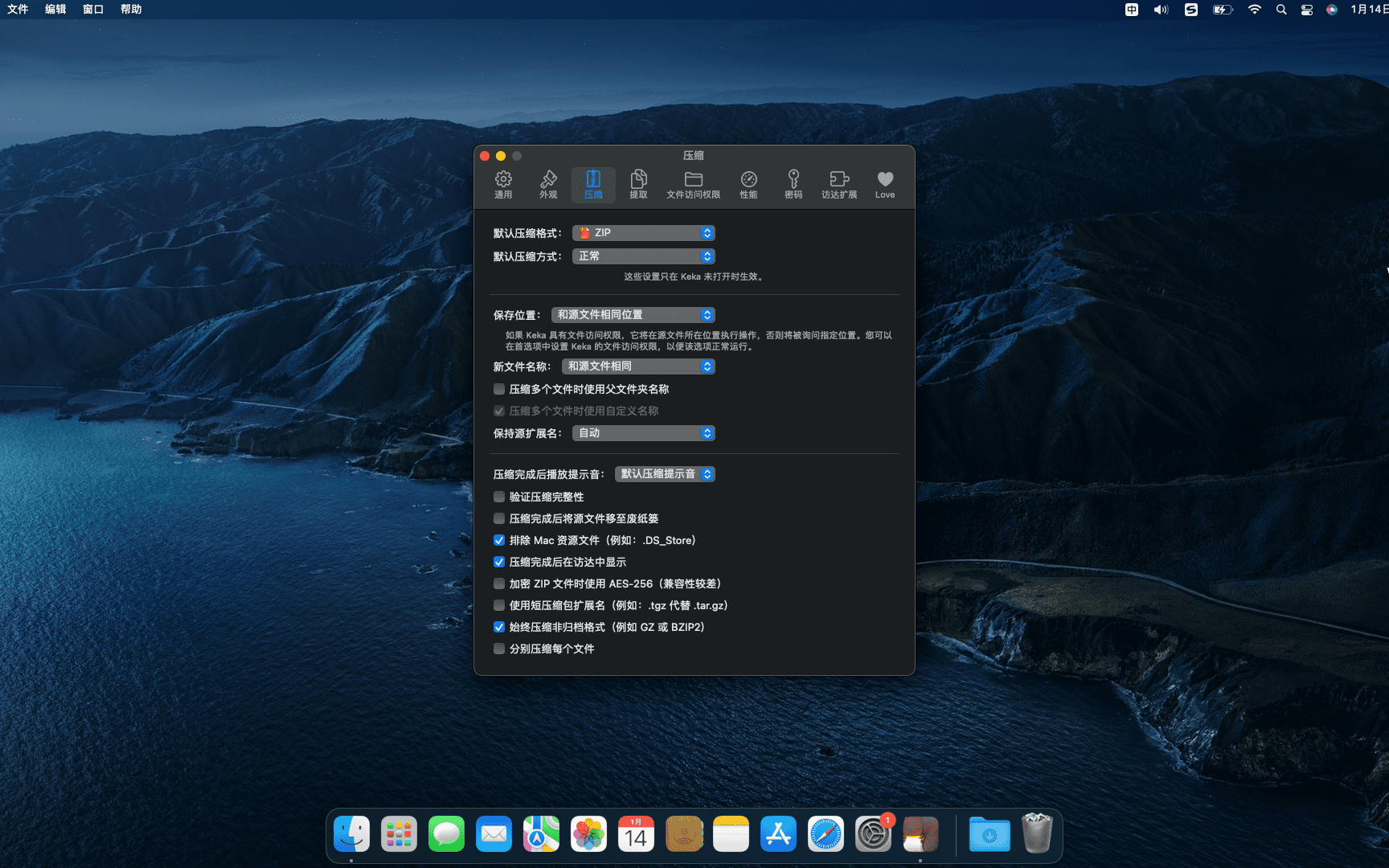
Keka is a free macOS file decompression program,Can meet your daily decompression needs,Small size,Simple and easy to use,faster。The main compression core is p7zip (7-zip port)。
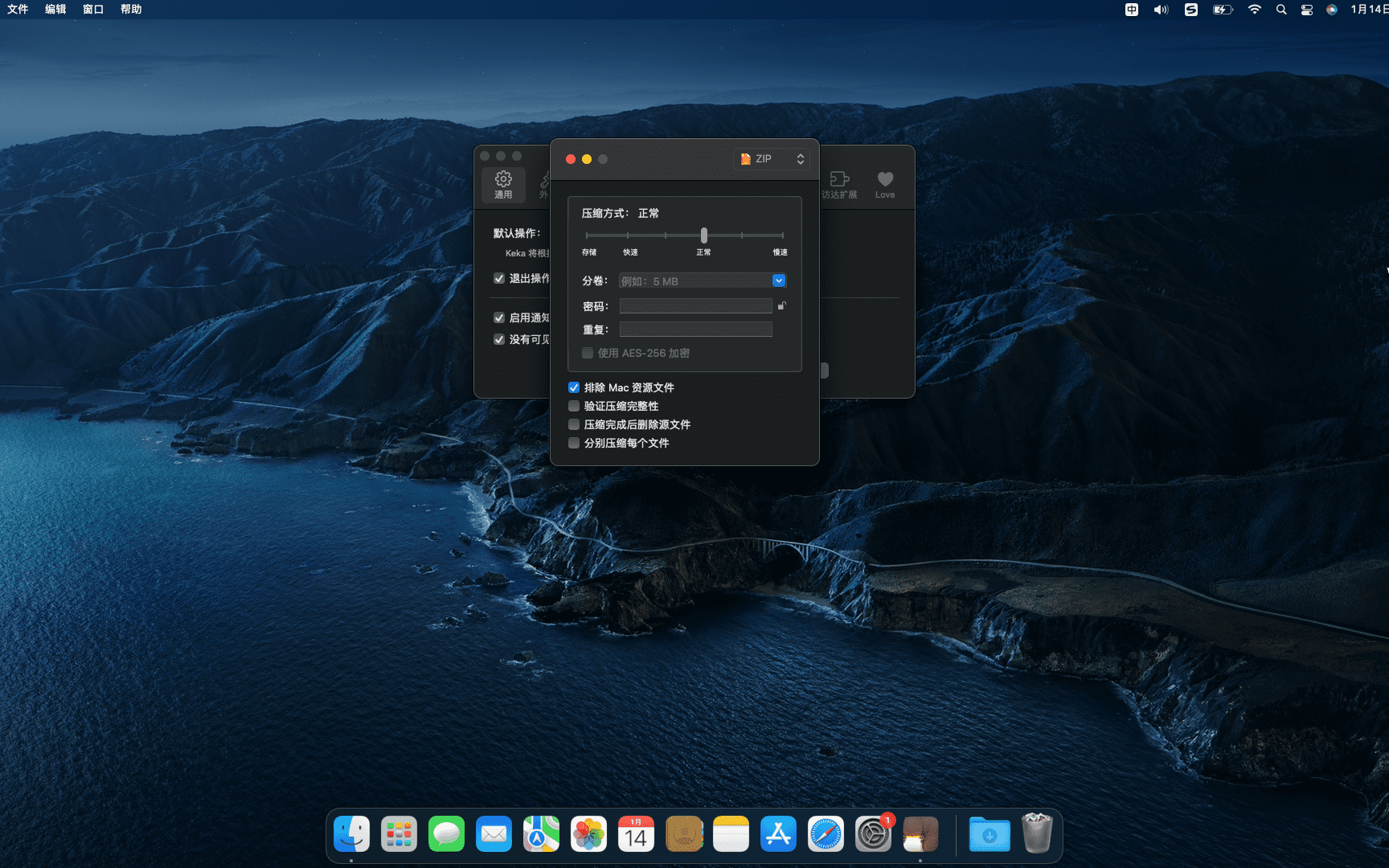
Support compressed formats:7z,Zip,Tar,Gzip,Bzip2,DMG,ISO
statement:All articles on this site,If there is no special instructions or markings,All are originally published by this site。any person or organization,Without the consent of this website,Reproduction prohibited、Misappropriate、collection、Publish content from this site to any website、Books and other media platforms。If the content on this site infringes upon the legitimate rights and interests of the original author,You can contact us for processing。
Can free downloads or VIP membership resources be used directly for commercial use?
The copyright of all resources on this site belongs to the original author,The resources provided here are for reference and study purposes only.,Please do not use it directly for commercial use。If copyright disputes arise due to commercial use,All responsibility lies with the user。For more instructions, please refer to VIP introduction。
It prompts that the download is complete but cannot be decompressed or opened?
The most common situation is an incomplete download: You can compare the capacity of the downloaded compressed package with the capacity on the network disk,If it is less than the capacity prompted by the network disk, this is the reason。This is a browser download bug,It is recommended to download using Baidu Netdisk software or Thunder。 If this situation is excluded,You can leave a message at the bottom of the corresponding resource,or contact us。
Can't find the sample image in the material resource introduction article?
For members only、Whole site source code、Program plug-in、website template、Web page templates and other types of materials,The pictures used for introduction in the article are usually not included in the corresponding downloadable material package.。These related commercial images need to be purchased separately,And this site is not responsible for(There is no way)find source。 The same is true for some font files,However, some materials will have a list of font download links in the material package.。
The download address cannot be displayed or the content cannot be viewed after payment?
If you have successfully paid but the website does not pop up a success prompt,Please contact the webmaster to provide payment information for you to process
After purchasing this resource,Can I get a refund?
Source code materials are virtual goods,replicable,Transmissibility,once granted,No refunds of any kind will be accepted、Exchange request。Please confirm before purchasing to obtain the resources you need.
Comments (0)
Note: Please be respectful and civil in your comments Cancel reply
Where are the files backed up by Mac iTunes? Many Mac users don’t know the location of their iTunes backup files after backing up! today,The editor teaches you two methods to find the Mac iTunes backup file path,It is convenient for everyone to directly manage their own iTunes backup folder。 Method one: 1.Open Finder,Click the "Go" option in the menu bar,Hold down the Option key to display "Library",Click to enter。 2.in database,Find the "Application Support" folder。 3.Go to the lower-level "MobileSync" folder,The "Backup" inside is where the backup file is located.。 Method two: 1.Click Finder at the bottom of the screen。 2.Use the shortcut key Command+Shift+G in the Finder to open "Go to Folder"。 3. Directly copy the following path:~/Library/Application Support/MobileSync,Then click "Go",Open the "Backup" folder,Inside is the backup file。 Through the above two methods,You can easily find and manage iTunes backup files on Mac。
Mac and iPhone work efficiently together,Give you a seamless cross-device experience。If you own these two Apple devices,Here are some great ways to make them work with each other: 1. Copy and paste content •Use Continuity’s universal clipboard feature,Easily copy and paste content between Mac and iPhone。Make sure both devices are logged into the same iCloud account,Bluetooth on,and enable switching in General in System Preferences or in the Switching option in Settings。 2.Recover tasks •Utilize the Handoff feature,Start a task on one device,Then continue on another device。For example,Typing in Notes on iPhone,Then continue editing on Mac。Handoff works with multiple apps,Such as Mail、Safari and Pages。 3. Share files、Web pages and more • Use AirDrop to quickly share files between Mac and iPhone、photo、Web pages, etc.。Make sure Wi-Fi and Bluetooth are turned on on both devices,And select AirDrop in the device's sharing menu.。 4. play music、Movies & TV Shows • Wirelessly stream content from your Mac to your iPhone via AirPlay,Or use software like Reflector to stream content from your iPhone to your Mac。Although Macs and iPhones cannot directly act as AirPlay receivers,But these tools can achieve similar functions。 5. Share your Internet connection •Set your Mac’s Internet connection as a Wi-Fi hotspot,Or enable personal hotspot on iPhone,Allow Mac to connect to iPhone's mobile data network。Tethering can be done via Wi-Fi、Bluetooth or USB cable。 6. Close Safari tab •After enabling iCloud sync,It's possible to close Safari tabs on iPhone on Mac。Make sure that in macOS System Preferences>“iCloud” and iOS “Settings”>Enable Safari sync in "iCloud"。 7. Unlock Mac using iPhone •Use third-party apps like Tether、FingerKey or Unlox (formerly MacID),Use your iPhone's passcode or Touch ID fingerprint to unlock your Mac。Another option is to use your Apple Watch for automatic unlocking。 8. Use your Mac’s keyboard to type on your iPhone • If the app on your iPhone supports iCloud sync,Can type on Mac,It will also be displayed simultaneously on the iPhone。Or use an app like Typeeto,Use your Mac keyboard as a Bluetooth keyboard for your iPhone。 9. Make and receive calls from your Mac • To receive and make calls on your Mac, make sure your Mac and iPhone are connected to the same network,and use the same iCloud and FaceTime accounts。Enable related options in FaceTime settings on macOS and Phone settings on iOS。 10. Send and receive SMS from Mac • After enabling the "Text Forwarding" feature,Can send and receive SMS via Mac。Make sure the corresponding phone number and email address are enabled in iMessage's settings。 Through the above methods,You can maximize Mac and iPhone synergies,Achieve a more efficient and smooth operating experience。
Many people using Mac use Parallels Desktop 19 Windows system installed,But when I need to delete the Windows system, I don’t know how to do it.。Next,The editor of macwk brings you how to delete Parallels Desktop 19 Installation tutorial for Windows systems,Hope this helps! Remove Parallels Desktop 19 Installation steps for Windows systems 1. Open Parallels Desktop 19 •Start Parallels Desktop 19,Click the Parallels Desktop icon in the upper right corner,Select "Control Center"。 2. Select the Windows system to be deleted •In the Control Center interface,Find "Windows...
Mac computers are our commonly used Internet tools,Sometimes we need to take a break but don’t want to interrupt our current work,So how to lock the screen quickly? Here’s how to quickly lock the screen on your Mac computer,Hope it helps everyone。 Setup steps: 1. Open System Preferences •Click on the Apple icon in the upper left corner of the desktop,Select "System Preferences" from the drop-down menu。 2. Go to Security & Privacy • In the System Preferences screen,Click "Security & Privacy"。 3.Unlock Settings •Click the “General” tab above,Then click the lock icon at the bottom left of the interface。 •Enter the password in the pop-up dialog box and select "Unlock"。 4. Set a password requirement • Select "Require password now" in the "Enter sleep or start screen saver" section,Close the page when finished。 5. Set a screen saver •Return to System Preferences,Click on "Desktop & Screensavers"。 •Select the "Screensaver" tab above,Then click "Trigger Corner" at the bottom right of the interface。 6. Set the trigger angle •In the pop-up trigger angle setting interface,Select a corner as the corner to trigger the screensaver,After the settings are completed, click "OK" on the lower right。 •Now,Move the mouse to the corner you just set to complete the quick lock screen。
Comments (0)