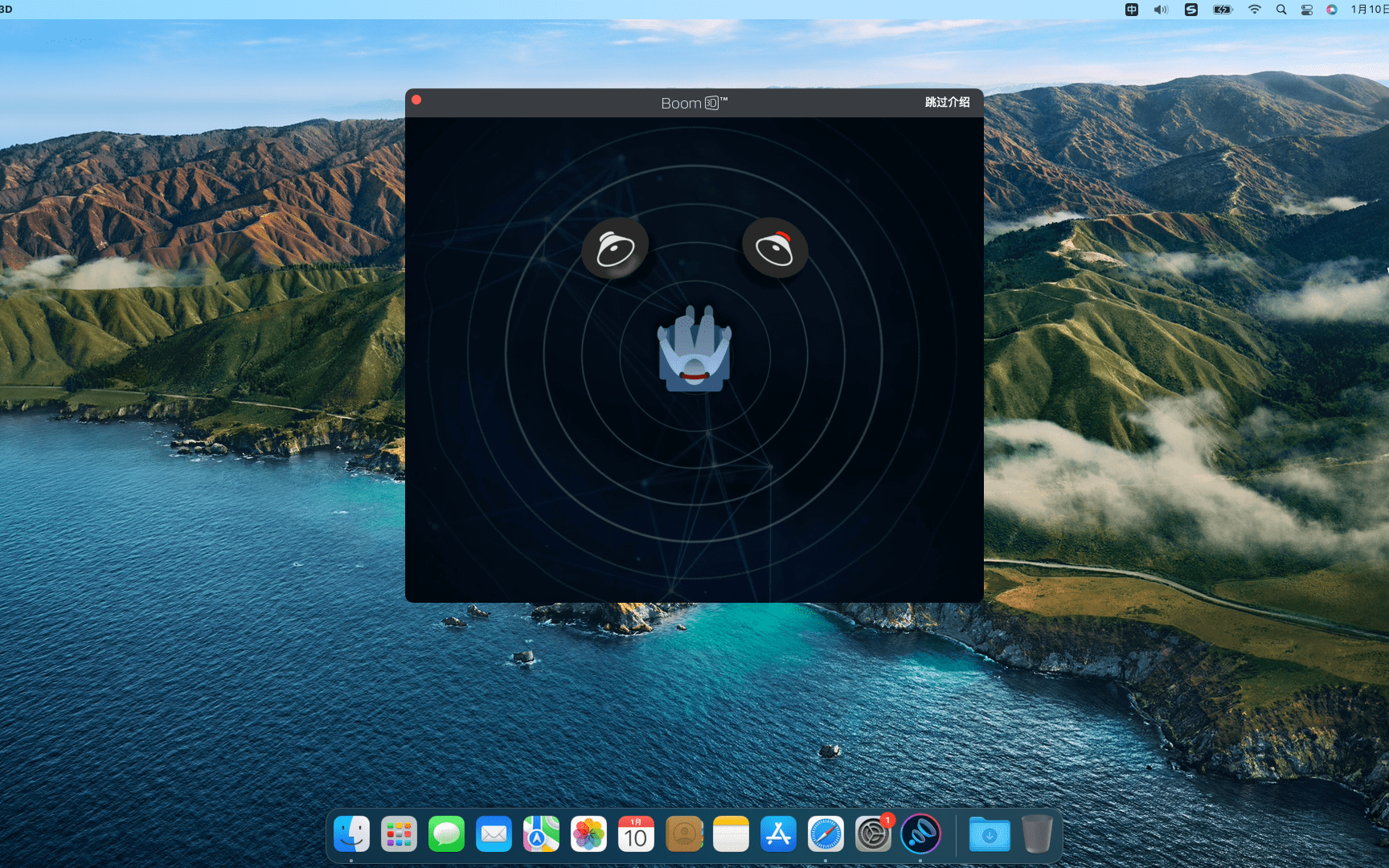
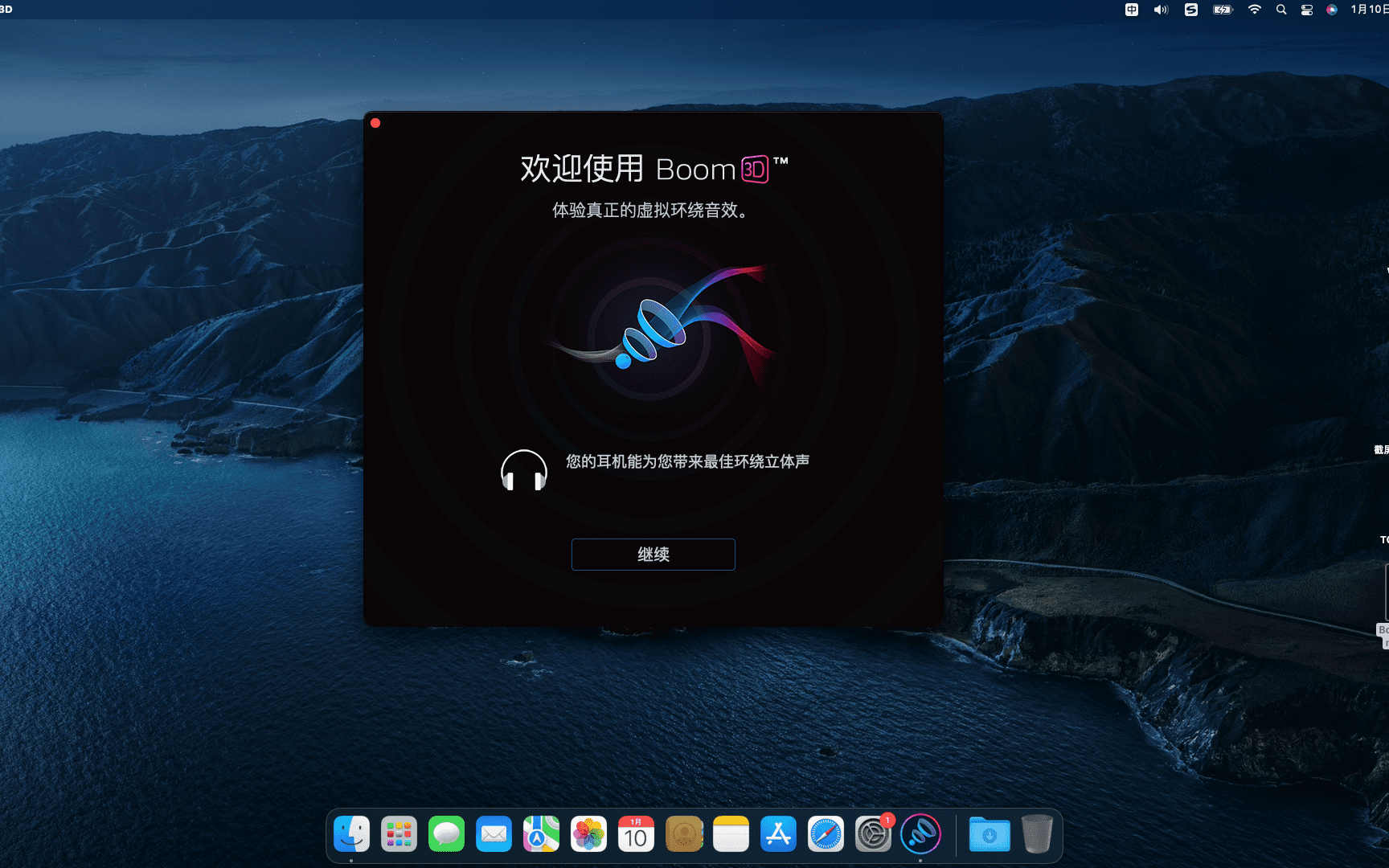
Boom 3D is a system-wide volume booster and equalizer for Mac,Delivers an incredibly realistic and immersive listening experience with its magical 3D surround sound and futuristic technology。
It automatically enhances all audio and creates the perfect sound profile for your Mac。Boom 3D has a stylish and intuitive interface、Wide variety of presets、Option to centrally control individual app volume and wireless control (Boom Remote),Gives you complete control over the audio coming from your Mac。
statement:All articles on this site,If there is no special instructions or markings,All are originally published by this site。any person or organization,Without the consent of this website,Reproduction prohibited、Misappropriate、collection、Publish content from this site to any website、Books and other media platforms。If the content on this site infringes upon the legitimate rights and interests of the original author,You can contact us for processing。
Can free downloads or VIP membership resources be used directly for commercial use?
The copyright of all resources on this site belongs to the original author,The resources provided here are for reference and study purposes only.,Please do not use it directly for commercial use。If copyright disputes arise due to commercial use,All responsibility lies with the user。For more instructions, please refer to VIP introduction。
It prompts that the download is complete but cannot be decompressed or opened?
The most common situation is an incomplete download: You can compare the capacity of the downloaded compressed package with the capacity on the network disk,If it is less than the capacity prompted by the network disk, this is the reason。This is a browser download bug,It is recommended to download using Baidu Netdisk software or Thunder。 If this situation is excluded,You can leave a message at the bottom of the corresponding resource,or contact us。
Can't find the sample image in the material resource introduction article?
For members only、Whole site source code、Program plug-in、website template、Web page templates and other types of materials,The pictures used for introduction in the article are usually not included in the corresponding downloadable material package.。These related commercial images need to be purchased separately,And this site is not responsible for(There is no way)find source。 The same is true for some font files,However, some materials will have a list of font download links in the material package.。
The download address cannot be displayed or the content cannot be viewed after payment?
If you have successfully paid but the website does not pop up a success prompt,Please contact the webmaster to provide payment information for you to process
After purchasing this resource,Can I get a refund?
Source code materials are virtual goods,replicable,Transmissibility,once granted,No refunds of any kind will be accepted、Exchange request。Please confirm before purchasing to obtain the resources you need.
Comments (0)
Note: Please be respectful and civil in your comments Cancel reply
Apple recently issued a reminder to macOS users,New macOS versions will no longer be compatible with 32-bit apps。When users enable 32-bit apps on macOS High Sierra 10.13.4,The system will pop up a prompt:"This app needs to be updated by its developer to improve compatibility。” Due to software update issues,There are still some 32-bit applications on many Macs,These apps will be unavailable after future system upgrades。Here's how to find out if your Mac software is 32-bit or 64-bit: The easiest way to see if your Mac software is 32-bit or 64-bit The easiest way to see all 32-bit and 64-bit applications on your Mac is to use System Information: 1. Hold down Option on your keyboard / Alt key,Then click on the Apple menu。 2.Select "System Information" from the top of the Apple menu list。 3.In the System Information application,Scroll down left menu,Then look under "Software" and select "Applications"。 4.Look for the "64-bit (Intel)" option in the column headers。This column will show the number of bits in the application。
MacBook Pro’s Touch Bar is a very handy tool,It can display different shortcut functions according to your needs。but,The default settings may not meet all your needs,You can optimize Touch Bar functionality with custom settings。Here are the steps on how to customize the Touch Bar function bar: 1. Open System Preferences • Click the Apple icon in the upper left corner of the screen,Select "System Preferences"。 2. Go to Keyboard Settings •In System Preferences,Click on the "Keyboard" option。 3. Access Touch Bar settings • In the Keyboard settings window,Click the "Customize Touch Bar" button。 4. Customize Touch Bar functionality •Drag and drop icons:In the custom interface that appears,You can drag different function icons into the virtual area of the Touch Bar。You can select "Frequently Used Functions"、"Control Bar"、"Application shortcut keys" etc.。 •Add or remove features:Click on the function options on the left,Drag them into the Touch Bar to add them。To remove functionality,Just drag it off the Touch Bar。 •Adjust the order:Drag function icons to adjust the order in which they appear in the Touch Bar。 5.Complete setup •After customization is complete,Click the "Done" button in the lower right corner of the window to save the settings。 6. Application-specific settings •You can also set Touch Bar functionality for specific applications。In the "Customize Touch Bar" interface,You can select "Application Shortcuts",Then customize your own Touch Bar button for each app。 Go through the above steps,You can optimize your Mac’s Touch Bar functionality based on your personal needs,Improve operational efficiency。
The Dock is the taskbar on your Mac that holds shortcuts to frequently used applications and folders,Gives you easy access to frequently used features and files。Mastering the setting skills of the Dock bar can significantly improve work efficiency。The following is a comprehensive explanation of the Dock bar setting techniques.: Change size and position 1. Open system preferences: •Click on the Apple icon on the desktop,Select "System Preferences",Then click "Dock"。 2. Adjust size and position: •Move the mouse to the dividing line of the Dock bar,Do the following: •Click and drag to resize the Dock。 •Shift-click-drag to change the position of the Dock。 •Right-click an empty area in the Dock,You can choose to show or hide、Turn off options such as magnification effects。 Add applications and folders 1. Add application: •Open the Applications folder,Find the app you want to add。 •Tap the application icon,Drag it to the Dock to add。Folders can be added to the right of the dividing line。 •Drag application icons to rearrange their order in the Dock。 2. Keep apps in use: •If the application is using,Right-click on its icon in the Dock,Select "Keep in Dock"。 Remove applications and folders...
Cisdem AppCrypt is an encryption software on the Mac OS platform,You can set a secure password for your Mac app to protect your iPhoto,iTunes,Contacts etc.。 Cisdem AppCrypt is also very simple to use,Just set a password,Add the apps you want to lock,No one will be able to access the protected application,Unless they have the correct password。Cisdem AppCrypt adds the ability for users to lock Mac apps at specific dates and times。For example:After school (3:00-5:00) but not at 10:00。at the same time,Its setup time is easy,Because it's a you set your alarm。 Think of it, make a cup of coffee,And your personal chat window is on the screen? no problem。Cisdem AppCrypt will intelligently terminate programs not previously running when your Mac goes into hibernation or standby。Cisdem AppCrypt automatically password protects some important system applications,Includes Activity Monitor,System settings,Host and terminal。You can also remove them from the blocked apps list manually。
Office includes the new Word、Excel、PowerPoint、Outlook 和 OneNote ,Perfect support for Retina,Support Chinese,Lots of feature updates,Very powerful! # Full-featured and powerful office suite Microsoft Office is a collection of applications,Each application is designed to perform a specific task,And these apps are created to enable you to start working on any type of project,All while knowing you have all the essential tools you need and more。 also,Microsoft Office also makes it possible to share files with your office,Collaboration becomes easy with anyone working on the same presentation or spreadsheet,thus really speeding up work when needed。 # The Office suite of collaboration features and tools, given its large installed base,Millions of users use it every day,You might think of it as a platform,can help you get the job done,It also enables you to stay in touch with colleagues and clients who need it to help you get the job done in a timely manner and as correctly as possible。 Microsoft Office comes with apps to make you more productive,And depending on the version you want to buy (e.g.,Home and Student Edition,Home & Business or Home Premium),It gives you access to Word,PowerPoint,Excel,Utilities like Outlook and other features。SkyDrive storage,Skype minutes and automatic version upgrades。 # A wide range of templates helps you create high-quality documents in no time Plus,Microsoft Office comes with a built-in template library,Allows you to create professional-looking documents and spreadsheets in no time。Another great feature that can greatly improve your work efficiency is,It also works in full screen mode,thus eliminating all possible interference,Focus on the task at hand。 taking all issues into account,If you think the open source Office suite isn't enough for your needs,and you want a professional-grade solution to help you get the most out of your time and money,Then Microsoft Office is what you need。 The latest package contains Microsoft Word Microsoft...
WiFi Explorer Pro is a professional version of WiFi Explorer running on the Mac platform,Can help users monitor and troubleshoot wireless networks,Also has information element decoding、Annotations and custom colors、Spectrum analysis integration、Enhanced filtering and other useful functions。 WiFi Explorer Pro uses the code base of WiFi Explorer,and added a set of features,Making it the right tool for WLAN and IT professionals。You can use WiFi Explorer Pro for a preliminary evaluation,Help design and verify wireless network installation,and identify channel conflicts、overlapping、Poor signal quality and other issues that may affect your home、Connection or performance issues with your office or business wireless network。 Features Passive directional scan mode Spectrum analysis integration Custom filters Support for remote sensors Support for networks with hidden SSID Additional columns with advanced information Additional organization options for scan results Dark vs. light themes
Friends who are new to macOS or running the App after updating a certain system version will be prompted with the message [xxx is damaged],Can't open,You should move it to the Trash Solution]、【Cannot open xxx,Because it comes from an unidentified developer],【Cannot open xxxx,Because Apple can't check whether it contains malware] and other tips,Below I will teach you how to fix it。 Several common errors: xxx is damaged,Can't open,You should move it to the Trash Solution Can't open xxx,Can't open xxxx because it comes from an unidentified developer,Because Apple cannot check whether it contains malware, it will prompt a loading failure during installation! Why does it happen? This is a problem with new security mechanisms enabled in macOS。 By default, Apple only allows the installation of apps from its own [App Store].,If you want to install third-party applications,Then you need to go to [System Preferences -> Security & Privacy -> Select the [App Store and Recognized Developers] option in General。Approved developers need to purchase Apple’s enterprise certificate to sign their applications.,Then submit it to Apple for review,This is very unrealistic for cracking applications,Because cracking the application will definitely modify the application's files, causing the signature to become invalid and the running display will be "Corrupted"。In addition, some open source free applications have no income (it is too difficult for users to actively reward),Therefore, developers generally do not purchase certificate signatures.。 The solution is to enable the [Any Source] option.,However, macOS hides this setting by default.,The user needs to manually execute the command line code through the terminal to enable it.。 Let’s teach you how to use command line code to open any hidden source options.。 To open any source (primary) first open System Preferences -> Security & Privacy -> General tab,Check if the Any source option is enabled。 If this option is not available,Copy the following command:...
Computers are almost indispensable in our daily lives,And network connection is an important part of daily work and entertainment。For users using Windows systems,The disconnect may simply disable local connections。But for novices who have just come into contact with Mac,how to get it right、Easily disconnecting your Mac from the Internet may still be a mystery。don’t worry,Here are some simple and practical methods for disconnecting Mac computers from the Internet.,Allows you to easily disconnect from the network。 Method one:Use the network settings that come with the Mac system. Click the Apple icon in the upper left corner of the screen.,Select "System Preferences"。 in the pop-up window,Click "Network"。 In the list of network connections on the left,Select the network connection you want to disconnect (such as Wi-Fi or Ethernet)。 Click the "Advanced" button in the lower right corner。 in the pop-up window,Select the TCP/IP tab,Then click the "Configure IPv4" drop-down menu in the lower left corner,Select "Turn off IPv4"。 Click "OK" to save settings,Your Mac will disconnect from the network。 Method two:Use shortcut keys to quickly disconnect from Wi-Fi if you just want to disconnect from Wi-Fi,You can use shortcut keys for quick operations。Press Option + Click the Wi-Fi icon in the upper right corner of the screen,A menu will pop up,Select "Disconnect from Wi-Fi"。 Method three:Use third-party network management tools in addition to the network settings that come with the Mac system,You can also choose to use third-party network management tools to manage network connections more flexibly。These tools usually offer more features and options,Can meet your more complex network needs。You can search for network management tools suitable for your Mac computer in the App Store or online。 Through the above methods,I believe you have mastered how to easily disconnect your Mac computer from the network。Whether you need to disconnect from Wi-Fi or other networks,You can choose the appropriate method according to your own needs。Remember to reconnect to the Internet when needed!
If you want to test network speed on Mac,To ensure the performance of your network connection or to diagnose network problems,The following methods can be used: Use the built-in Network Utilities 1. Open "Network Utilities" •Click on the Apple icon in the upper left corner of the desktop,Select "System Preferences"。 •In System Preferences,Select "Network"。 •In the Network window,Click the "Advanced" button in the lower left corner,Then select the Network Utilities tab。 2.Test your network speed •In the Network Utilities window,Select the "Information" tab。 •View network connection details,including signal strength、Connection speed etc.。 Use an online internet speed test tool 1. Visit the Internet speed test website •Open Safari or other browsers。 •Visit a popular internet speed test website,For example Speedtest.net or Fast.com。 2.Run the test •Click the "Start Test" or similar button on the website。 •Wait until the test is complete,You will see the download speed of your network、Upload speed and latency (ping) and other information。 Use the terminal command line tool 1. Install speedtest-cli • Open the Terminal application (this can be done by clicking on the magnifying glass icon on the desktop,Type "terminal" and press Enter to find)。 •Install the speedtest-cli tool,Enter the following command and press Enter: brew install speedtest-cli if Homebrew is not installed,You need to install Homebrew first。 2.Run the test •In the terminal,Enter the following command and press Enter: speedtest This will show your network download speed、Upload speed and latency information。 Through the above methods,You can easily test network speed on your Mac system,Ensure network connection stability and performance。
Tidy Up is the best duplicate file search and cleaning tool on Mac,This software allows you to specify the target directory to search for,Then search for duplicate files of the specified type,like music、picture、Application etc.,Also supports direct search of iTunes、iPhoto、Aperture, etc. There is always not enough space on the hard disk.。Usually the only thing I have to do is replace it and delete it.。Recommend a good software - Tidy Up!,It allows you to increase hard drive space without losing money or sadness.。 Function by sorting,You can use the owner application、content、type、Creator、Expand、modification time、Creation time、name、Label、Visibility and date/age to search for duplicate files and packages。You can also pass tags,duration,As well as MP3 and AAC audio files and EXIF metadata to search;Search photos、iPhoto、Aperture、- – iTunes、iPod database and mailbox contents;and with iPhoto, Mail and iTunes sync deletion。 Tidy Up comes with two search modes。Basic mode includes over 90 predefined searches。For customized strategies,You can choose to use the Policy Wizard to create appropriate criteria to search for replicas based on your selections。 Organizer has a built-in security system that guarantees you will copy at least one file to a group of disks,Revoke the ability to copy and move items,And can restore trash items as long as the trash is not emptied,Even if you restart your computer。 Organizes the most commonly used files providing a full-size preview,For example:Audio,media,text,PDF,graphics,Fonts and more… One of the most interesting features of finishing is,Can be separated by "smart basket"、Quick and easy organization,Find projects using custom criteria。It also includes items belonging to supported applications、specific album、Possibility of selection from playlist or mailbox。 Tidy Up allows you to discard、move、Replace moved or dropped items with aliases or symbolic links,combustion,Assign colored Finder labels,and export to HTML and text files。Tidy Up is fully customizable,Allows you to create the workspace you like。
GlueMotion is the ideal tool for time-lapse photographers on the Mac platform。GlueMotion Mac version allows users to batch edit images、deblink,and assemble the image sequence into a time-lapse movie。 GlueMotion is designed to help you save time and guide you in the creative process 。By using the included batch processing tool,You don't even need to use an extra app。 GlueMotion can crop、rotate、Flip and adjust the color of your photos,For example, exposure、Saturation and brightness。here,This app can also de-flicker photo sequences。In other words,GlueMotion will analyze the photo and automatically select the best brightness correction for each image。 This application is suitable for professional level needs。That’s why it can process thousands of images with ease。and ,So it also supports all industry standard formats。The app is able to import PNG、JPEG and all RAW image formats supported by macOS。Exported videos can be in H.264、Apple ProRes and HEVC encoding。 This version is optimized for macOS High Sierra and above。also,The app is also available in seven languages (English、French、German、spanish、Italian、Japanese and Chinese)。 Send us feedback directly from the app。so,You can tell us your suggestions and feedback for improvements in just a few taps。 GlueMotion now has additional apps attached。 SnapMotion: Precisely extract still images from videos MetaImage: Edit image metadata and geotags
Little Snitch is an old and excellent application firewall software on the Mac platform.,Little Snitch cracked version can control network connection access permissions of all applications/single applications on macOS,Alert you in real time about outbound network connections。 App Introduction Little Snitch allows you to intercept these unwanted connection attempts,and let you decide how to proceed。it can notify you,When a program attempts to establish an outgoing Internet connection。Then,You can choose to allow or deny this,Or define a rule how to handle something like,Future connection attempts。This reliably prevents private data from being sent to you without your knowledge。The inconspicuous Little Snitch runs in the background,It can also detect network viruses,Trojan and other malware-related activity。 Alert mode whenever an application attempts to connect to a server on the network,Little Snitch will display a connection alert,Allows you to decide whether to allow or deny the connection。 No data is transferred without your consent。 Your decision will be remembered and applied automatically in the future。 Silent Mode If you are new to Little Snitch,You may be inundated with notifications from apps that want to connect to the internet。Brand new silent mode built from the ground up,to make handling them a breeze。It lets you silence all notifications for a certain period of time,and make all decisions conveniently at a later time。
Comments (0)