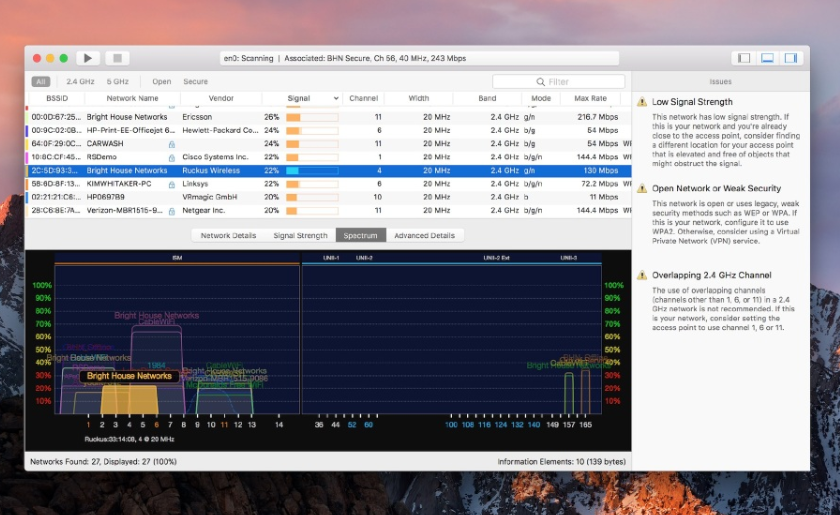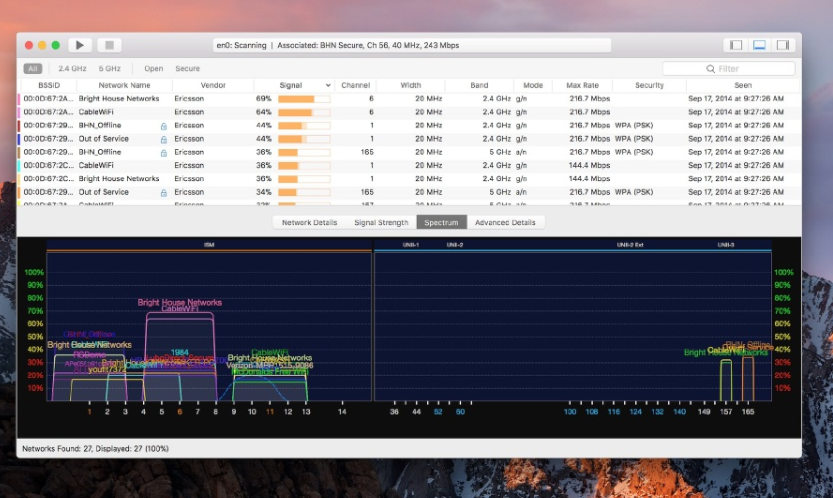
WiFi Explorer Pro是一款运行在Mac平台上的WiFi资源管理器专业版,可以帮助用户监控和排除无线网络故障,还具备信息元素解码、注释和自定义颜色、频谱分析整合、增强过滤等实用的功能。
WiFi资源管理器Pro采用WiFi Explorer的代码库,并添加了一组功能,使其成为WLAN和IT专业人员的正确工具。您可以使用WiFi Explorer Pro进行初步评估,帮助设计和验证无线网络安装,以及识别信道冲突、重叠、信号质量差和其他可能影响您的家庭、办公室或企业无线网络的连接或性能的问题。
feature
无源定向扫描模式
频谱分析集成
自定义过滤器
对远程传感器的支持
支持具有隐藏SSID的网络
具有高级信息的其他列
扫描结果的其他组织选项
dark与light主题
statement:All articles on this site,If there is no special instructions or markings,All are originally published by this site。any person or organization,Without the consent of this website,Reproduction prohibited、Misappropriate、collection、Publish content from this site to any website、Books and other media platforms。If the content on this site infringes upon the legitimate rights and interests of the original author,You can contact us for processing。
Can free downloads or VIP membership resources be used directly for commercial use?
The copyright of all resources on this site belongs to the original author,The resources provided here are for reference and study purposes only.,Please do not use it directly for commercial use。If copyright disputes arise due to commercial use,All responsibility lies with the user。For more instructions, please refer to VIP introduction。
It prompts that the download is complete but cannot be decompressed or opened?
The most common situation is an incomplete download: You can compare the capacity of the downloaded compressed package with the capacity on the network disk,If it is less than the capacity prompted by the network disk, this is the reason。This is a browser download bug,It is recommended to download using Baidu Netdisk software or Thunder。 If this situation is excluded,You can leave a message at the bottom of the corresponding resource,or contact us。
Can't find the sample image in the material resource introduction article?
For members only、Whole site source code、Program plug-in、website template、Web page templates and other types of materials,The pictures used for introduction in the article are usually not included in the corresponding downloadable material package.。These related commercial images need to be purchased separately,And this site is not responsible for(There is no way)find source。 The same is true for some font files,However, some materials will have a list of font download links in the material package.。
The download address cannot be displayed or the content cannot be viewed after payment?
If you have successfully paid but the website does not pop up a success prompt,Please contact the webmaster to provide payment information for you to process
After purchasing this resource,Can I get a refund?
Source code materials are virtual goods,replicable,Transmissibility,once granted,No refunds of any kind will be accepted、Exchange request。Please confirm before purchasing to obtain the resources you need.
Comments (0)
Note: Please be respectful and civil in your comments Cancel reply
Special reminder:After the installation is completed and run,Be sure to cancel automatic updates,Otherwise, if a new version is automatically updated, the crack will become invalid.。 Permute can easily convert media files on Mac to various formats。Supports almost all formats,And there are tons of device presets to choose from。 Simple operation Permute operation is very simple,Just drag and drop the file into the window。Has a gorgeous interface,Drag and drop simplicity,No need for complicated options。 Fast processing Permute is processed very quickly。Just select the video format you want to convert the file to,It will process faster than you think。 Support all formats whether it is pictures,video,Audio Permute can be converted。Supports almost all formats,And there are tons of device presets to choose from。
Optimized content: Microsoft Outlook 2019 for Mac is Office launched by Microsoft 2019 One of the components,Outlook 2019 Mac is an email and calendar tool,Can be used to send and receive emails、Schedule、Manage contact information、Take notes etc.。So,How do you find items by performing a basic search in Outlook for Mac? Next,Follow the editor to see the specific tutorial! Perform a basic search in Outlook You can use the search box on the toolbar to search within the current folder or view。 1. Go to the folder or view you want to search:For example "mail"、"Calendar" or "People"。 2. Enter search terms in the search box:Enter your search terms in the search box in the upper right corner of the Outlook window。Outlook will display search results on the Search tab。 •To conduct a comprehensive search across all Outlook files (regardless of folders or views),Please select "All Projects"。This option is available in all views。 •Every time you switch views,You need to re-enter your search terms。 3. Select search scope:You can choose where to search based on folders or views。Available options include: •mail:current folder、subfolder、All messages or all items。 •Current email:Search within the currently selected mailbox。 •calendar:current folder、all events or all projects。 •Contact person:current folder、All contacts or all projects。 •Task:current folder、All tasks or all projects。 •notes:current folder、All notes or all items。 4. Complete search:After viewing the search results,Click Close Search on the Search tab。 •Notice:If you don't click "Close Search",The Search tab will remain active,The project list will continue to show search results,Even if you click on other tabs (like the Home tab)。 •Outlook...
The navigation area at the bottom or sidebar of Apple's Mac computers is called the "Dock" or "Dock"。If you use certain software frequently,You can put them on the Dock,for quick start。If you no longer need certain software,It can be removed from the Dock。Let’s take a look at how to add or remove applications on the dock in Mac systems。 Add software to the Dock Method 1: 1.Click on the black rocket icon (Launchpad) in the Dock。 2.Launch an application you want to keep in the Dock。 3.After the software starts,Its icon will appear in the Dock。Right click on the icon,Select "Options" -> "Keep in Dock"。 Method two: 1.Open Launchpad (can be opened by clicking the rocket icon in the Dock)。 2.Find the software you want to add to the Dock,Long press the app icon。 3.Drag the app icon to the appropriate location on the Dock,to pin it to the Dock。 Method three: 1.Open the Finder,Click on the "Applications" folder in the left sidebar。 2.Find the software you want to add to the Dock in the Applications folder。 3.Drag the software icon directly to the dock。After placing,The app will automatically reside in the Dock。 Delete software on the dock 1. Move the mouse cursor to the application icon in the dock that needs to be deleted。 2.Press and hold the app icon,Drag to an area of the desktop outside the Dock,until the "Remove" prompt appears。 3.Release mouse,The app icon will be removed from the Dock。 Notice:Removing an app icon from the Dock does not uninstall or delete the app,Just remove it from the Dock,The application remains in your Applications folder。 Through the above methods,You can easily manage apps in the Dock,Add frequently used apps or delete app icons you no longer need。Hope these steps are helpful!
Keka is a free macOS file decompression program,Can meet your daily decompression needs,Small size,Simple and easy to use,faster。The main compression core is p7zip (7-zip port)。 Support compressed formats:7z,Zip,Tar,Gzip,Bzip2,DMG,ISO supported extraction formats:RAR,7z,Lzma,xz,Zip,Tar,Gzip,Bzip2,ISO,EXE,CAB,PAX
Comments (0)