
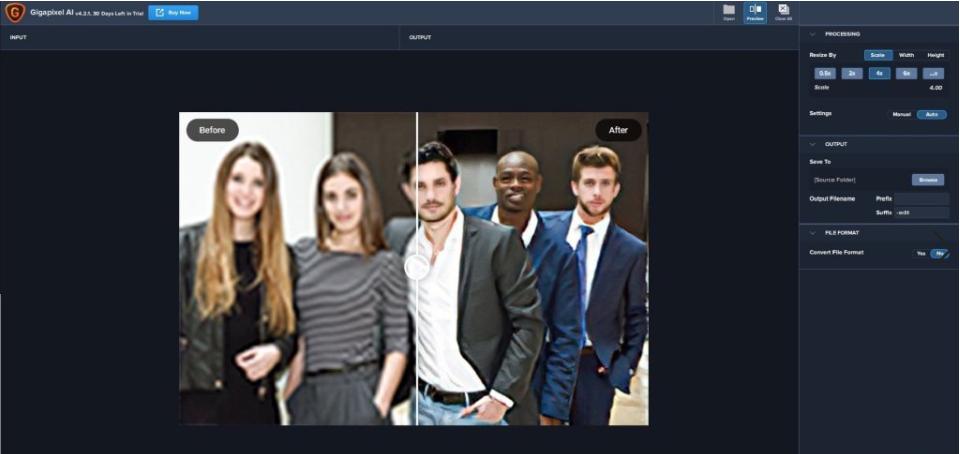
Topaz Gigapixel is a lossless image enlargement tool on the Mac platform,is the first and only app to use artificial intelligence capabilities to expand images,Also add natural details for stunning results。
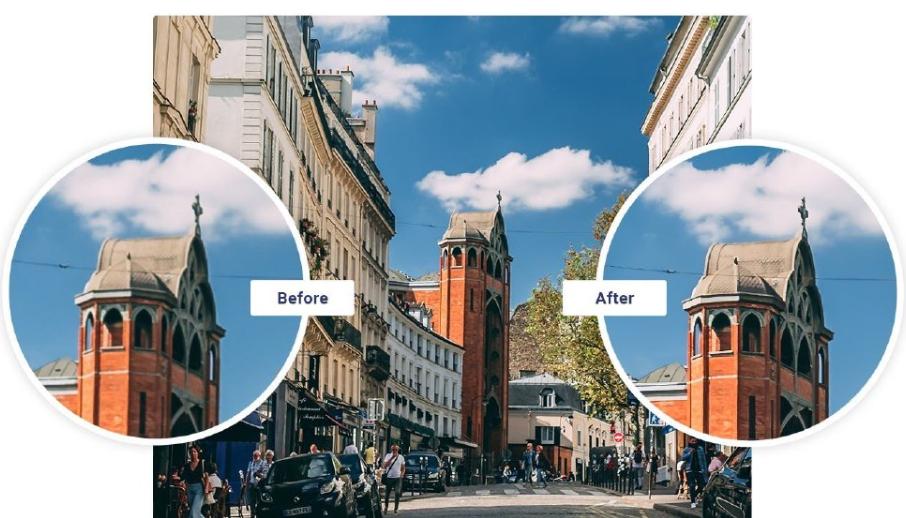
Topaz Gigapixel uses deep learning technology,Can enlarge images and fill in details missed by other resize products。These traditional methods produce blurry images,unrealistic,and lack the detail present in real high-resolution images。Using Topaz Gigapixel AI,You can crop your photo,Then just enlarge it to the size you want。
Need to do large printing,But can only small images be used? Do not want to lose image quality when increasing image size。Now,Using Topaz Gigapixel AI ,You can print photos up to 6 feet (1.8 meters) tall at 300DPI。
statement:All articles on this site,If there is no special instructions or markings,All are originally published by this site。any person or organization,Without the consent of this website,Reproduction prohibited、Misappropriate、collection、Publish content from this site to any website、Books and other media platforms。If the content on this site infringes upon the legitimate rights and interests of the original author,You can contact us for processing。
Can free downloads or VIP membership resources be used directly for commercial use?
The copyright of all resources on this site belongs to the original author,The resources provided here are for reference and study purposes only.,Please do not use it directly for commercial use。If copyright disputes arise due to commercial use,All responsibility lies with the user。For more instructions, please refer to VIP introduction。
It prompts that the download is complete but cannot be decompressed or opened?
The most common situation is an incomplete download: You can compare the capacity of the downloaded compressed package with the capacity on the network disk,If it is less than the capacity prompted by the network disk, this is the reason。This is a browser download bug,It is recommended to download using Baidu Netdisk software or Thunder。 If this situation is excluded,You can leave a message at the bottom of the corresponding resource,or contact us。
Can't find the sample image in the material resource introduction article?
For members only、Whole site source code、Program plug-in、website template、Web page templates and other types of materials,The pictures used for introduction in the article are usually not included in the corresponding downloadable material package.。These related commercial images need to be purchased separately,And this site is not responsible for(There is no way)find source。 The same is true for some font files,However, some materials will have a list of font download links in the material package.。
The download address cannot be displayed or the content cannot be viewed after payment?
If you have successfully paid but the website does not pop up a success prompt,Please contact the webmaster to provide payment information for you to process
After purchasing this resource,Can I get a refund?
Source code materials are virtual goods,replicable,Transmissibility,once granted,No refunds of any kind will be accepted、Exchange request。Please confirm before purchasing to obtain the resources you need.
Comments (0)
Note: Please be respectful and civil in your comments Cancel reply
Apple's new MacBook series notebooks are equipped with keyboard backlights,Can provide lighting when light is low。However,Sometimes you may encounter a situation where the Mac keyboard light cannot be adjusted。Here are the steps on how to adjust MacBook keyboard backlight brightness: 1. Open System Preferences and click the Apple icon in the upper left corner of the screen,Select "System Preferences"。 2. Enter the keyboard settings in the pop-up interface,Click "Keyboard"。 3. Adjust keyboard backlight settings under the "Keyboard" tab,Uncheck the "Automatically adjust keyboard brightness in low light" option。so,You can manually adjust the brightness of the keyboard light。 Go through the above steps,You can freely adjust the brightness of MacBook keyboard backlight。
1. Show or hide the menu bar If the menu bar is not displayed,You can display it by following these steps: 1. Open system preferences:Click the Apple icon in the upper right corner of the screen,Select "System Preferences"。 2. Go to general settings:In the System Preferences window,Click "General"。 3. Adjust menu bar settings: •In general settings,Find and check the "Automatically hide and show menu bar" option。 After setting this,The menu bar will automatically hide and show,Display based on your mouse movement or window operation。 2. Adjust menu bar icons •Rearrange icons:Command-drag an icon on the menu bar,Their positions can be rearranged。 •Remove menu bar icon:Hold down the Command key,Then click on the icon you want to delete and drag,until a delete sign appears at the top of the screen。Release the mouse to delete the icon。 please note,The icons of some software may not be removed from the menu bar,This depends on the settings of the software itself。 With these simple steps,You can easily manage and adjust the display and icons of your Mac's top menu bar。
In order to protect the security of the data in the USB flash drive or mobile hard disk,It’s important to develop a good habit of safely ejecting your device。So,How to safely eject a USB flash drive or removable hard drive on a Mac computer? Let’s take a look at the specific steps below! 1. Insert the U disk •After inserting the U disk normally,A disk icon will appear on your Mac desktop。 Method one:Pop up through the right-click menu 1. Right-click on the U disk icon on the desktop。 2.Select "Launch [Device name]”。 3.After the drive letter disappears,Indicates that the USB flash drive has been safely ejected。 Method two:Pop up via Finder 1. Use the left mouse button to click Finder。 2.Find the USB drive name in the "Location" column,Click the "⏏️" icon next to。 3.When the USB flash drive disappears from the Places option and desktop,Indicates that the USB flash drive has been safely ejected。 Frequently asked questions and solutions 1. Unable to pop up...
1. Window moving tips •Hold down the Command key and drag the window,It can be moved without covering other windows in use,Improve multitasking efficiency。 2. Personalize the Finder toolbar •Hold down the Command key in the Finder,Drag frequently used applications to the toolbar,Open files quickly and easily or drag and drop directly to the app icon to operate。 3. Custom shortcut keys •Add custom shortcut keys in your application,For example, manage browser history。Make sure the shortcut key name matches the option name,so that you can add and use it smoothly。 4. Personalized lock screen interface •Set "Security and Privacy" in "System Preferences",Check "Show message when screen is locked",Then enter personalized content,Such as name or contact information,Make the lock screen more personalized。 5. View saved WiFi passwords •Access Keychain Access,Find and open the entry that stores your home WiFi password,Passwords can be easily viewed,Don't worry even if you forget it。 These tips can help you take better advantage of macOS features,Improve convenience for work and daily use,Come and try it!
on Apple computer,You can easily take screenshots with shortcut keys such as Shift+Command+3 or Shift+Command+4,But by default the screenshot will be saved on the desktop。If you wish to save the screenshot to another location,You can follow these steps: Graphical tutorial on setting the screenshot save location and creating a new screenshot folder: Create a new folder within the user's "Pictures" folder,For example, name it "Screenshot"。You can use Finder in "Users" > Create this folder in "Pictures"。 Open terminal: Search for and open the Terminal application in Launchpad。 Enter command: Enter the following command in the terminal,and press Enter to confirm: defaults write com.apple.screencapture location ~/Pictures/Screenshot/ This command tells the system to save the screenshot to the specified folder (here is the "Screenshot" folder you created)。If you wish to save the screenshot to another location,Just change the path to your desired folder path。 Restart system services: Enter the following command to restart system services,Make changes effective: killall SystemUIServer This will reload the user interface service,Make sure the new screenshot save location setting takes effect。 Now,Your Mac will save all screenshots to the folder you specify (e.g. "Users/Pictures/Screenshots")。Doing this will help you keep your desktop tidy,Allows you to manage and find screenshot files more conveniently
Many friends who often use PS know that,PS brushes can be added by yourself。After you download some beautiful brush materials from the Internet,,How to import them into PS? The following is a detailed introduction to several methods of importing and installing PS brushes.。 Method one:Double-click to install Double-click to install: Download and save the brush file in “.abr” format。Then,Double-click the downloaded .abr brush file,can be automatically imported into Photoshop。 Method two:Drag and drop installation Drag and drop installation: Drag the downloaded ".abr" brush file directly into the open Photoshop window,Quickly install and import。 Method three:Import into the brush and open the brush panel: in Photoshop,Click "Window" on the top menu bar,Then select Brushes to open the Brushes panel。 Import brushes: Click the "≡" icon in the upper right corner of the brush panel,Select Import Brushes。 Select brush file: In the pop-up dialog box,Find and select the ".abr" brush file you downloaded earlier,Then click Open,can be successfully imported into Photoshop。 Through the above simple methods,You can easily import the downloaded brush materials into Photoshop for Mac,Have fun creating!
Remote Desktop Manager - is a small application to control remote connections。With the Remote Desktop Manager program,you can add、 edit、 delete、 Organize or quickly find your remote connections。This utility is compatible with Microsoft Remote Desktop or Terminal Services,is a very simple to use,But it is also powerful、 efficient。Remote Desktop Manager is available to any user。 Remote Desktop Manager has the following software features: 1.Remote Connection Types Remote Desktop Manager integrates many tools and protocols:Microsoft Remote Desktop、pcAnywhere、TeamViewer、Radmin、VNC、DameWare、HP RGS、Citrix (ICA / HDX) 2. Built-in connection types Built-in SSH Tunnel/Shell/FTP Telnet、SSH and SFTP Integrate Internet Explorer Local embedded computer remote control 3.VPN connection management Remote Desktop Manager natively supports multiple VPN types,like:Microsoft VPN,Cisco VPN,SonicWALL VPN和thegreenbow VPN。 as a free plugin,We also offer an extensive range of VPNs,like:OpenVPN,shrewsoft VPN,and many other VPNs compatible with IPSec。These can be downloaded and installed in seconds。 in addition,VPN,SSL and SSH tunnels can be automatically opened upon establishing a remote connection,and configuration can be reused in different sessions,shared with users。 4.Quick Connect Use the Quick Connect feature to quickly access remote machines using Microsoft Remote Desktop.,VNC or web page。Just enter a hostname or IP address。 You can even create your own custom templates,Use any other lesson type。 Activation method Use little snitch or Hands Off! Block access to the following addresses: cdn.devolutions.net crm.devolutions.net or add the following content to the hosts file (you can use:Gas mask): 127.0.0.1...
Dynamic Wallpaper Engine(Live wallpaper engine)It is a dynamic wallpaper tool carefully built for Mac users.,Let users say goodbye to the single static wallpaper of the past,Experience vibrant live wallpapers。This program provides ready-made video materials for users to choose from,It also supports importing local videos。The most convenient thing is that users can set the selected video as desktop wallpaper,You can also freely set it as a screen saver for your computer,Make your desktop come alive、interesting。 feature: 2000+Exquisite video material,Continuous updates,You don’t have to spend time finding material。 Video material classification:4K ultra clear、cartoon animation、natural humanities、Cute pets、game world、creative video、Pleasant beauty、antique style、Movie stars, etc.,There is always a style that suits you。 Support "keyword search",Search for your favorite live wallpaper。 Support "add playlist",single cycle、List loop、Shuffle mode。 Support scheduled switching,Automatically switch live wallpaper every half hour/hour/daily。 Support dynamic screensaver,Personalized lock screen,Full of style。 Support "break reminder",Custom reminder time,Avoid eye and brain fatigue。 Import local videos with one click,Convenient and fast。 Supports multiple screen aspect ratios and native resolutions,Support fish screen。 Support multiple monitors,Different dynamic wallpapers for different monitors。 Turn on smart control,Automatically pause when using other apps,Work without being disturbed。 Automatically pause when power is not connected,Save power。 Support hiding desktop icons,Immersive experience。 Support "global shortcut keys",Switch wallpapers with one click、Hide desktop icons、display saver。 one time purchase,Valid permanently,There are no charging points in the software。 Zero App learning cost,Simple interaction,Pursue the best experience。 Dynamic Wallpaper is designed to provide a fun experience,while occupying as little system resources as possible。
Little Snitch is an old and excellent application firewall software on the Mac platform.,Little Snitch cracked version can control network connection access permissions of all applications/single applications on macOS,Alert you in real time about outbound network connections。 App Introduction Little Snitch allows you to intercept these unwanted connection attempts,and let you decide how to proceed。it can notify you,When a program attempts to establish an outgoing Internet connection。Then,You can choose to allow or deny this,Or define a rule how to handle something like,Future connection attempts。This reliably prevents private data from being sent to you without your knowledge。The inconspicuous Little Snitch runs in the background,It can also detect network viruses,Trojan and other malware-related activity。 Alert mode whenever an application attempts to connect to a server on the network,Little Snitch will display a connection alert,Allows you to decide whether to allow or deny the connection。 No data is transferred without your consent。 Your decision will be remembered and applied automatically in the future。 Silent Mode If you are new to Little Snitch,You may be inundated with notifications from apps that want to connect to the internet。Brand new silent mode built from the ground up,to make handling them a breeze。It lets you silence all notifications for a certain period of time,and make all decisions conveniently at a later time。
Many new Mac computer users don’t know where the tutorials for using touch gestures are.,I don’t know how to set up my Mac’s trackpad either.。Today I will introduce you to a tutorial on how to use touch gestures on Mac.,Hope it helps everyone。 step one:Open System Preferences 1. Click the Apple icon in the upper left corner of the screen,Select "System Preferences"。 Step 2:Find the trackpad option 1. In the System Preferences pane,Find and click "Touchpad"。 Step 3:View the touch gesture tutorial 1. On the touchpad settings page,Apple will list tutorials for using different gestures。You can click on each gesture to view detailed instructions and demonstration videos。 Step 4:Change multi-gesture settings 1. Click the "More Gestures" option at the top of the trackpad settings page。 2.in the left sidebar,Multi-gesture settings can be changed according to personal needs。 Go through the above steps,You can easily view and set up your Mac's touch gestures。Hope this information is helpful to you。
My Apple laptop accidentally deleted all the files in "All My Files",What should I do if everything is moved to the trash? Found no batch recovery,Can only be restored one by one。Don't worry,Mac can only batch restore files in the same folder,Unable to batch restore files in different folders。The editor below will introduce how to batch restore Mac files。 step one:View files in the Trash When there is only one file in the Trash,You can see the menu option "Replace";But if there are multiple files,There is no such option。 Step 2:Open "Automatic Operation" 1. Click the launch pad at the bottom of the screen,Find the "Other" folder。 2.Enter "automatic operation"。 Step 3:Create a new automatic operation service 1. Select "Service" in the pop-up page,Then click the "Select" button in the lower right corner。 Step 4:Add AppleScript command 1. Find "Run AppleScript" in the left menu bar。 2.Enter the following command: tell application “Finder” set theItems to items of trash repeat with anItem in theItems move anItem to home end repeat end tell 3. Click the black triangle button in the red box in the upper left corner to execute the command。 Step 5:Handling error prompts If an error is prompted when executing a command,Just change "trash" in the command to "trash": tell application “Finder” set theItems to items of 废纸篓 repeat with anItem in theItems move anItem to home...
Kaleidoscope is a powerful file and image comparison tool,Supports any text file and jpeg、tiff、png、Image files in psd and other formats,At the same time and git、Version control tools such as svn can be perfectly combined。 Kaleidoscope is a very powerful file image and text comparison tool on Mac,Supports arbitrary text documents and image files,Able to find differences and merge different documents or pictures very quickly and accurately,Its powerful merge and conflict resolution functions are very easy to use,And supports and Subversion、Git、Integration of version management tools such as Mercurial,Comparisons that can ignore whitespace characters、Unresolved conflict indicators, etc.。
Comments (0)

