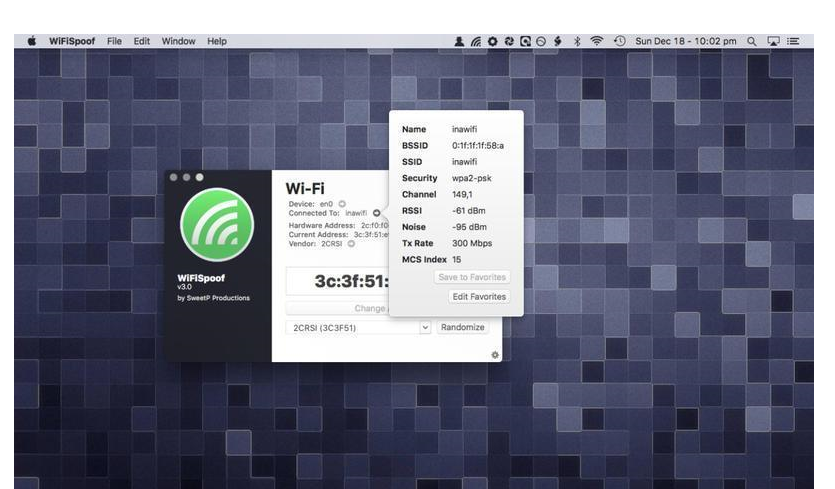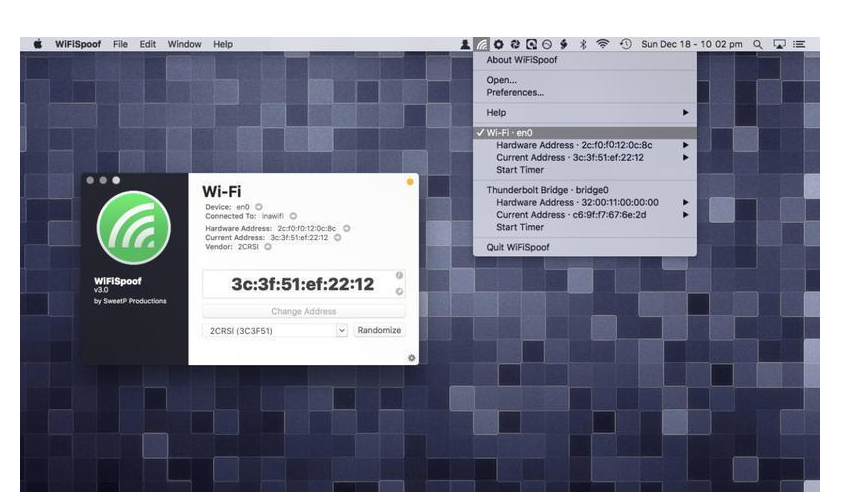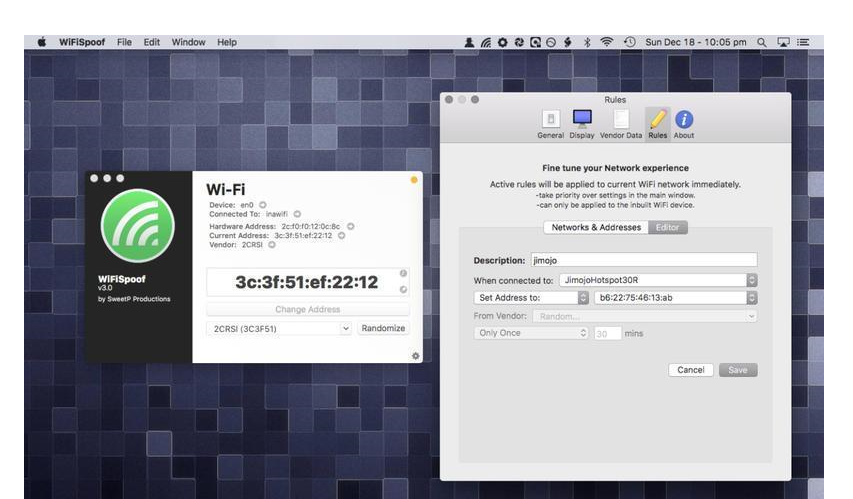
Open WiFiSpoof 2.x [SP].app,choose /Applications/WiFiSpoof.app,激活
statement:All articles on this site,If there is no special instructions or markings,All are originally published by this site。any person or organization,Without the consent of this website,Reproduction prohibited、Misappropriate、collection、Publish content from this site to any website、Books and other media platforms。If the content on this site infringes upon the legitimate rights and interests of the original author,You can contact us for processing。
Can free downloads or VIP membership resources be used directly for commercial use?
The copyright of all resources on this site belongs to the original author,The resources provided here are for reference and study purposes only.,Please do not use it directly for commercial use。If copyright disputes arise due to commercial use,All responsibility lies with the user。For more instructions, please refer to VIP introduction。
It prompts that the download is complete but cannot be decompressed or opened?
The most common situation is an incomplete download: You can compare the capacity of the downloaded compressed package with the capacity on the network disk,If it is less than the capacity prompted by the network disk, this is the reason。This is a browser download bug,It is recommended to download using Baidu Netdisk software or Thunder。 If this situation is excluded,You can leave a message at the bottom of the corresponding resource,or contact us。
Can't find the sample image in the material resource introduction article?
For members only、Whole site source code、Program plug-in、website template、Web page templates and other types of materials,The pictures used for introduction in the article are usually not included in the corresponding downloadable material package.。These related commercial images need to be purchased separately,And this site is not responsible for(There is no way)find source。 The same is true for some font files,However, some materials will have a list of font download links in the material package.。
The download address cannot be displayed or the content cannot be viewed after payment?
If you have successfully paid but the website does not pop up a success prompt,Please contact the webmaster to provide payment information for you to process
After purchasing this resource,Can I get a refund?
Source code materials are virtual goods,replicable,Transmissibility,once granted,No refunds of any kind will be accepted、Exchange request。Please confirm before purchasing to obtain the resources you need.
Comments (0)
Note: Please be respectful and civil in your comments Cancel reply
Many friends who often use PS know that,PS brushes can be added by yourself。After you download some beautiful brush materials from the Internet,,How to import them into PS? The following is a detailed introduction to several methods of importing and installing PS brushes.。 Method one:Double-click to install Double-click to install: Download and save the brush file in “.abr” format。Then,Double-click the downloaded .abr brush file,can be automatically imported into Photoshop。 Method two:Drag and drop installation Drag and drop installation: Drag the downloaded ".abr" brush file directly into the open Photoshop window,Quickly install and import。 Method three:Import into the brush and open the brush panel: in Photoshop,Click "Window" on the top menu bar,Then select Brushes to open the Brushes panel。 Import brushes: Click the "≡" icon in the upper right corner of the brush panel,Select Import Brushes。 Select brush file: In the pop-up dialog box,Find and select the ".abr" brush file you downloaded earlier,Then click Open,can be successfully imported into Photoshop。 Through the above simple methods,You can easily import the downloaded brush materials into Photoshop for Mac,Have fun creating!
Optimized content: Microsoft Outlook 2019 for Mac is Office launched by Microsoft 2019 One of the components,Outlook 2019 Mac is an email and calendar tool,Can be used to send and receive emails、Schedule、Manage contact information、Take notes etc.。So,How do you find items by performing a basic search in Outlook for Mac? Next,Follow the editor to see the specific tutorial! Perform a basic search in Outlook You can use the search box on the toolbar to search within the current folder or view。 1. Go to the folder or view you want to search:For example "mail"、"Calendar" or "People"。 2. Enter search terms in the search box:Enter your search terms in the search box in the upper right corner of the Outlook window。Outlook will display search results on the Search tab。 •To conduct a comprehensive search across all Outlook files (regardless of folders or views),Please select "All Projects"。This option is available in all views。 •Every time you switch views,You need to re-enter your search terms。 3. Select search scope:You can choose where to search based on folders or views。Available options include: •mail:current folder、subfolder、All messages or all items。 •Current email:Search within the currently selected mailbox。 •calendar:current folder、all events or all projects。 •Contact person:current folder、All contacts or all projects。 •Task:current folder、All tasks or all projects。 •notes:current folder、All notes or all items。 4. Complete search:After viewing the search results,Click Close Search on the Search tab。 •Notice:If you don't click "Close Search",The Search tab will remain active,The project list will continue to show search results,Even if you click on other tabs (like the Home tab)。 •Outlook...
SecureFX 9.1.1 for mac is a software that supports SFTP client,it is easy to use,Has an operation interface similar to Windows Explorer。 SecureFX gives you the tools you need to make your file transfer operations and site synchronization more secure and efficient。SecureFX’s user-friendly interface makes it easy to learn,Support for multiple platforms allows you to apply the Secure Shell protocol’s powerful encryption and authentication mechanisms to your data transfers。 SecureFX 8.7.3 supports three file transfer protocols:FTP、SFTP 和 FTP over SSH2。It can provide secure file transfer。No matter which operating system you are connected to the server,It can provide secure transmission services。 The downloaded compressed package contains DMG files suitable for both ARM and INTEL platforms.。Please download and unzip the compressed package and select the corresponding DMG installation according to your Mac system.。
My Apple laptop accidentally deleted all the files in "All My Files",What should I do if everything is moved to the trash? Found no batch recovery,Can only be restored one by one。Don't worry,Mac can only batch restore files in the same folder,Unable to batch restore files in different folders。The editor below will introduce how to batch restore Mac files。 step one:View files in the Trash When there is only one file in the Trash,You can see the menu option "Replace";But if there are multiple files,There is no such option。 Step 2:Open "Automatic Operation" 1. Click the launch pad at the bottom of the screen,Find the "Other" folder。 2.Enter "automatic operation"。 Step 3:Create a new automatic operation service 1. Select "Service" in the pop-up page,Then click the "Select" button in the lower right corner。 Step 4:Add AppleScript command 1. Find "Run AppleScript" in the left menu bar。 2.Enter the following command: tell application “Finder” set theItems to items of trash repeat with anItem in theItems move anItem to home end repeat end tell 3. Click the black triangle button in the red box in the upper left corner to execute the command。 Step 5:Handling error prompts If an error is prompted when executing a command,Just change "trash" in the command to "trash": tell application “Finder” set theItems to items of 废纸篓 repeat with anItem in theItems move anItem to home...
Comments (0)