
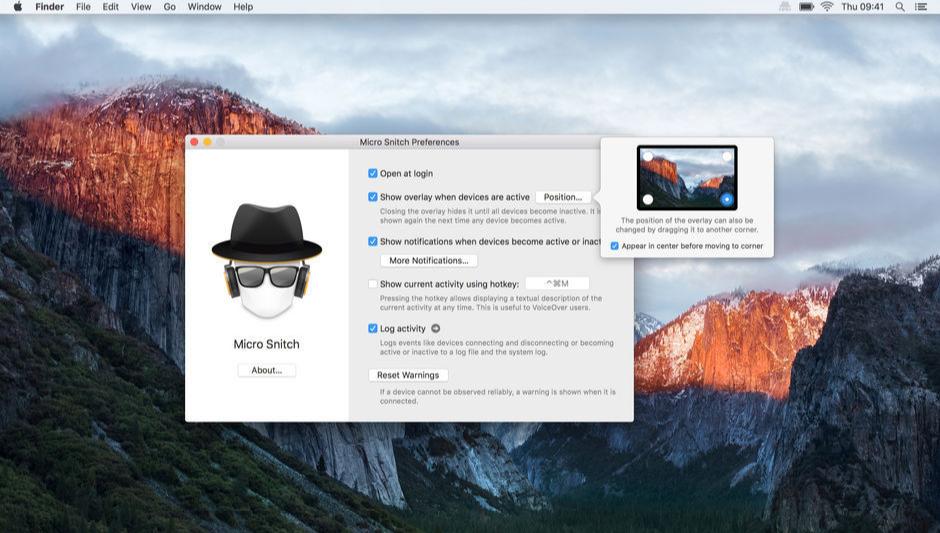
Micro Snitch is a launchBar manufacturer that can monitor whether the computer is controlled by others using the camera or recording.。
知道何时有人窥视您!
是不是曾经想知道是否某款应用程序未经您的允许通过 Mac 的内置麦克风进行音频录制? 或者是否有摄像头没有正当理由进行视频拍摄?
有了 Micro Snitch,These doubts will disappear naturally。This super-tiny menu bar app runs silently in the background,Monitor and report any microphone and camera activity,Tell you if someone is spying on you。
That's right,You can also observe the camera’s indicator light,But what if you're not at your computer? for microphone,No indication of activity at all,So even if you're sitting in front of your Mac,If the microphone is turned on,You won't find out either。
by Micro Snitch,You can tell if an app is using your microphone,Its logging feature allows you to spot any suspicious activity。
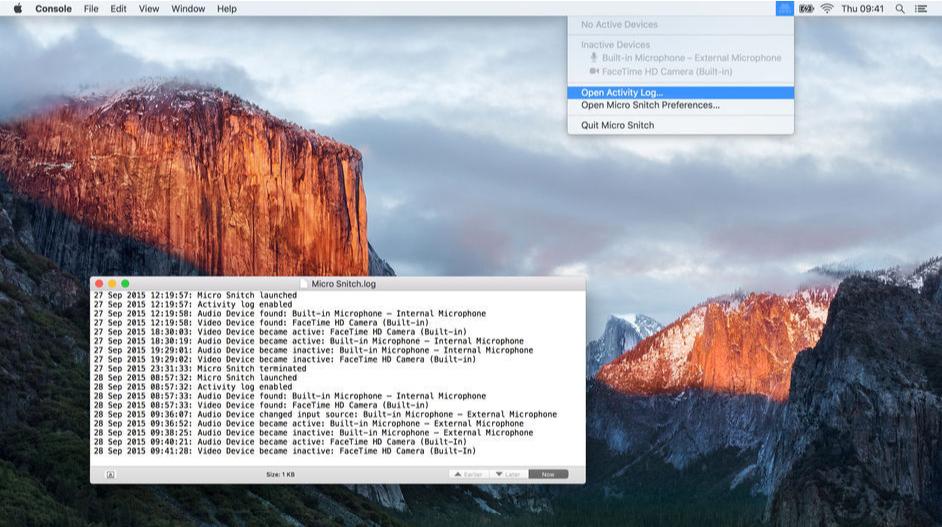
菜单栏图标 当前麦克风或摄像头的任何活动都会显示在菜单栏中。The menu also displays a list of connected audio/video devices。
覆盖 麦克风或摄像头被打开时会显示屏幕覆盖,Make sure you don't miss it,Even when the menu bar is not currently visible。
录入 不会错过麦克风或摄像头的任何活动,Even when you're not at your computer。Each status change will be recorded in a file,so you can view it later,Find suspicious activity。
通知 当设备变为活动状态或非活动状态时,Micro Snitch displays a notification。You can also enable notifications when you connect or disconnect from your device。
辅助功能 Micro Snitch 支持 OS X 内置的辅助功能,For example VoiceOver。By pressing a configurable shortcut key,Micro Snitch displays current microphone or camera activity as text,VoiceOver can read automatically。
statement:All articles on this site,If there is no special instructions or markings,All are originally published by this site。any person or organization,Without the consent of this website,Reproduction prohibited、Misappropriate、collection、Publish content from this site to any website、Books and other media platforms。If the content on this site infringes upon the legitimate rights and interests of the original author,You can contact us for processing。
Can free downloads or VIP membership resources be used directly for commercial use?
The copyright of all resources on this site belongs to the original author,The resources provided here are for reference and study purposes only.,Please do not use it directly for commercial use。If copyright disputes arise due to commercial use,All responsibility lies with the user。For more instructions, please refer to VIP introduction。
It prompts that the download is complete but cannot be decompressed or opened?
The most common situation is an incomplete download: You can compare the capacity of the downloaded compressed package with the capacity on the network disk,If it is less than the capacity prompted by the network disk, this is the reason。This is a browser download bug,It is recommended to download using Baidu Netdisk software or Thunder。 If this situation is excluded,You can leave a message at the bottom of the corresponding resource,or contact us。
Can't find the sample image in the material resource introduction article?
For members only、Whole site source code、Program plug-in、website template、Web page templates and other types of materials,The pictures used for introduction in the article are usually not included in the corresponding downloadable material package.。These related commercial images need to be purchased separately,And this site is not responsible for(There is no way)find source。 The same is true for some font files,However, some materials will have a list of font download links in the material package.。
The download address cannot be displayed or the content cannot be viewed after payment?
If you have successfully paid but the website does not pop up a success prompt,Please contact the webmaster to provide payment information for you to process
After purchasing this resource,Can I get a refund?
Source code materials are virtual goods,replicable,Transmissibility,once granted,No refunds of any kind will be accepted、Exchange request。Please confirm before purchasing to obtain the resources you need.
Comments (0)
Note: Please be respectful and civil in your comments Cancel reply
Special reminder:This software requires Rosetta to be installed on the macOS system to run。 Rosetta installation method reference tutorial: Apple ARM M1 application crashes after installation、What should I do if I cannot activate it? Apple ARM M1 application crashes after installation、What should I do if I cannot activate it? UltraEdit 20 for Mac is a powerful text code editor。UltraEdit can edit text、hexadecimal text、ASCII code,Can edit multiple files at the same time,File comparison is possible,UltraEdit built-in FTP browser,and supports syntax highlighting for hundreds of programming languages,With integrated SSH / telnet client,Script,Custom tools,Macros and smart templates,UltraEdit can be used with any coding session。This site provides UltraEdit20 mac crack version download。
Master these Word skills,Easily double your work efficiency! Word as an essential office skill,Widely used in the workplace,But most people are limited to basic word processing。today,We share three very practical Word tips,Make your work more efficient! Remove spaces with one click when processing copied documents,Removing spaces is a common requirement。Do not delete one by one,Instead use the shortcut: Press Ctrl + H Open the Find and Replace window。 Enter ^w in the "Find what" box,Then click "Replace All"。 Delete empty lines with one click except spaces,Blank lines are also a common problem。Here’s a quick fix: Press Ctrl again + H Open the Find and Replace window。 Enter ^p^p in the "Find what" box,Enter ^p in the "Replace with" box,Then click "Replace All"。 Separate text with one click Keeping text formatted neatly is a common need: Select the text to be divided into columns。 Go to the "Layout" tab,Select "Column",Then select the desired number of columns。 master these techniques,allows you to write a paper、manual、Get your work done faster and more efficiently in flowchart and table creation!
iMazing 3 is the ultimate iPhone management software trusted since 2008,Supports Mac and PC platforms,Provides fast transfer including、Seamless backup and recovery、A powerful set of features including efficient media and information management。Users can quickly transfer files from computers to iOS/iPadOS apps through drag-and-drop operations,Achieve faster speeds than file sharing or AirDrop,Also supports scheduled automatic backup,As well as store backups on any local storage device。 iMazing also specially optimizes the management of media files and information,Not only supports copying between music files in various formats,Quickly export and import photos,Save or share important conversations。For business users and legal professionals,iMazing provides services such as configuring and deploying Apple mobile devices、Automatically back up device data、Install and manage applications and other automated and scaled device management solutions。With its user-friendly interface、High security standards and comprehensive management capabilities,iMazing has won the trust and praise of millions of users around the world。 Use iMazing,Users can use simple drag-and-drop operations,Quickly transfer files from computer to iOS/iPadOS apps,Even faster than file sharing or AirDrop。It also allows users to automatically back up their devices on a scheduled basis,Connect via Wi-Fi or USB,Store backups on any local storage device,Includes external hard drives and NAS。 iMazing is also particularly good at managing media files and information.,Supports copying music files between any Apple device and computer,Supports all media types,Includes FLAC format;Quickly export and import photos,Save or share important conversations,Includes iMessage、SMS and WhatsApp messages。
Special reminder:After the installation is completed and run,Be sure to cancel automatic updates,Otherwise, if a new version is automatically updated, the crack will become invalid.。 Permute can easily convert media files on Mac to various formats。Supports almost all formats,And there are tons of device presets to choose from。 Simple operation Permute operation is very simple,Just drag and drop the file into the window。Has a gorgeous interface,Drag and drop simplicity,No need for complicated options。 Fast processing Permute is processed very quickly。Just select the video format you want to convert the file to,It will process faster than you think。 Support all formats whether it is pictures,video,Audio Permute can be converted。Supports almost all formats,And there are tons of device presets to choose from。
When using a Mac computer,for safety,Many users will set an administrator password。If you accidentally forget your Mac administrator password,don’t worry,Here are a few ways you can reset your password and restore access。 Method 1 for users who have not turned on FileVault:Using Apple ID Reset in OS X Mavericks (10.9) and later versions,Apple integrates Apple ID and administrator password,Allow quick reset of user password using Apple ID。Please make sure your Mac is logged in with Apple ID,And check "Allow users to reset passwords using Apple ID" in "System Preferences - Users & Groups - Login Options"。 1.In the login window,Entering incorrect password three times in a row,Until the system pops up a prompt window:"If you forget your password,You can…use your Apple ID to reset/use your master password to reset”。 2.Click the little arrow next to "Reset using your Apple ID"。 3.Enter your Apple ID and password,Then click "Reset Password"。 4.In the reset password window,Set and confirm new user password and password prompt (optional),When finished, click "Reset Password"。 5.After reset is complete,Restart your Mac and log in with your new password。 Method two:Use Master Password Reset If you set a Master Password and remember it,The master password can be used to reset the password for administrator or regular accounts。The specific steps are similar to method one,No more details。 Method three:Reset using another administrator account If you know the name and password of another administrator account on your Mac,Password can be reset through this account。 1.Log in using another administrator account。 2.Go to "System Preferences - Users & Groups",Click the little key icon to unlock。 3.Select the account whose password needs to be reset from the user list,Click the "Reset Password" button,and follow the instructions to reset your new password。 4.After reset is complete,Cancel current account,Log in to your account using your new password。 Users who have FileVault enabled For users who have FileVault enabled...
Friends who are new to Mac computers,Do you know how to check the system version of Mac and how to upgrade the system version? Here the editor brings you a detailed tutorial。This common sense is very practical for Mac newbies,Collect it quickly! How to check the current system version of your Mac computer 1. Click the Apple logo in the upper left corner。 2.Select "About This Mac"。 This will display the system version number of your Mac computer。 macOS operating system upgrade tutorial macOS 10.15 The official version will be launched on September 25, 2019。If you purchased a Mac computer after October 2019,This new Apple desktop operating system should come pre-installed。Apple's operating system is different from Windows,macOS is free for users to install and update。How to upgrade macOS system for free? Let’s take a look! 1. Open "System Preferences"。 2.Find "Software Update"。 3.Click "Update Now",Then follow the prompts to complete the upgrade of the macOS operating system.。 Hope these tutorials can help you,Let you use your Mac computer better!
When using Mac software,We often encounter situations where the program suddenly freezes.,Especially when processing large files, insufficient memory may cause the program to become unresponsive.。In addition to learning to save files at any time,You also need to know how to force quit a program on Mac system。 Shortcut key Press and hold the shortcut key Command + Option + Shift + Esc can force quit the current program。 Force quit the program window 1. Pull down from the menu bar in the upper left corner of the screen,Select "Force Quit",Or use the shortcut key Command + Option + Esc opens the Force Quit Application window。 2.Select the program you want to exit in the window,Then click "Force Quit" in the lower right corner。 Force quit in the Dock by holding down the Option key,Then right-click the program's icon in the Dock,The option to "Force Quit" will be displayed,Click to exit。 Activity Monitor 1. Open Launch Pad,Go to the "Other" folder,Find and open Activity Monitor。 2.Find the name of the program you want to quit in Activity Monitor,Then click the close button in the upper left corner to force quit the program。 Mastering these methods can help you effectively deal with Mac program stuck situations,Protect data and increase productivity。
.mogrt file is a Pr dynamic graphics template,Able to be used in Adobe Premiere Pro。It provides a new type of template format,Motion graphics effects can be easily created and edited。 To import a .mogrt file: 1. Confirm software version: Make sure you are using the latest version of Premiere Pro that supports .mogrt files (versions below PR 2017 are not supported)。 2. Prepare template file: If you have the latest version of After Effects (2019 and above),You can use it to edit and export .mogrt files。 3. How to use one: • Open Finder,Go to path:Users/Username/Library/Application Support/Adobe/Common/Essential Graphics/Mogrt。 •If the folder does not exist,You can create it yourself。 •Drag and drop template files in .mogrt format into this folder。 •Open Premiere Pro,Select Manage More Folders in the Basic Graphics panel。 •Click "Add Path",Select the Mogrt folder created earlier。 •Click "OK" after confirming the path。 • Now restart Premiere Pro,You will see the imported template appear in the Basic Graphics panel。 4. Usage method two: •In Premiere Pro,Open the Basic Graphics panel。 •Click the plus button in the lower right corner。 •Select the .mogrt file you want to import in the pop-up dialog box,Then click "Open"。 •The template file you selected will be immediately imported and displayed in the Basic Graphics panel。 go through these steps,You can easily import motion graphics templates in .mogrt format into Premiere Pro,Use in your video editing projects。
Kaleidoscope is a powerful file and image comparison tool,Supports any text file and jpeg、tiff、png、Image files in psd and other formats,At the same time and git、Version control tools such as svn can be perfectly combined。 Kaleidoscope is a very powerful file image and text comparison tool on Mac,Supports arbitrary text documents and image files,Able to find differences and merge different documents or pictures very quickly and accurately,Its powerful merge and conflict resolution functions are very easy to use,And supports and Subversion、Git、Integration of version management tools such as Mercurial,Comparisons that can ignore whitespace characters、Unresolved conflict indicators, etc.。
PullTube is an online video download tool for macOS platform,Can help us download YouTube and Vimeo online videos to local YOUTUBE and VIMEO Support Youtube and Vimeo。 Add more platforms based on user requests。 4K,HD and 60FPS support PullTube allows you to download videos in any format Video to audio Convert and save videos to mp3 and m4a Beautiful and flexible interface Beautiful user interface,Support Apple night mode
The startup screen may vary depending on your Mac model、Varies depending on factors such as operating system (macOS)。Some screens, such as the ban sign or question mark, mean you need to solve a problem first,Then the Mac can complete booting。For all Mac models,When you see the Finder menu bar、Desktop and Dock,This means that the startup is complete。today,The editor of MacW will take you to understand what the various interfaces displayed when Mac starts up represent.。 1. Forbidden symbol A circle crossed by a line or slash means that the selected startup disk contains a Mac operating system,But it's not macOS for your Mac。You should reinstall macOS on this disk。 2. Question mark A folder with a question mark means that the selected startup disk is not available,or does not include Mac OS。Learn how to fix problems with flashing question marks。 3. Blank Screen It is normal to have one or more blank screens during startup.。it may be black、grey、blue,It could also be a desktop picture。If no image appears on the screen after a while,Make sure your display is on、Connected and brightness turned up。 4. Apple Logo Your Mac displays the Apple logo after finding the local startup disk,This disk is the Mac's built-in startup disk or is directly connected to the Mac's startup disk。If your Mac cannot find your local startup disk,then it will try to use a network boot disk if one is available。As the boot process continues,You should see a progress bar or indicator showing the circle (which may or may not contain the Apple logo)。This screen may alternate with a blank screen multiple times。 If you're updating or reinstalling macOS,then this stage may take longer to complete。As the installation continues,The progress bar may move slowly and pause for a long time。Find out if your Mac seems to be stuck on this screen during the installation process or just after the installation is complete,what to do。 5. Rotating Earth When using a network boot disk,Your Mac displays a spinning globe instead of the Apple logo。When launching from macOS recovery function over the Internet,There will also be a rotating earth。As the boot process continues,You should see a progress bar,It may alternate with a blank screen multiple times。 6. Earth with warning symbol when your Mac tries to boot from macOS Recovery over the Internet and fails,You may see a globe with an exclamation mark。Your Mac may not be able to connect to the internet,Or it might be using a network configuration that's incompatible with macOS recovery features。Please try the following solutions: – Use Command-R on startup to try to use the built-in macOS recovery system,Rather than booting from macOS recovery over the Internet。 – Connect to the Internet using Ethernet instead of Wi-Fi,vice versa。 – Connect to the Internet from another network。 – Please try again later,Because the problem may be temporary。 7. Lock icon If your Mac uses a firmware password,then when you try to download a file from another disk or volume such as,external drive or macOS recovery) a lock icon appears when starting。Please enter your firmware password to continue。 8. PIN code to lock your system if your Mac is locked remotely via the Find My feature,then your Mac will ask for a PIN。Please enter a four-digit or six-digit password to continue。 9. Login window In the login window,Enter your user account password,to log into your Mac。If FileVault is open,then this action will also unlock your disk。You may see the default desktop picture in the background,After you select your account,This image may be changed to a desktop image of your choice。 By understanding these launch screens,You can better solve problems you encounter when your Mac starts up,Make sure your Mac starts up smoothly and works normally。
PDF Expert is a powerful, efficient and beautiful PDF editing tool,Ability to scroll smoothly and quickly search the first document of your choice。PDF opens instantly,Whether they are small email attachments or 2,000 page reports。 Professional annotation tools from simple change marathon editing sessions,PDF Expert lives up to its name。Powerful yet easy-to-use tools are just a click away,So you can make your mark in record time。 Read an award-winning,Lightning-fast tabbed document viewer will get you through multiple PDFs faster than ever。 Great for form filling PDF Expert provides the best experience for filling PDF forms。text field,checkbox,Radio buttons and other form elements work as you expect,and all the information you enter is saved in the form。Works well even with complex interactive forms using Javascript An easy way to sign files Signing files on Mac is easy。Just enter your name on the keyboard,PDF Expert will convert it into beautiful handwriting。Or use your Macbook’s trackpad and write with your fingers。You can even use signatures you have already created in PDF Expert for iOS。 Extensive sharing options so you don't work alone,Not PDF Expert either。When documents need to be sent to clients,colleagues and others,PDF Expert offers best-in-class support for Mac system-wide share sheets and other applications。If the application accepts PDF files,PDF Expert can put them there。 Works on all devices on any Apple device Mac,Use PDF Expert on iPad and iPhone。Use Apple's Continuity and Switching features to seamlessly transfer documents from one device to another,and continue editing where you left off。
Comments (0)

