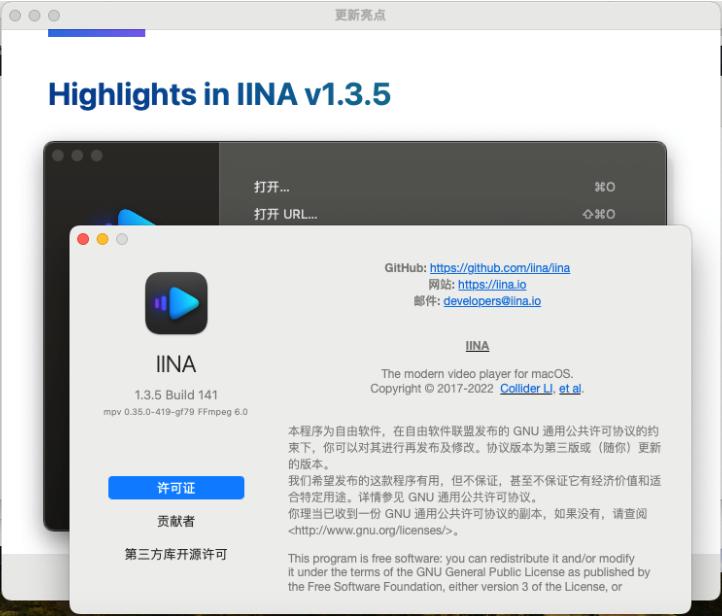
IINA is an online mac video player with modern design and streamlined features,Can watch video,Manage playlists,Process media content or load subtitles for movies and more。IINA mac can load local files or provide video URLs,IINA mac can use all popular media formats。And you can quickly change the interface theme,Adjust default behavior and user interface,Decide whether to load subtitles automatically,Configure new keybindings, etc.。This is a Github open source application,Thanks to the developers for their hard work。
statement:All articles on this site,If there is no special instructions or markings,All are originally published by this site。any person or organization,Without the consent of this website,Reproduction prohibited、Misappropriate、collection、Publish content from this site to any website、Books and other media platforms。If the content on this site infringes upon the legitimate rights and interests of the original author,You can contact us for processing。
Can free downloads or VIP membership resources be used directly for commercial use?
The copyright of all resources on this site belongs to the original author,The resources provided here are for reference and study purposes only.,Please do not use it directly for commercial use。If copyright disputes arise due to commercial use,All responsibility lies with the user。For more instructions, please refer to VIP introduction。
It prompts that the download is complete but cannot be decompressed or opened?
The most common situation is an incomplete download: You can compare the capacity of the downloaded compressed package with the capacity on the network disk,If it is less than the capacity prompted by the network disk, this is the reason。This is a browser download bug,It is recommended to download using Baidu Netdisk software or Thunder。 If this situation is excluded,You can leave a message at the bottom of the corresponding resource,or contact us。
Can't find the sample image in the material resource introduction article?
For members only、Whole site source code、Program plug-in、website template、Web page templates and other types of materials,The pictures used for introduction in the article are usually not included in the corresponding downloadable material package.。These related commercial images need to be purchased separately,And this site is not responsible for(There is no way)find source。 The same is true for some font files,However, some materials will have a list of font download links in the material package.。
The download address cannot be displayed or the content cannot be viewed after payment?
If you have successfully paid but the website does not pop up a success prompt,Please contact the webmaster to provide payment information for you to process
After purchasing this resource,Can I get a refund?
Source code materials are virtual goods,replicable,Transmissibility,once granted,No refunds of any kind will be accepted、Exchange request。Please confirm before purchasing to obtain the resources you need.
Comments (0)
Note: Please be respectful and civil in your comments Cancel reply
Many Mac users may not know,Mac computers have a hidden screen-rotating feature。by rotating the screen 90 degree,You can read e-books or movies while lying down。So,How to rotate the screen on a Mac computer? Let me share with you the specific method below,Let’s take a look together。 1. Open System Preferences •Click on the Apple icon in the upper left corner,Choose to enter System Preferences。 2. Go to monitor settings •In System Preferences,Click on the "Display" option。 3. Select the rotation angle •In the monitor settings interface,Find the "Rotate" option。There are three rotation angles to choose from in the drop-down menu:90 degree、180 degree and 270 degree。After selecting the desired rotation angle,Exit settings to complete。 Notes •If you don’t see the “Rotate” option in your monitor settings,It may be that your computer does not support the screen rotation function。 Go through the above steps,You can easily rotate your Mac screen,Bring more convenience to your use。
Optimize content:Sometimes problems occur in macOS or computer components,as time goes by,they may gradually worsen,or suddenly。 Sometimes before these problems become major issues,Your Mac will send out warning signs 。You need to pay close attention to the operation of the system。We'll show you some common warning signs ,and discuss how to solve these problems in the following sections。 1.Mac won't turn on when you press the power button on your Mac,nothing happened。No power light,no sound,And the screen is completely black。 don't panic,Just try the following steps to diagnose the problem: • Check power connection,Make sure both ends are secure。Next,Check the wires for damage,Then try using a different charger or outlet。 • Check the video output cable connection to the external monitor (if applicable)。Also try increasing the brightness of your monitor,to ensure that its brightness is not too low。 • There may be something wrong with your accessory。Unplug all peripherals except keyboard and mouse,Then try to start。Plug in peripherals after reboot,see if everything is normal。 • Restart power。On a modern MacBook,Press and hold the power button for 10 seconds。If your Mac is running,It will cut power and force it to reboot。On a desktop Mac,Unplug the cable,Then wait ten seconds。Then plug in and reboot。 2.Mac gray screen during startup after turning on the power of Mac,A series of startup events will occur,until the login screen or desktop appears。But if the startup process gets stuck,no matter how long you wait,will only see a solid gray screen or a screen with symbols。 based on what you see,Follow the instructions below。 Normal gray screen If there is only a simple gray screen at startup,Please do the following: • Peripheral failure is the main cause of gray screen problem。therefore,You should remove all wired accessories,Then hold down the power button to shut down your Mac。Plug in a peripheral after every reboot to find the culprit。 • Try booting in safe mode。If your Mac completes the startup process here,Please reboot in normal mode and verify that the boot drive is functioning properly。 • If safe mode startup fails or gets stuck,then reset the NVRAM and SMC settings as previously described。 • RAM with incorrect specifications can also cause the screen to turn gray。Remove any RAM you recently added,then restart。 • Hold down Cmd on startup + R key,Restart your Mac in recovery mode。Then,Repair your boot drive using Disk Repair Utility。 gray screen,No disk icon If there is a folder with a flashing question mark on the gray screen,It means that your Mac cannot find a valid boot volume.。but,When it displays the "Do Not Enter" symbol,Indicates that your macOS installation is corrupted。 To resolve this issue: • Sometimes your Mac forgets the boot volume,and temporarily display a flashing question mark。To resolve this issue,Go to the Startup Disk pane in System Preferences,Then reselect the boot volume。 • Start your Mac in recovery mode。In the Apple menu,Check if you can see the boot volume。if not,There is probably a problem with the boot disk。Run a disk repair utility to resolve this issue。 •...
The Chinese cracked version of CleanMyMac X can clean up all the messy useless files in the system in just two simple steps.,Save valuable disk space。cleanmymac x Personally think that X represents the biggest upgrade in the interface,More features added,More compatible with the latest macOS system,Smoothly and more integrated with system performance,Silent cleanup、record update、Clean cache、Quick and safe removal、Important features like uninstalling apps and emptying the Recycle Bin。
Comments (0)