
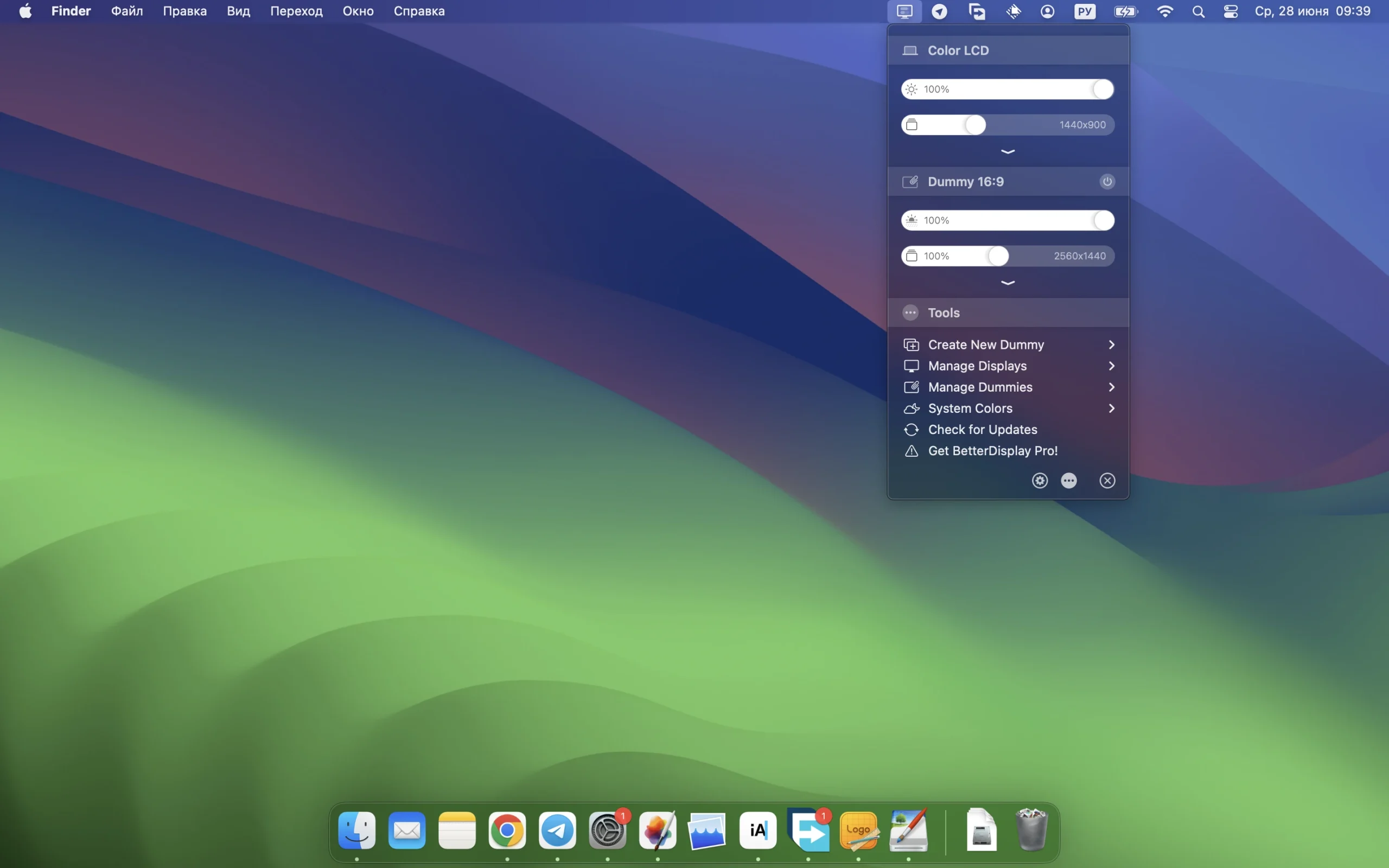
BetterDisplay Pro is a powerful display management tool,Not only does it transform your monitor into a fully scalable screen,Also allows you to override display configuration、Control brightness and color、Provides XDR/HDR brightness enhancement (over 100% additional brightness on compatible XDR or HDR displays,Available for Apple Silicon and Intel Macs,Provides multiple methods)、Achieve all-black dimming、Helps you create and manage virtual screens for Mac、Create a picture-in-picture window for your monitor,and provides many other features,Allows you to easily manage monitor settings from the menu bar。
statement:All articles on this site,If there is no special instructions or markings,All are originally published by this site。any person or organization,Without the consent of this website,Reproduction prohibited、Misappropriate、collection、Publish content from this site to any website、Books and other media platforms。If the content on this site infringes upon the legitimate rights and interests of the original author,You can contact us for processing。
Can free downloads or VIP membership resources be used directly for commercial use?
The copyright of all resources on this site belongs to the original author,The resources provided here are for reference and study purposes only.,Please do not use it directly for commercial use。If copyright disputes arise due to commercial use,All responsibility lies with the user。For more instructions, please refer to VIP introduction。
It prompts that the download is complete but cannot be decompressed or opened?
The most common situation is an incomplete download: You can compare the capacity of the downloaded compressed package with the capacity on the network disk,If it is less than the capacity prompted by the network disk, this is the reason。This is a browser download bug,It is recommended to download using Baidu Netdisk software or Thunder。 If this situation is excluded,You can leave a message at the bottom of the corresponding resource,or contact us。
Can't find the sample image in the material resource introduction article?
For members only、Whole site source code、Program plug-in、website template、Web page templates and other types of materials,The pictures used for introduction in the article are usually not included in the corresponding downloadable material package.。These related commercial images need to be purchased separately,And this site is not responsible for(There is no way)find source。 The same is true for some font files,However, some materials will have a list of font download links in the material package.。
The download address cannot be displayed or the content cannot be viewed after payment?
If you have successfully paid but the website does not pop up a success prompt,Please contact the webmaster to provide payment information for you to process
After purchasing this resource,Can I get a refund?
Source code materials are virtual goods,replicable,Transmissibility,once granted,No refunds of any kind will be accepted、Exchange request。Please confirm before purchasing to obtain the resources you need.
Comments (0)
Note: Please be respectful and civil in your comments Cancel reply
Remote Desktop Manager - is a small application to control remote connections。With the Remote Desktop Manager program,you can add、 edit、 delete、 Organize or quickly find your remote connections。This utility is compatible with Microsoft Remote Desktop or Terminal Services,is a very simple to use,But it is also powerful、 efficient。Remote Desktop Manager is available to any user。 Remote Desktop Manager has the following software features: 1.Remote Connection Types Remote Desktop Manager integrates many tools and protocols:Microsoft Remote Desktop、pcAnywhere、TeamViewer、Radmin、VNC、DameWare、HP RGS、Citrix (ICA / HDX) 2. Built-in connection types Built-in SSH Tunnel/Shell/FTP Telnet、SSH and SFTP Integrate Internet Explorer Local embedded computer remote control 3.VPN connection management Remote Desktop Manager natively supports multiple VPN types,like:Microsoft VPN,Cisco VPN,SonicWALL VPN和thegreenbow VPN。 as a free plugin,We also offer an extensive range of VPNs,like:OpenVPN,shrewsoft VPN,and many other VPNs compatible with IPSec。These can be downloaded and installed in seconds。 in addition,VPN,SSL and SSH tunnels can be automatically opened upon establishing a remote connection,and configuration can be reused in different sessions,shared with users。 4.Quick Connect Use the Quick Connect feature to quickly access remote machines using Microsoft Remote Desktop.,VNC or web page。Just enter a hostname or IP address。 You can even create your own custom templates,Use any other lesson type。 Activation method Use little snitch or Hands Off! Block access to the following addresses: cdn.devolutions.net crm.devolutions.net or add the following content to the hosts file (you can use:Gas mask): 127.0.0.1...
Sketch is the most powerful vector drawing design tool for mobile applications,For web and mobile designers,N times easier to use than PhotoShop! Especially when it comes to mobile app design,The advantage of Sketch is that it is easy to use,low learning curve,And the function is more powerful and easier to use,Support automatic picture cutting,and has mobile design templates,Can greatly save designers time and workload,Great for website design、mobile app design、Icon design etc.。 Sketch supports multiple fills per layer、Borders and shadows;Powerful non-destructive Boolean operations;Smart pixel alignment;And make exporting a breeze with automatic slicing and multi-resolution export。 Vector tools and basic shapes are the foundation;Whether you are designing icons、website、Interface or anything else。Combine these with non-destructive Boolean operations into complex shapes,giving you the freedom to edit them in the future,Then apply advanced layer style options,like multiple shadows、filling、Gradient、noise、mix、Background blur etc.。 certainly,Sketch is not just about making shapes。Imported images can be rotated、Zoom、Crop and mask。Best-in-class text tools let you add beautiful typography to your designs using native font rendering,So you can make sure the text always looks 100% precise! Sketch 3 new features,Symbols allow you to reuse entire content groups in multiple locations within your design。think button、Interface elements such as headers and footers。change once,They update everywhere in your document。 Made for Mac,Sketch supports OS X versions and auto-saves,Let you focus on your work,Instead of hitting CMD+S。Use iCloud to securely sync your work across multiple Mac computers。and make Sketch full screen to maximize your canvas size。 All of these features fit perfectly into Sketch’s single-window interface。everything is there,hide,until you need it。Simple interface with powerful tools。 Detailed instructions for installing Sketch version 100.2 1. Download and prepare the installation package ➡️ Download the installation package:First download the Sketch 100.2_ronnabox.cn.dmg file to your Mac,Usually found in the "Downloads" folder。 ➡️...
Some friends cannot install Apple developer tools command line tools,When installing, it will prompt "The software cannot be installed.,Because it is currently unavailable from the software update server",Let me teach you how to install it manually。 What are command line tools? Command Line Tools is a small standalone package from Apple,Available for macOS,Expanded the terminal with additional functionality。including but not limited to:svn、git、make、GCC、clang、perl、size、strip、strings、libtool、cpp、what、codesign and many other commands found in Linux。 For ordinary users of macOS,Mainly use its signature function,It is to sign unsigned applications/applications with invalid signatures.。Because Apple’s apps are not signed or have invalid signatures, they will basically crash and fail to run.。 Generally speaking,All you need to do is open the terminal,Then execute xcode-select --install in the terminal and the installer will open.,Then follow the prompts to install it。However, some users will report an error if their network cannot connect to the Apple server.:The software cannot be installed,Because it is currently unavailable from the software update server。 Solved once prompted:The software cannot be installed,Because it is currently unavailable from the software update server,You need to manually go to the Apple Developer Download Center to download the offline installation package of command line tools.。 Open the Apple Developer Center:https://developer.apple.com(The server of Apple Developer Center is not in China,So it will be very slow to open,wait patiently) Click Account on the far right side of the top navigation,Then log in to your Apple ID and open the Developer Download Center:https://developer.apple.com/download/more/ Search for command line tools (press the Enter key after typing in the search box) Select the version suitable for your macOS system。 10.15.x Command Line can be downloaded...
Cisdem AppCrypt is an encryption software on the Mac OS platform,You can set a secure password for your Mac app to protect your iPhoto,iTunes,Contacts etc.。 Cisdem AppCrypt is also very simple to use,Just set a password,Add the apps you want to lock,No one will be able to access the protected application,Unless they have the correct password。Cisdem AppCrypt adds the ability for users to lock Mac apps at specific dates and times。For example:After school (3:00-5:00) but not at 10:00。at the same time,Its setup time is easy,Because it's a you set your alarm。 Think of it, make a cup of coffee,And your personal chat window is on the screen? no problem。Cisdem AppCrypt will intelligently terminate programs not previously running when your Mac goes into hibernation or standby。Cisdem AppCrypt automatically password protects some important system applications,Includes Activity Monitor,System settings,Host and terminal。You can also remove them from the blocked apps list manually。
Typora is a simple、Efficient and very elegant Markdown editor,It provides a new Markdown writing experience where what you see is what you get。Typora combines source code editing and effect preview into one,Instantly generate preview effects when entering Markdown code。Typora is one of the most popular Markdown editors on the Internet.。 one、Main Features What you see is what you get:Typora uses a unique What You See Is What You Get (WYSIWYG) model,Allows users to view the rendering effect of Markdown code in real time,No need to enter text and then go to preview mode,Improved writing efficiency。 Simple interface:Typora’s user interface is very simple,No redundant menus and toolbars,Leave only a sidebar and an editing area,Allow users to focus more on writing。 Markdown syntax support:Typora supports most Markdown syntax,include links、picture、sheet、code block、dividing line、emphasize、Paragraph etc.,Meet various writing needs of users。 Custom theme:Users can choose different fonts according to their preferences、background color、line spacing、Title etc.,to create your own exclusive editing style。 Cross-platform compatible:Typora is not only available on the Mac platform,Also supports Windows and Linux。Documents can be seamlessly switched between different platforms,and keep the same format。 two、Interface and functions Editing area and sidebar:Typora's main interface consists of the editing area and sidebar。The editing area is on the left,Is an area where users can enter Markdown code,It is also the display area for WYSIWYG mode.。The sidebar is on the right,is a hidden panel,Users can open or hide the sidebar toggle button by clicking on it。in sidebar,Users can access Typora’s settings、theme、Print、File browser、outline、Directory and other functions。 Text editing mode:Typora has two different text editing modes: WYSIWYG and source code.。Users can switch between these two modes by clicking the "Code" button in the upper right corner of the window or using the shortcut key "cmd+/"。 Shortcut key operation:Typora provides a large number of shortcut keys to improve users' writing efficiency。For example,"cmd+b" can make the selected text bold,"cmd+i" can italicize the selected text,"cmd+k" can add links, etc.。 Automatic save and restore:Typora has the feature to automatically save documents,Documents can be automatically saved to the local hard drive as the user enters text。If the user accidentally closes Typora or the computer suddenly loses power,Typora can automatically restore the document last edited by the user。 three、Advanced features Live preview:Typora supports real-time preview of Markdown text,Allows users to simultaneously edit and view the rendering of a document。so,when user writes,can instantly see how their text will look on screen,and can be adjusted at any time。 full screen mode:Typora offers a "full screen" mode,The editor and preview area can be displayed full screen,Eliminate other distracting elements,Allow users to focus more on writing。 Outline view:Typora’s outline view feature can add hierarchical structure to documents,So that users can better organize and manage documents。in outline view,Users can see the document's title and sections,and easily navigate between chapters。 File export:Typora supports exporting Markdown documents to PDF、HTML、DOCX、ODT and other file formats,Enables users to seamlessly switch and edit between different document types。
1. Window moving tips •Hold down the Command key and drag the window,It can be moved without covering other windows in use,Improve multitasking efficiency。 2. Personalize the Finder toolbar •Hold down the Command key in the Finder,Drag frequently used applications to the toolbar,Open files quickly and easily or drag and drop directly to the app icon to operate。 3. Custom shortcut keys •Add custom shortcut keys in your application,For example, manage browser history。Make sure the shortcut key name matches the option name,so that you can add and use it smoothly。 4. Personalized lock screen interface •Set "Security and Privacy" in "System Preferences",Check "Show message when screen is locked",Then enter personalized content,Such as name or contact information,Make the lock screen more personalized。 5. View saved WiFi passwords •Access Keychain Access,Find and open the entry that stores your home WiFi password,Passwords can be easily viewed,Don't worry even if you forget it。 These tips can help you take better advantage of macOS features,Improve convenience for work and daily use,Come and try it!
HEIC (High Efficiency Image File Format) dynamic wallpaper allows you to set a desktop background that changes over time on your Mac。Here are two ways to set HEIC dynamic desktop wallpaper: Method one:Use system preferences 1. Download HEIC Live Wallpaper •First,Make sure you have downloaded the HEIC format live wallpaper file you want to use,For example "Japanese_street.heic"。 2. Install HEIC live wallpaper •Drag and drop the downloaded HEIC live wallpaper file into the desktop background folder:/Library/Desktop Pictures。 •Can be opened via Finder,Press Shift+Command+G,Enter the path /Library/Desktop Pictures,Then drag the HEIC file into that folder。 3. Set a live wallpaper • Click the Apple icon in the upper left corner of the screen,Select "System Preferences"。 •Click on the “Desktop & Screen Saver” option。 •Select the desktop you want to set as live wallpaper on the left。 •Select the HEIC live wallpaper you just installed on the right,It should appear in the Dynamics tab。 •After confirming your selection,The desktop will display the dynamic wallpaper you set。 Method two:Use right-click menu settings 1. Download and install HEIC Live Wallpaper • Same,Drag and drop the downloaded HEIC live wallpaper file into the desktop background folder:/Library/Desktop Pictures。 2. Setting via right-click menu • Open Finder,Go to the /Library/Desktop Pictures folder。 • Find and right-click the HEIC live wallpaper file you want to set (eg "Japanese_street.heic")。 •Select "Service" in the pop-up menu > "Set desktop picture"。 3.Confirm settings •The desktop will apply the HEIC live wallpaper you selected。
I like to keep a clean and organized desktop,But sometimes it's really hard to keep。fortunately,MacOS Mojave introduces new stacking feature,Allows me to manage my desktop quickly and easily。 Use Stacking Enable Stacking: Just right click on the desktop,Then select "Use Stacking"。Stacking automatically groups all files on your desktop by type,and stacked neatly on the right side of the screen。 Unstack: If stacking starts to worry you about hiding needed files,Or maybe you want to go back to the chaotic and organized desktop view you're used to,Just right click on the desktop again,Then select "Unuse Stacking"。 Sorting options Custom sorting: Overlay organizes files by file type by default,But you can also go by the last modified date、Add date、Modification date、Sort by creation date, tag, etc.。Right click on the desktop,Select "View display options",Then select the sort method。 View and manage stacks View stacks: Click on Stack,It expands to show thumbnails of each file group。You can click on any file to open it,Or click the stack icon to close the expanded stack。 Using MacOS’s stacking feature allows me to quickly scan and manage files on my desktop,Although it sometimes makes me lazier。But at least,It allows me to easily find files I hide out of sight。
Edraw Max is a powerful cross-platform professional drawing software,It integrates rich drawing tools,Adaptable to many professional fields,Allows users to easily create flowcharts、network diagram、organizational chart、Market analysis chart、Building plan、mind map、fashion design drawings、UML diagram、workflow diagram、Web design drawing、electrical engineering drawings、Directional diagrams and database charts, etc.。The software provides a user-friendly interface and a large number of templates、Shapes and over 26,000 vector symbols,Support effective data visualization and brainstorming,Suitable for both professionals,It also allows beginners to easily create professional-looking graphs and charts.,Greatly facilitates the expression and communication of data。 Features Special functions Full Chinese interface,Have desktop version、Web version allows you to easily draw more than 260 drawing types, including a large number of professional templates and 26,000+ vector symbol materials and intelligent wizards.,Combine graphics and data. Support batch import and export of Visio format. Support output in multiple formats.,As picture、PDF、Office、Html, etc. One-click sharing link、Share to social platforms Office drawing + AI,Improve your drawing efficiency. Edraw AI can optimize graphic charts and text creation scenarios.,For example, enter a sentence to generate a flow chart/mind map/list、Continue writing text with one click、One-click layout and beautification、OCR text extraction is easy to operate,Even novices in drawing can get started easily. Edraw icons make complex drawings simple and easy to use.,No need to master complex professional knowledge,Full drag-and-drop operation,Ready to use,regardless of background,Easy to get started。 Massive materials,To meet multi-scenario drawing needs, Edraw has 210+ graphics solutions,17500+drawing symbols,1100+Built-in templates,One software can take care of your daily drawing。 Collaboration and sharing,Share your visual works anytime, anywhere. Edraw web version supports online collaboration.,Share easily、Manage team files;It also supports one-click sharing to WeChat、Weibo、QQ and other social platforms,Make communication more convenient。 Strong compatibility,Commonly used formats can be imported and exported with one click. Edraw icons support the import of Visio common formats VSD.、VSDX,You can export EPS with one click、Word、PPT、PDF、SVG and common image formats。 Enterprise-grade security,Protect your privacy in Edraw icon,Your data is private、safe and reliable。All information and file transfers are protected by a high level of professional encryption,without permission,No one can access your data。 Business Office Don’t know how to make PPT? Copy template using Edraw icon,Quickly output beautiful charts、business canvas、analysis report。 Project Management Is project management complicated? Use Edraw icons,Get the flow chart done in one go、Gantt chart、Checklist diagram、funnel chart、fishbone diagram。 Science education: Text-only teaching is too monotonous? Use Edraw icons,Present boring knowledge points in a visual way,Stimulate children's interest in learning。 Software Development Don’t have a clear idea for software development? Draw architecture diagram using Edraw icons,Sort out the underlying logic,Improve business understanding。 Knowledge Summary Is studying for a long time too inefficient? Use Edraw icons to create mind maps,Organize knowledge points,Build a structured knowledge system。
McAfee Endpoint Security is a very well-known computer antivirus tool。Very user-friendly to use,The overall interface is very simple and easy to understand.,Strong professionalism in virus detection and killing,Help users check for hidden dangers in all programs,Provide users with the most comprehensive protection for their computers,Supports the health status of the entire computer system。 McAfee Endpoint Security provides instant protection for your Mac with revolutionary proactive protection technology,New threats can be analyzed and blocked in milliseconds,Ensure you have the latest security protection with continuous automatic updates,Protect against ever-changing malicious threats。 McAfee Endpoint Security also has VShield automatic monitoring system,Will reside in System Tray,when you download from disk、on the Internet、When a file is opened in the E-mail folder, the security of the file will be automatically detected.,If the file contains a virus,will be warned immediately,and handle it appropriately,Mainly covers the following areas:Data protection and encryption,Database security,Terminal protection,network security,Security management,Security information and event management (SIEM),Server security,Web security,Cloud data security,Can help home businesses deploy a truly integrated network environment,Collaborative, instant threat detection and remediation,To protect network security。 McAfee Endpoint Security reimagines our endpoint security solutions,Provides an integrated platform for endpoint defense,Enables simpler investigations and one-click remediation across the enterprise。Through a single agent architecture with deep integration and automation,We can remove silos between once-isolated functions,Increase efficiency and protection with McAfee Endpoint Security through one management console,Incorporating established features such as firewall,reputation and heuristics) with cutting-edge machine learning and containment capabilities,and endpoint detection and response integrated into a platform agent。The resulting comprehensive protection allows users to infect their first endpoint before,Stop the production and connections of zero-day malware such as ransomware。
Photomator is a powerful、Easy to use photo editor,Suitable for every need。If you are looking for a product that will make your photos stand out,Photomator is your good choice。 Main functions: Basic adjustments:brightness、Contrast、saturation、Color tone, etc. Advanced adjustments:curve、color correction、filter、Texture etc. Image restoration:stain removal、Spot repair、Cutout, etc. Layers and masks:Create complex image compositions RAW support:Edit RAW images directly,Preserve original details Advantages: Simple and easy to use interface,Suitable for beginners and professionals, comprehensive features,Covers all aspects of photo editing Supports RAW images,Original details preserved at an affordable price,Suitable for personal and small studio use
Virtual Keyboard is a accessibility keyboard in macOS,It not only provides advanced typing features such as typing suggestions,Also has navigation function。So,How to enable the on-screen virtual keyboard on a Mac computer? 1. In the menu bar in the upper right corner of the screen,Tap the input method menu icon。 2.Select "Show keyboard display program"。 so,A white virtual keyboard window will appear on the screen。You can enter text by clicking on this keyboard。 If you need to close the virtual keyboard window,Just click the red close button in the upper left corner of your keyboard。
Comments (0)

