
Pixelmator Pro includes new workflows and more intuitive and simpler editing software。It also features a single-window interface and smart image editing capabilities based on machine learning。Pixelmator Pro is developed using the Core ML framework,It integrates perfectly with macOS High Sierra,Level detection can be completed automatically,Smart quick selection, better repair tools, and more。
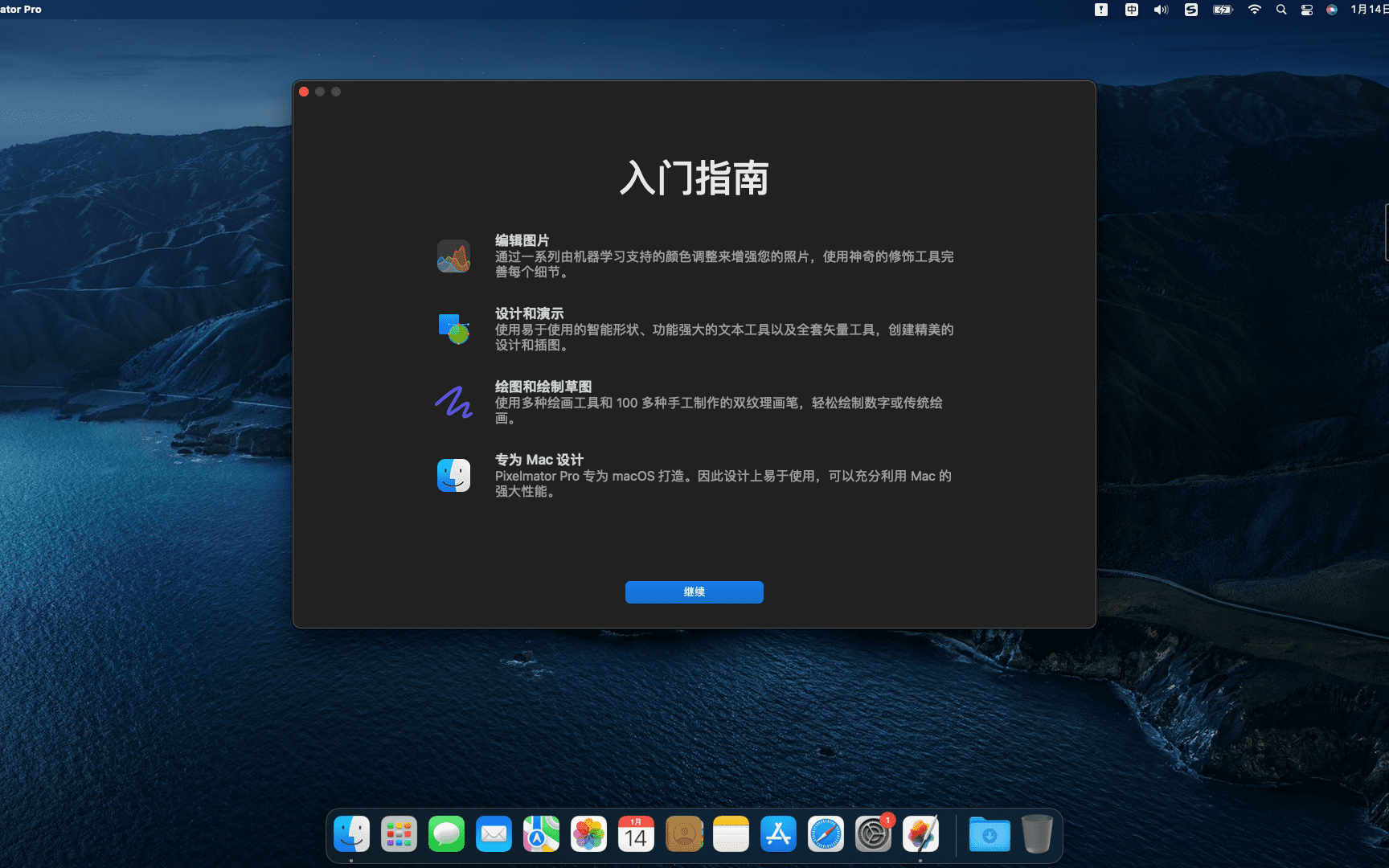
The application is based on Swift 4 ,Integrated Metal 2 ,Core Image and OpenGL 。And the new drawing engine,Can free up computational load from the CPU,Also accelerates graphics-intensive tasks。Pixelmator Pro also has Metal-based 2 dynamic drawing blending techniques。For example, Metal 2 Used to render paint tools and dual texture brushes。
With an improved single-window interface,Replaced Pixelmator's floating tool panel,Pixelmator Pro puts focus on the image at hand,rather than in the application's toolset。 Pixelmator 团队还简化了GUI ,以配合 macOS 的外观和风格,这样他们就能呈现出一个完美的产品,其风格和功能与苹果官方的产品十分接近。 Pixelmator Pro 的主要功能还包括非破坏性的图像编辑,还有更改图层大小的位置的新工具。全新的色彩调整工具和 RAW 支持可以让用户更快速的调整照片。
Pixelmator Pro 的售价为 59 美元,不知道你觉得它和 Photoshop 哪个更好用呢?
statement:All articles on this site,If there is no special instructions or markings,All are originally published by this site。any person or organization,Without the consent of this website,Reproduction prohibited、Misappropriate、collection、Publish content from this site to any website、Books and other media platforms。If the content on this site infringes upon the legitimate rights and interests of the original author,You can contact us for processing。
Can free downloads or VIP membership resources be used directly for commercial use?
The copyright of all resources on this site belongs to the original author,The resources provided here are for reference and study purposes only.,Please do not use it directly for commercial use。If copyright disputes arise due to commercial use,All responsibility lies with the user。For more instructions, please refer to VIP introduction。
It prompts that the download is complete but cannot be decompressed or opened?
The most common situation is an incomplete download: You can compare the capacity of the downloaded compressed package with the capacity on the network disk,If it is less than the capacity prompted by the network disk, this is the reason。This is a browser download bug,It is recommended to download using Baidu Netdisk software or Thunder。 If this situation is excluded,You can leave a message at the bottom of the corresponding resource,or contact us。
Can't find the sample image in the material resource introduction article?
For members only、Whole site source code、Program plug-in、website template、Web page templates and other types of materials,The pictures used for introduction in the article are usually not included in the corresponding downloadable material package.。These related commercial images need to be purchased separately,And this site is not responsible for(There is no way)find source。 The same is true for some font files,However, some materials will have a list of font download links in the material package.。
The download address cannot be displayed or the content cannot be viewed after payment?
If you have successfully paid but the website does not pop up a success prompt,Please contact the webmaster to provide payment information for you to process
After purchasing this resource,Can I get a refund?
Source code materials are virtual goods,replicable,Transmissibility,once granted,No refunds of any kind will be accepted、Exchange request。Please confirm before purchasing to obtain the resources you need.
Comments (0)
Note: Please be respectful and civil in your comments Cancel reply
iShot Pro is an excellent Mac、Fully functional area screenshots、Window screenshot、Multi-window screenshot、long screenshot、Screenshot with shell、Time-lapse screenshot、Quick annotation、stickers、Toriiro、screen recording、recording、OCR、Screenshot translation tool。 Function 1、Screenshot area screenshot、Window screenshots support frame selection screenshots、Smart recognition window screenshot,Customize screenshot shortcut keys。 Multi-window screenshot Press the screenshot shortcut key,Add Shift,Click multiple windows,Take multi-window screenshots。 Time-lapse full-screen screenshot Time-lapse full-screen screenshot,Support countdown sound playback,Used to capture windows that are difficult to select。 Take a screenshot of the last screenshot area using shortcut keys,Quickly take a screenshot of the last selected screenshot area。 Take a screenshot of the window under the cursor using shortcut keys,Directly screenshot the window under the current mouse,No need to activate this window。 Screenshot guide rounded corners、Shadow effect supports automatic rounding of corners in screenshots、Screenshot shadow can be colored、Size adjustment,Make your screenshots more elegant。 Quickly open the screenshot. After completing the screenshot, you can double-click Option.,Open pictures using a custom app,make your screenshot、Edit seamlessly。 The default is to use "Preview" to open the image,You can also set it to open using other apps;in addition,When selecting Finder,Is to open the Finder location where the screenshot was saved。 Save/Storage Supports saving to clipboard、Save to local. Supports saving to clipboard and local at the same time. Supports single save as.,Custom storage name and format supports HD、Two image qualities, standard definition and jpg supported、png、tiff screenshot saving format supports outputting color standard pictures 2、Long screenshot scrolling、Screenshot Select the scrolling screenshot area,Then press the "S" shortcut key,Slide up the screenshot area,Start taking long screenshots,There is no limit to the length of long screenshots。 Support automatic scrolling of long screenshots。 three、Screenshot with shell After screenshot of full screen,Match your pictures with beautiful Mac case mockups,High-end elegance。 Four、After the map supports frame selection area,Click the sticker button to sticker; The texture library will store the texture records,Supports using the shortcut key "option+s" to open the texture library,Select pictures from the sticker library for stickers; Supports right-clicking after mapping,mark、Modify sticker image。 Supports texture adjustment for transparency,Rounded corners. Supports hiding/displaying all texture windows by pressing shortcut keys. Supports fixing textures/following desktop settings. Five、Quick annotation annotation function:...
When your Mac is low on disk space,Deleting files that are no longer needed is an effective solution。Although the common way to delete is through mouse operation,You can also use keyboard shortcuts to delete files。Here are several ways to use the Delete key to delete files on Mac systems: How to delete files using the Delete key Method 1:Right mouse button operation 1. Right click on the file in Finder,Find the file that needs to be deleted,Right click on the file。 2. Select "Move to Trash" Select "Move to Trash" in the pop-up menu。The file will be moved to the Trash。 3. Drag to the Trash. You can also just hold down the left mouse button.,Drag the file to the Trash icon at the bottom of the screen。 Method two:Use shortcut keys 1. Select the file. Click to select the file you want to delete.。 2. Use shortcut keys Press Command (⌘) + Delete key combination。This will move the file to the Trash。 Method three:Via Touch Bar 1. Customize the Touch Bar Click the Apple icon in the upper left corner of the screen,Select "System Preferences",Then click "Keyboard"。 2. Go to Touch Bar settings in Keyboard settings,Click "Customize Touch Bar"。 3. Add delete icon in the pop-up touch bar customization interface,Find the delete icon,Then drag it to the Touch Bar,Click "Done" in the upper right corner。 4. Delete files using the Touch Bar Select the files you want to delete,Then click the delete icon on the Touch Bar,The file will be moved to the Trash。 Through the above methods,You can manage files on Mac efficiently,Free up disk space。
Many Mac users may encounter this problem:How to prevent others from viewing files or photos on your Mac? Mac is not like PC where you can hide folders directly,So how does macOS encrypt files? Today I will bring you a tutorial on encrypting files on Mac。 step one:Open Disk Utility 1. Method one:Via the magnifying glass button • Click the magnifying glass button in the upper right corner of the screen。 •Enter “Disk Utility” in the pop-up dialog box,Then press Enter。 2. Method two:Via Launchpad •Click the Launchpad icon at the bottom of the screen。 •Find the "Other" folder in Launchpad and click to open。 •Select "Disk Utility" in the "Other" folder and click Open。 Step 2:Create an encrypted folder 1. Click "File → New Image → Blank Image" in the menu bar in the upper left corner。 2.Enter the folder name in the dialog box,And select the encryption method in the encryption options below。 3.The system will pop up a dialog box,Ask for password and verify。After input is completed,Click the "Choose" button,Then click "Save" at the bottom right of the dialog box。 4.After setting up,Two icons will appear on the desktop。Drag the file that needs to be encrypted to the second icon (the original file will still be in,Finally delete the original file to achieve the encryption effect)。 5.After dragging and dropping files,Right click on the icon,Select "Launch 'Unnamed'"。Finally, click on the encrypted .dmg file and enter the password to view the encrypted file。 Go through the above steps,You can create an encrypted folder on your Mac,Effectively protect your privacy and important files。
Comments (0)

